Release Notes - Katalon True
October 28, 2026
Enhancements
- When scheduling a run with an environment your organization is not licensed to use, the error now names the missing license type.
- The Executions history shows browser icons for Samsung Internet and UC Browser Turbo sessions instead of a generic icon.
Fixes
- Azure DevOps test case imports now finish and display the imported cases instead of remaining at Processing after validation completes.
- Synchronization with an application lifecycle management (ALM) integration no longer starts overlapping syncs, and stalled sync tasks can recover instead of remaining stuck.
- Pushing test results to Xray no longer intermittently fails with a generic error when the configuration is valid. If a push fails, the error explains the cause.
- You can delete a ZIP repository after completed Run now executions when it has no schedule, instead of being blocked by references to those runs.
- Assigning the Account Admin role succeeds when licenses are available, instead of incorrectly reporting that the assignment exceeds the available licenses.
- Standalone sessions now leave Running when execution finishes, including when results and artifacts have already been imported.
- Long-running Playwright sessions on Katalon Test Execution Cloud no longer terminate unexpectedly after about five minutes.
- Results for Playwright tests annotated with
test.fail()now match the Playwright HTML report instead of showing the opposite status. - Stopping one Katalon Tunnel client no longer interrupts traffic for other clients that remain connected.
- The Plans > Releases list opens with the latest release dates first instead of the oldest releases.
October 22, 2026
New features
Push test cases to Azure DevOps
- What's new: Export test cases from a Cloud repository in Katalon True into Azure DevOps as native Azure DevOps Test Cases. Choose Fresh to create new cases or Linkage to update linked cases and create cases where no link exists.
- Why this matters: Teams working in Azure DevOps can use test cases authored in Katalon True without recreating them manually.
- How it works:
Each push is a one-time action, not an automatic sync. See Push test cases to Azure DevOps for requirements and steps.
Tell Katalon AI why you discard a generated test case
- What's new: When you discard an AI-generated test case, a Why discard? menu opens. Pick a reason from the provided list, which then discards the case. The same menu opens from a row's discard icon, Retry discard, the detail pane, and bulk discard.
- Why this matters: Your reason stays with the discarded case, so Katalon AI can learn which kinds of cases your team does not want.
Memory suggestions from your edits and discards (early access)
- What's new: Saved edits and reasoned discards of AI-generated test cases now produce memory suggestions. You do not need to explain the pattern in a chat message. Each suggestion appears in Personalization under Needs your review and states what it came from, for example the cases you discarded and the reason you picked.
- Why this matters: A correction you make in the test case list becomes a lesson you can review, such as a naming convention or a type of case to stop generating.
Nothing applies until you accept it. Open Personalization from the Katalon AI header, then accept, edit, or dismiss each suggestion. This feature is in early access and is being rolled out by organization.
Charts and dashboards in Katalon AI chat (early access)
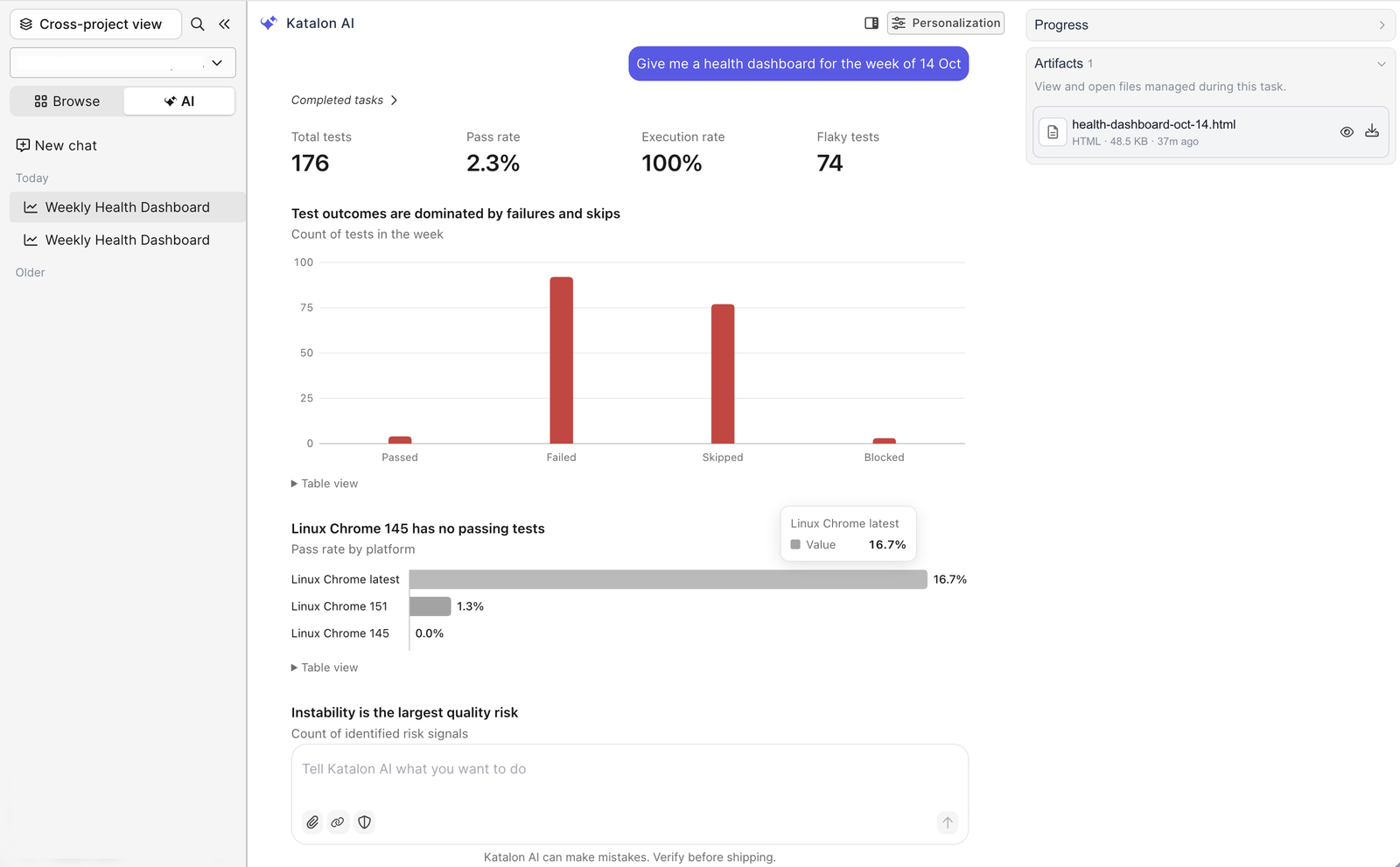
- What's new: Katalon AI can answer a data question with a chart page inside the chat, above its reply. For example, ask for a health dashboard for a week to get KPI tiles, an outcome bar chart, and a pass rate by platform chart. Each chart has a Table view toggle. The page is also saved under Artifacts. Charts work in the full Katalon AI page and in the side panel.
- Why this matters: Trend and breakdown answers are easier to read as charts, and you can check each chart against its table without leaving the conversation.
This feature is in early access and is being rolled out by organization. Pages larger than 2 MiB are not displayed. Links in a chart page open only http and https addresses, and Katalon AI asks before it opens another site.
New Run with AI interface with a TestCloud environment picker
- What's new: The new Run with AI interface is now on for all users. In the Run with AI dialog, the Environment field opens a TestCloud picker for desktop browsers. Select the OS, then the browser, then the version. The run banner shows the selected browser.
- Why this matters: When you start Run with AI from a test list, you can choose the exact OS and browser for the run in the same dialog.
The choices depend on your TestCloud license:
- Licensed: Linux, Windows, or macOS with Chrome or Edge, stable versions only. The default is the newest stable Chrome on Linux.
- Unlicensed: Chrome on Linux or Windows, latest stable version only. The dialog shows a warning.
- If Katalon cannot read your license, the dialog shows Could not load license information and offers the unlicensed choices.
See Run with AI for the updated steps.
Enhancements
- After Katalon AI creates, moves, duplicates, or updates a test case, test suite, or folder, its reply ends with a direct link to the item, such as Open the test suite. Agents connected through the Katalon MCP server get the same link in the tool response. See Katalon True MCP Server.
- In Admin > Configurations > AI Services > Edit Account AI Key, each selector under Model per Capability Tier has a Search models input. Search matches the model name and model ID and ignores case. The saved model changes only when you select a model and save.
- Memory suggestions skip short-lived notes, do not suggest the same lesson twice, and keep the latest wording of a correction.
- Each Jira project integration can specify which issue types appear as defects in Report Defect, rather than recognizing only the Bug type. See Jira integration.
- Add Test Step and Call Test Case now start directly from View mode, entering Edit mode through the existing draft flow without a separate switch to Edit first.
- Secrets in Katalon True now accept values up to 48 KB, including longer API tokens.
- The new Mobile Browser Live Testing interface lists the remaining supported browser and OS versions, so you do not need to return to the old picker to select them.
- Test case detail panels use a consistent layout, and icon-only controls in test management have tooltips.
- Accessibility updates across Tests, Plans, Live Testing, Analytics, Project Settings, Account, and Get Started include accessible control names, layout reflow at 200% zoom, and clearer form errors.
Fixes
- An AI run now ends as Failed when the AI model service, the AI provider quota, or Katalon Tunnel fails. Before, the run could stay Running. Each test case shows the cause in the AI Verdict panel under Why this test case did not pass, with a Rerun button.
- In Executions > AI Sessions > Test Steps, step icons and counters now update while the run advances. You no longer need to refresh the page.
- When you rerun an AI test run that someone else started, the executor is now set to you. You can still change the executor to schedule the rerun for someone else. Manual test run reruns work the same way.
- When Save all fails for some AI-generated test cases, each failed row in the Katalon AI side panel shows the cause and a way to fix it. For a duplicate title, the row shows Needs changes with Rename and Change folder, and Katalon AI asks how you want to resolve the conflict.
- A draft that you ask Katalon AI to discard after a failed save now leaves the list. Other saved cases stay.
- The Azure DevOps result-push dialog restores your saved project, test plan, and test suite when the token has access. Insufficient access now shows a recovery message instead of an internal error.
- Report Defect now creates the Jira issue and links it to the test result instead of failing with Invalid Jira ID.
- Save & Create Another clears the previous test case's data before you enter the next case.
- Opening an execution from a notification now loads its details instead of leaving the page loading with Invalid time range.
- The breadcrumb in test case details returns to the page you opened the case from, including Test Cases or Test Suites.
- Xray result pushes preselect the last-used integration and parent story for each project. You can still change either selection.
- Edits to automated test case information now persist after saving and refreshing instead of reverting to the previous values.
- Reruns using an inactive tunnel now move to Error instead of remaining queued, and the log identifies the inactive tunnel.
- Sessions no longer remain at Created when a device is unavailable or the live-session limit is reached. Queued sessions also clear automatically after a Katalon Studio session-creation error.
- Katalon True MCP test case and folder writes no longer intermittently time out during concurrent Run with AI activity; failures return an actionable error.
- The Katalon Playwright reporter completes imports for specifications with duplicate
describetitles instead of leaving executions at Importing. The reporter package also includes TypeScript declarations so strict TypeScript builds no longer fail because declarations are missing.
Known issues
- If the AI runner restarts in the middle of a run, the run can stay open. Cancel the run and start it again.
- An AI run can stay Pending when startup planning fails.
October 15, 2026
New features
Use separate Azure DevOps credentials for each project
- What's new: Project admins can enter and rotate a personal access token (PAT) for their project's Azure DevOps integration when an account admin permits project-level credentials.
- Why this matters: Projects with different Azure DevOps access requirements no longer need to share one account-level credential.
- How it works:
See Azure DevOps integration for setup requirements and the Use project PAT option.
Track TestPak execution progress
- What's new: An always-visible TestPak summary shows live execution progress and counts for Passed, Blocked, Failed, and Skipped results.
- Why this matters: You can check progress and outcomes without opening each test case.
- How it works:
Personalize what Katalon AI learns from conversations
- What's new: After a conversation becomes idle, Katalon AI can suggest a personal project memory based on a correction or preference you shared. A notification in a later chat and the Personalization panel let you review the suggestion, see the quote it came from, and accept, edit, or dismiss it. Project-wide agent rules suggested from chats appear under Needs your review in Project Settings > AI > Agent Rules, where a project admin can review them.
- Why this matters: Repeated guidance can become reusable project context while you control which personal memories and project rules take effect. Suggestions are not used until accepted.
Personal memories apply only to you within that project. Agent rules apply to the project after an admin accepts them. Suggestions appear after the conversation has been idle, rather than immediately.
Edit AI-generated test cases during review
- What's new: Edit a draft's title, description, pre-condition, priority, and steps directly in the Katalon AI side panel. You can add, remove, and reorder steps, or ask Katalon AI in chat to revise the selected case. If Katalon AI changes a case while you are editing it, choose whether to keep your changes or use its changes.
- Why this matters: You can correct generated cases before saving them without leaving the review flow or regenerating the whole set.
Select Full review in the review widget header to compare drafts with their source before saving.
Keep credentials out of AI answers and generated test steps
Katalon AI redacts password values in its replies and generated content. When a test step needs a stored secret, it uses a Secret Hub reference such as <<PasswordName>> or asks you to create the secret. Generated test cases retain the requested secret reference instead of inserting its value.
Store the credential in Secret Hub and refer to its name when asking Katalon AI to generate login tests. If you explicitly enter a password into a step, it can still be stored in that step, so use a secret reference for sensitive values.
Choose a Tunnel when starting Run with AI from a test
The Run with AI dialog now offers a Tunnel or IP whitelisting choice when you start from the Test Case list, Test Suite list, or a test case page. You can start a test against an app on a private network without navigating to Executions first.
Enhancements
- Katalon AI and agents connected through the Katalon MCP server can start a run from an existing TestPak, either as a manual run or a hosted Katalon AI session, and receive a link to the run.
- The Full review link is now in the header of the AI-generated test case review widget.
- Export uses your selected test cases or the current filtered view, including cases in selected folders and their subfolders. See Export test cases.
- When you leave a test case mid-edit, you can recover the unsaved draft when you enter Edit mode again without replacing the latest saved version.
- After you push an automated test run result to Azure DevOps or Xray, the integration result on the Test Run page updates without a manual refresh.
- Breadcrumb links support opening destinations in a new tab, with consistent navigation across modules.
- Accessibility updates across Home, Plans, Analytics, Executions, Project Settings, and Account include keyboard access to the Plans timeline, accessible names for icon controls, and clearer color contrast.
Changes
- The Katalon Studio download entry has moved from the sidebar to the user menu.
Fixes
- Open the review page in Katalon AI's test-generation reply opens the generated drafts. If a review link cannot be created, the reply directs you to the review panel.
- Save all and Discard all now complete as a batch for large sets of AI-generated test cases, avoiding partial saves caused by timeouts.
- Future-dated manual test runs now schedule successfully and their details page loads instead of showing Unexpected Application Error.
- Run with AI executes test cases containing Call Test Case steps instead of failing on the referenced cases.
- The Analytics & Trends dashboard returns its AI-generated briefing instead of failing, and multi-project dashboards load in the EU environment instead of showing an access error.
- Large test suite lists scroll to the final test cases instead of cutting off the bottom of the list.
- The version indicator and Update version button stay aligned when a test case has a long name.
- Organizations with only a Private Device license can open the environment selector and schedule a test run instead of being asked to obtain another license.
- Runs using Sauce Labs devices no longer intermittently fail at startup because the Sauce Connect tunnel is not yet reachable.
- The Android live stream no longer flickers black during execution, allowing Spy Object capture to work.
- True Parallel and Standalone executions leave Running when they finish or encounter an error. Standalone session usage also clears when execution ends instead of blocking later runs.
- License assignment in the new Live Desktop interface now works consistently with the previous interface.
- The Tester filter in the requirements list no longer crashes the page. Requirement breadcrumbs also reflect whether you opened the requirement from Releases or Timeline.
- Deleting a test case with a missing linked integration now shows an actionable message instead of a raw error. Adding tags to a Git test suite without a configured PAT also explains which credential you need to configure.
- The Azure DevOps import wizard lets you create a destination folder without leaving the wizard.
- Updating a repository waits for a confirmed sync instead of creating blank duplicate test cases from a stale repository state.
- The Test Cases system-field count excludes deleted cases and archived repositories instead of counting them as active cases.
- Audit Trail records test case and suite creation through imports, ZIP uploads, Git integration, and repository refresh, as well as defect linking and unlinking. Requirement sync produces one consolidated activity entry instead of one entry per item.
October 8, 2026
New features
Update a test case during a manual execution
- What's new: The run owner can explicitly update a test case in an active TestPak execution to its latest version. Results and evidence for unchanged steps are retained.
- Why this matters: Testers can use a corrected test case without restarting the whole execution or losing completed work.
See Manage test case versions and the demo below for the updated workflow.
Compare test case versions
- What's new: Compare two versions side by side to see changes to test case details and steps. Each version card also shows a short change summary.
- Why this matters: Reviewers can see what changed before choosing a version to execute or restore.
See Manage test case versions and the demo below for more details.
Push manual results to the intended Azure DevOps or Xray execution
- Azure DevOps: Select the target Test Suite when configuring a result push. Katalon resolves the corresponding Test Point for the suite and configuration instead of sending results to the root suite's point.
- Xray: If the mapped Jira project offers the Sub Test Execution issue type, select it in the Xray configuration. When pushing a result, choose its parent story and, optionally, an existing Sub Test Execution.
Attach files to defect reports
The Create bug flow now accepts documents, PDFs, videos, and log files in addition to images. These files are attached to the resulting Jira or Azure DevOps issue. The Jira defect form also supports more required field types, including Team.
Review AI-generated test cases beside their source
Full review now shows the source used to generate test cases, including a requirement, pasted text, an uploaded document or image, or an issue read through MCP. For uploaded files, Open original opens the file and Download saves it. You can check each draft against its source before saving.
Manage Test Suite folders in Katalon Cloud
You can rename, move, duplicate, and delete Test Suite folders, using the same folder operations available for Test Case folders.
Enhancements
- Project Settings > AI > Knowledge Base groups its status, last update, and counts of indexed content in one view.
- The test case Activities tab identifies the person who requested a Katalon AI edit and labels the action via Katalon AI.
- Files attached in Katalon AI chat are read by Katalon AI without browser-side conversion, improving handling of complex files such as multi-sheet spreadsheets.
- Katalon AI's Progress, Artifacts, and Test cases side-panel sections open automatically when they contain items.
- Links to test cases and other resources returned by Katalon AI or the MCP server use the workspace's production host.
- Dashboard table cells can link directly to their underlying records when configured, making it easier to investigate a test run from a dashboard.
- The automated test run creation dialog shows the full OS and browser configuration instead of clipping its label.
- Test result details show versioned test management fields again.
- Home and Executions include accessibility improvements to keyboard focus, labels, error identification, zoom reflow, motion controls, and ARIA behavior.
- Live Testing restores the selected app, configuration, URL, environment, and private or local testing settings after a session. Accounts with a private device pool can select Private Devices in the new Mobile Browser and Mobile App Live Testing interface.
- The Parallel Sessions page shows queued sessions alongside running sessions for the Private Devices license type.
- The self-hosted agent rule builder shows Agent name and Hostname as the available matching conditions.
Fixes
- When an account admin explicitly turns AI off, the server rejects Katalon True AI requests from that account before calling a model provider.
- Asking Katalon AI to read or summarize a requirement no longer creates test cases unless you request generation.
- Test case generation recovers when Katalon AI mistakenly looks for its built-in generation tool in the MCP catalog.
- Cross-project dashboards load on the first selection without requiring a refresh.
- Mark all as read in notifications no longer intermittently times out.
- Repository resync no longer times out while cleaning up orphaned Test Suites.
- PDF attachments preview in defect reports, and Azure DevOps attachment names display separately.
- Azure DevOps Test Cases with Shared Steps now import those steps.
- The Jira add-on maps Skipped and Blocked test result statuses correctly.
- Git repositories and folders in the Tests tree load on the first click; the tree also remembers the last selected repository.
- Accepted AI-generated test cases save successfully instead of failing with a create error.
October 1, 2026
New features
Project context settings for Katalon AI
- What's new: Project Settings > AI now brings together three sources that Katalon AI reads before it answers or acts in a project.
- Knowledge Base: Project data and uploaded documents.
- Agent Rules: Project-wide standards for AI agents.
- Project Memory: Personal preferences for the project.
- MCP & Skills: AI client connections and reusable testing workflows.
- Why this matters: Katalon AI can use shared project standards, personal preferences, project data, uploaded documents, and connected AI-agent workflows while respecting existing permissions.
See AI settings for setup instructions and details.
Review files created by Katalon AI in chat side panel
- What's new: Files created or saved by Katalon AI now appear as cards at the end of its replies, making them easy to find and open without using the collapsed side pane. HTML files open as rendered previews in the artifact panel, including charts, with Expand, Show source, and Download options. Files larger than 10 MB can be downloaded for viewing.
- Why this matters: You can review Katalon AI's output directly in the conversation where you requested it.
- How it works: Ask Katalon AI to create or export a file, then select its card to open it in chat.
Enhancements
- Katalon AI test case generation from requirements is more reliable: follow-up questions now appear on Requirement Detail, recommended choices are labeled, generation recovers from transient tool errors, and Refresh no longer fails in the test case side widget.
- The live execution video appears faster, lags less, and keeps playing when you expand it.
- Katalon AI and MCP clients can search test cases under a folder and all its subfolders, so a parent folder no longer reports a false zero.
- Long snake_case test case names wrap in the Katalon AI side rail instead of overflowing the chat layout.
- The Project AI permission reads AI instead of Knw in the permission matrix and role previews. Existing roles keep working.
September 24, 2026
New features
Test case versions and activities
- What's new: Test case authoring now uses intentional Save and Save & publish actions instead of auto-save. The revamped details page includes Versions and Activity tabs, version status, author and source attribution, historical views, restore, discard-working-changes, activity filters, and unsaved-change protection.
- Why this matters: You can control when changes become versions, audit test-case history, and restore earlier content without overwriting it.
- How it works: Use the header save controls to create a draft or publish a major version. Open Versions or Activity to review history, restore a version, filter activity, or discard working changes.
Mixed web and mobile-native test runs
- What's new: An automated test run can include suites configured for Desktop & Mobile Browser, Mobile Native App, or Web Services.
- Why this matters: Teams can run mixed web and mobile-native coverage together without splitting it into separate runs.
- How it works: Configure the test type on each suite when you're configuring the test; the run-level Test Run Type selector is no longer required.
Automatically select an available self-hosted agent
- What's new: Schedules and automated runs can select an available self-hosted agent automatically, with optional operating system, agent name, and hostname rules.
- Why this matters: Runs are less dependent on one pinned agent and can use available capacity at trigger time.
- How it works: Select Auto-select available agent and add rules when needed.
Run-level test data in custom charts
- What's new: The custom chart builder now includes a Test Runs dataset with run identity, method, status, duration, executor, release, sprint, build, and source fields.
- Why this matters: You can chart pass/fail trends and duration at run level.
- How it works: Choose Test Runs in the custom chart builder and select the fields to visualize.
Potential conflicts in Katalon AI responses
- What's new: When Katalon AI generates test cases or analyzes a requirement using your project's AI knowledge base, the response now ends with a Potential conflicts section. Each conflict names the requirement clause and the source that contradicts it, marks whether that source is a declared link or a document retrieved from the knowledge base, and suggests a fix. When nothing conflicts, the section says None found and lists what it checked, for example a PRD and related requirements.
- Why this matters: A requirement that says one thing while a PRD in your knowledge base says another used to produce test cases built on whichever version the model picked, and you found out in review or in a failed run. Now the disagreement is named, with both sources, before you save any drafts.
- How it works: Upload your PRDs and specs to the project's AI knowledge base, then ask Katalon AI to generate test cases for a requirement or analyze its readiness. Read the Potential conflicts section before you save the drafts, fix the conflict at its source, and regenerate if needed. The section only informs you; Katalon AI takes no action on it. If the knowledge base is empty, rebuilding, failed, or out of date, the response says it could not check. See Review potential conflicts.
Acceptance Criteria and other Jira-mapped fields in Katalon AI
- What's new: Katalon AI now reads every custom field that your Jira integration's Requirement fields mapping brings into a requirement, including Acceptance Criteria, Steps to Reproduce, and mapped fields of any type, such as text, checklist, and option. It uses those values when it answers questions about a requirement, generates test cases, and asks clarification questions during requirement analysis. Access is read-only; Katalon AI does not write back to Jira.
- Why this matters: Acceptance Criteria is where most teams write the testable part of a story. Previously, a requirement could show a full checklist on screen while Katalon AI answered that it had no acceptance criteria recorded, and test generation worked from the description alone. Generated test cases now trace to the criteria your team agreed on.
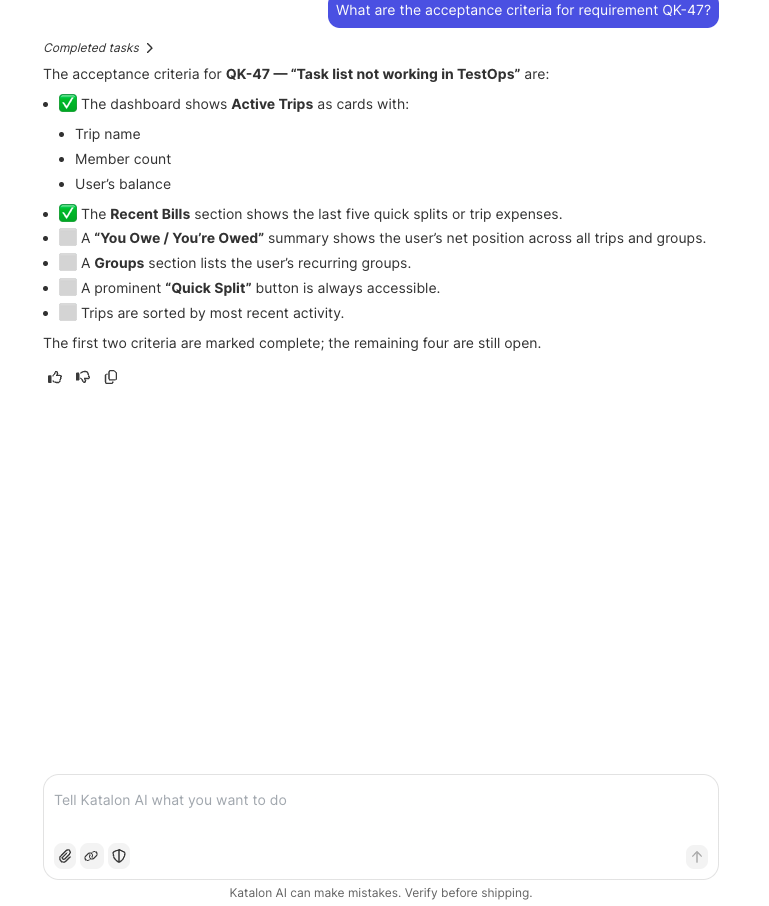
- How it works: Map the fields in your Jira integration, then ask Katalon AI a question such as
What are the acceptance criteria for requirement ABC-123?to get the checklist with its completion state. Test generation and requirement analysis pick up the same fields automatically. See Use Jira-mapped requirement fields.
MCP tools for recording and reviewing test results
- What's new: The Katalon True MCP server adds the
update_test_resultstool with two modes. Manual record writes case and step status, actual-result notes, and evidence for a manual test run, without ending the run or changing the test case. Automated review changes the status of one result in a completed automated run; you supply the status you expect the result to have now, and a result already in the target status is left unchanged. - Why this matters: MCP clients could read test results but not write them, so an agent that ran a manual check in Claude Code or Codex had to hand the outcome to a person for data entry. Now the agent records the result, with its evidence, where it belongs.
Enhancements
- Test case custom fields and tags are available as filters across filterable TestOps views, including Automation Progress Analysis.
- Azure DevOps imports now map Automation Status to the True Platform test case.
- TestCloud Applications now supports automatic failure of stuck uploads, OS and status filters, broader search, sortable and resizable columns, an Uploaded By column, clearer tooltips, and a sticky action column.
- TestCloud
openBrowsernow forwards standard and vendor WebDriver capabilities alongsidekatalon:options. - Empty suites release reserved execution quota after completion.
- Test-case versions record actor and source, including AI attribution.
- Agents that build test runs over MCP with
create_test_runnow send canonical values downstream, for exampleDESKTOP_AND_MOBILE_BROWSERwhen you ask for "desktop and mobile browser", so display values no longer reach scheduling and fail there. The helper toolsbuild_scheduleandbuild_run_configurationare described as local builders that create nothing, and a wrong or legacy field name returns an error that names the field to send. find_test_cases_by_requirementnow acceptsrequirement_id, the requirement's internal ID in Katalon True Platform, alongside the ALM key and the external issue ID. Agents that already hold a requirement record can list its linked test cases without looking up the Jira key first. Supply exactly one identifier; zero or more than one returns a validation error.- Knowledge-base document ingestion now handles large and concurrent uploads reliably.
Fixes
- Jira-synced sprints and releases now load promptly in Plans > Timeline.
- Large test case imports now complete successfully, including imports with large volumes of content.
- Valid root folders now load correctly in the repository.
- Inactive Azure DevOps integrations are no longer selected automatically.
- Test-case rows-per-page preferences now persist when navigating between pages.
- When test-case versioning is disabled, automation test cases can be duplicated, moved, and deleted.
- Linux Chrome Playwright sessions now connect and execute successfully.
- AI Runner now completes logins where the email OTP is six single-digit boxes in one group. Previously, the runner stopped with "email OTP target is ambiguous" before calling your OTP provider, and the login never completed. The runner now treats the group as one OTP target, fills the fresh code, and continues, without storing the code or credentials.
- Katalon AI now reads the automation status field directly, both when reading a test case and when filtering. Previously, it inferred automation status from test type or incomplete data, for example answering "Automated 10, Manual 10" for cases spread across four automation statuses.
- Katalon AI now reports generated test cases as saved when the save succeeds, and saves still in progress resolve to their final result. Previously, it could say "No test cases were created" while the cases landed in the right folder moments later, and teams re-ran generation and created duplicates.
- Agent rules CSV exports now escape double quotes, so every exported rule imports into another project. Previously, a rule such as
Use the "Smoke" suitesplit into the wrong columns on import and was skipped.
Changes
- The
search_external_tool_opsandrun_external_skilltools are no longer listed or callable for MCP clients connecting to Katalon True Platform. Connector actions inside Katalon AI chat, such as reading an Azure DevOps work item, keep working. If an external agent or script called either tool, remove that call.
Known limitations
- A generated draft can occasionally fail to save. When it does, the draft stays in the review panel behind a Save (1) button; click it to save the draft.
- Links returned by MCP write tools, such as
create_test_run, are still relative. Absolute links cover read tools in this release.
September 17, 2026
New features
Configurable Jira requirement-field mapping
- What's new: You can map any Jira field, including Acceptance Criteria, Steps to Reproduce, and custom fields, into the Requirements view.
- Why this matters: Testers can use structured requirement content even when it is not stored in Jira’s Description field.
- How it works: Configure the Jira requirement-field mapping for the fields your team wants to display.
Restore a previous test-case version as the latest
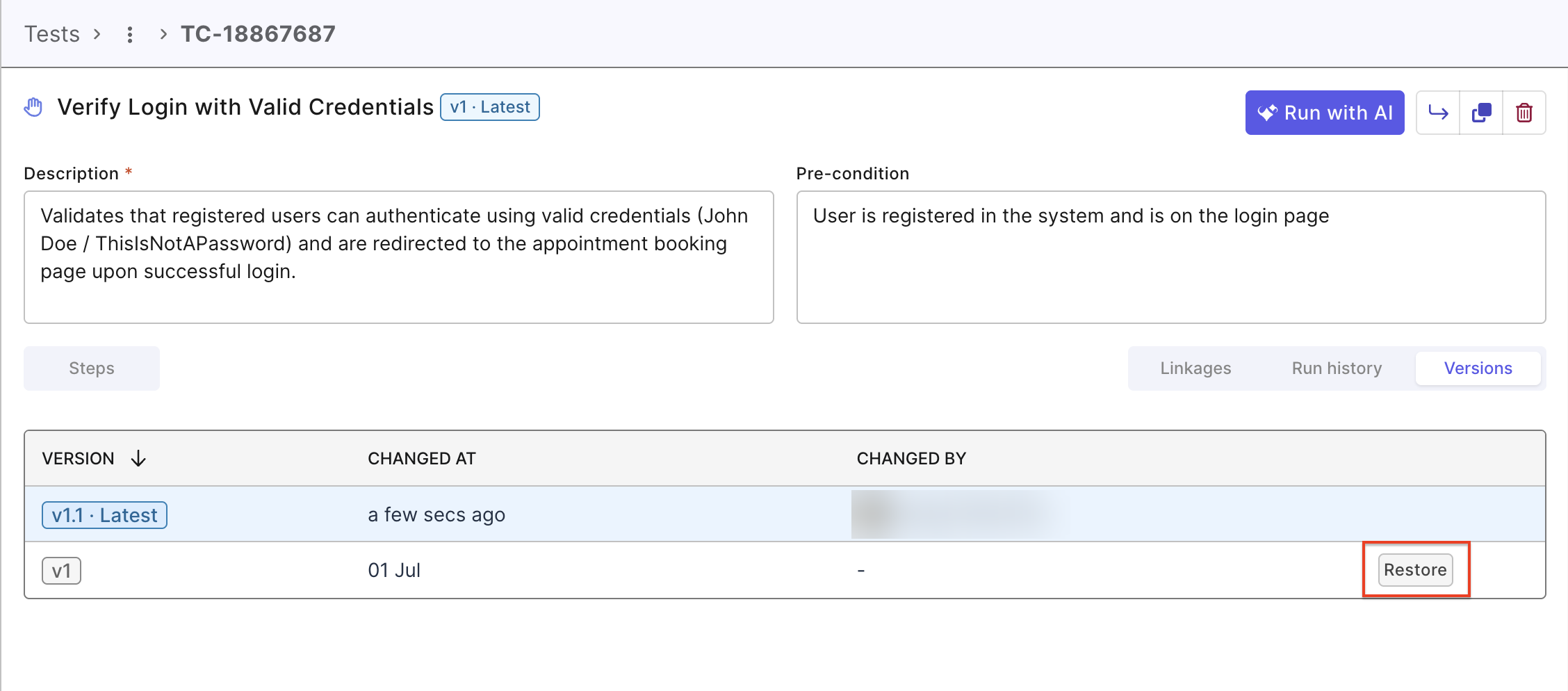
- What's new: Restoring an older version creates a new latest version while preserving the complete history.
- Why this matters: You can recover earlier content without overwriting the audit trail.
- How it works: Choose Restore from a historical version.
Enhancements
- Defect Report now has the same rich-text editor as manual test steps, including inserted and uploaded images.
- The repository pane now guides users to set up a Git personal access token when a write credential is missing.
- Test-suite tag changes now commit to the linked Git repository.
- The Import ADO Test Cases dialog now explains when no ADO integration is configured and links to Settings > Integrations.
- Scanned automation test cases now record an author based on the Git commit identity.
Fixes
- Large-volume and large-content imports now complete instead of failing with a generic invocation error.
- Push dialogs now exclude inactive ADO integrations and select an active integration by default.
- Jira-synced sprint and release data now appears within the complex-API service-level objective.
September 10, 2026
New features
Cross-project dashboards
- What's new: Dashboards are now a top-level destination, with an all-project view by default and a template gallery for creation.
- Why this matters: You can monitor and report across projects without first entering a specific project or building every dashboard from a blank canvas.
- How it works: Go to the Cross-project view to access the one list of custom dashboards from every project you can access. Each row shows its owning Project and links to that project’s existing dashboard route.
Import Azure DevOps test cases
- What's new: You can import Azure DevOps test cases directly into a Katalon Cloud folder, including names, descriptions, steps, expected results, status, and priority.
- Why this matters: This removes the CSV-export step when teams bring Azure DevOps-authored tests into Katalon True Platform.
- How it works: Make sure you have Azure DevOps integration enabled. Then, navigate to Tests > + Create and select the option Import ADO Test Cases.
Choose your AI agent
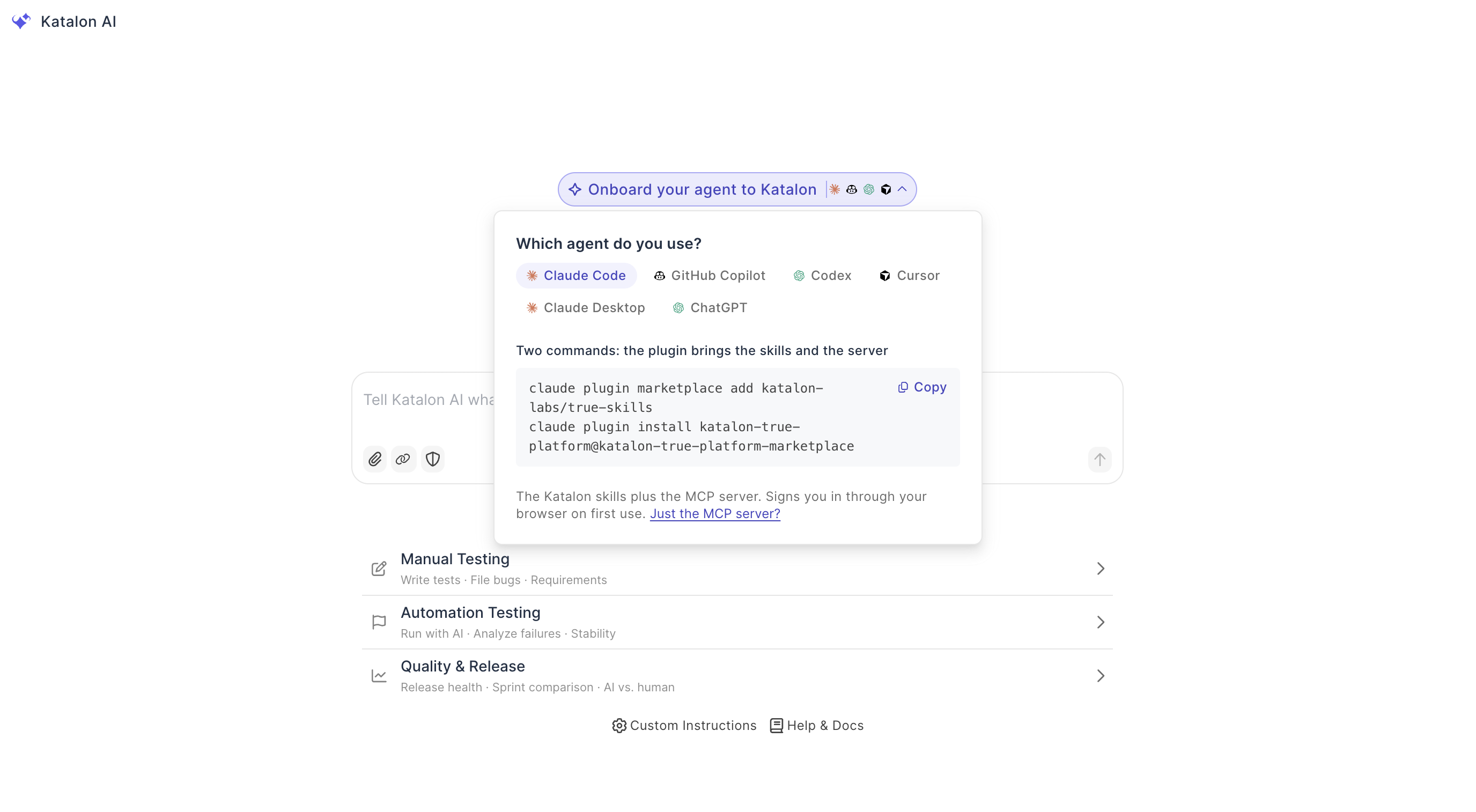
- What's new: Katalon True Platform now presents a choice between Katalon AI and your own agent in the product.
- Why this matters: Teams can use their preferred agent approach in the same workflow.
Tags for execution work
- What's new: You can add and query tags on test suites, test runs, and test results—not only on test cases.
- Why this matters: Teams can group, find, and report on executions without copying the same tag across many individual test cases.
Enhancements
Enhancements
- Test-case CSV and Word exports now include customizable-field values. Word exports embed step images inline instead of presenting them as attachments.
- Sort order, filters, rows per page, and column layout now remain in place while you navigate folders and modules in Test Cases, Test Suites, Test Runs, and Reports.
- Katalon AI Runner can now handle email one-time passwords during login steps.
- Katalon AI connectors now support Azure DevOps personal access token authentication for MCP connections.
- Knowledge-base work is more actionable with project-level ingestion controls, public knowledge-base ingestion, and clearer file-upload and processing feedback. [TODO: verify final user-visible scope with PM]
Changes
- Folder, test-case, and test-suite names now accept common special characters, including parentheses, commas, periods, hyphens, underscores, plus signs, ampersands, equals signs, and apostrophes.
- New manual test suites open with a default name, and requirement mapping no longer shows Test Management work-item types that cannot be mapped.
August 27, 2026
Enhancements
- In Project Configuration, Feature Areas, Test Types, and Tags now show usage counts and can be renamed or merged.
- Playwright runs triggered from Katalon True Platform now use the existing Katalon Tunnel or IP Allowed List selection when testing private applications. You do not need to reconfigure your tunnel or allowed list.
August 19, 2026
New features
Manual test cases versioning
- What's new: Manual test cases now have fixed major and minor version history with Draft and Published states. You can select a version when creating a run, see the retained version on the run record, and restore a previous version from Change History.
- Why this matters: You can preserve an auditable history of test case changes and run tests against a specific version without overwriting earlier content.
- How it works: Changes are retained as versioned snapshots. Open Change History to review, compare, or restore an earlier version, and select the required version when creating a test run. Watch the demo video or see Manage manual test case versions for details.
Enhancements
Enhancements
- Executions on Linux environments now provide network logs for troubleshooting network activity.
August 12, 2026
Enhancements
- Word and CSV test case exports now preserve attachments. Supported attachments appear inline where the export format supports them, and the delivered ZIP includes an
attachments/directory alongside the exported file. Files that cannot be resolved remain visibly marked. - Audit trails now record folder, test suite, test run, rerun, schedule, tag, and custom field actions with the actual actor and populated change details.
- You can now create folders for test suites and rename a test case or test suite inline from its details view.
- Before a multi-test AI run, you can choose one shared browser profile or separate isolated profiles.
- Content fetched from connected apps remains available when Katalon AI Assistant generates test scenarios.
- Katalon AI Assistant answers now appear progressively instead of arriving all at once.
- AI session results now have clearer empty states, status and duration summaries, and appropriately enabled Re-run and Create defect actions.
Fixes
Fixes
- Returning to a file-upload conversation now restores its first message instead of leaving the conversation loading indefinitely.
- Image-only PDF artifacts now provide more complete content for AI-assisted test case suggestions.
- Reselecting an execution environment no longer prevents a Run with AI execution from using its selected private tunnel.
August 6, 2026
New features
Updated Test Case list and details
- What's new: The Test Cases workspace now has a compact filter bar that keeps filters applied as you navigate. Test Case IDs have their own column, test type icons appear next to test case names, and a new toggle lets you hide child folders. The test case details page now places Description and Pre-condition side by side, centers the steps table and rich-text toolbar, organizes Linkages, Run history, and Change History into tabs, and moves metadata into a collapsible Additional Information sidebar. You can also edit assignee, priority, status, and automation status directly from the list or details page.
- Why this matters: You can find and update test cases faster without losing your filter context or opening a separate edit form.
Existing bookmarks and shared URLs continue to work because test case IDs and routes have not changed.
Run AI-assisted tests on Windows environments (early access)
- What's new: Run with AI now supports Windows (Chrome) in early access, in addition to the default Linux (Chrome) environment. Select an environment when starting a run from the Test Case list, Test Suite list, or Test Case details page. If the configured environment is not supported, select a supported environment for the current execution. This feature is being rolled out by organization.
- Why this matters: You can run AI-assisted tests on Windows when your application requires a Windows environment.
Video recording is not yet supported for Windows runs. Step results and screenshots remain available, and the Video tab displays a not-supported message. See Run a manual test with AI.
Shared test steps with Call Test Case
- What's new: A test case can now call another test case, allowing you to reuse shared steps. Add call steps manually or ask the AI Assistant to add them to existing test cases. This feature is being rolled out by organization.
- Why this matters: You can maintain shared flows, such as login, in one test case. Updates apply everywhere that test case is called.
Enhancements
Enhancements
- The test case detail breadcrumb and the browser tab title now show the test case name instead of the raw ID.
Fixes
Fixes
- The AI Assistant now returns an exact "requirement not found" error for an unknown requirement ID or key instead of a message about project membership.
- The test case count reported by the AI Assistant now matches the number of test cases generated and saved.
- Test cases generated from a requirement now follow the requirement's story order when ordered output is requested.
- AI test scenario generation no longer fails when the optional priority field is omitted.
- Auto Sequence runs no longer fail intermittently with "The AI service is temporarily unavailable."
- Updating schedules in bulk with the AI Assistant no longer duplicates existing Test Suite Configurations.
- The AI Assistant now reports the current status of an in-progress AI run instead of inferring the status from the conversation.
- Looking up an unknown requirement ID or key now returns a not-found response instead of an internal server error.
- Figma context requests now retrieve a specific node when possible and provide retry guidance when a request is rate-limited.
- Personal Preferences no longer cause unrelated read-only Katalon AI Assistant requests to create test cases.
August 5, 2026
New features
Run and manage Playwright tests in True Platform
- What's new: You can connect and import a compatible Playwright project into Katalon True Platform, discover its tests, suites, and profiles, and select a suite and profile to run and review.
- Why this matters: Teams using Playwright can bring supported projects into their Katalon testing workflow without recreating their test structure.
Configure email reports for automated runs
- What's new: You can configure an Email Report for an ad-hoc or scheduled automated run, select role-based, individual, or external recipients, and optionally customize the subject.
- Why this matters: Run results can be delivered automatically to the stakeholders who need them.
- How it works:
See Configure email report for a test run.
Enhancements
Enhancements
- Call Test Case steps now let you record pass or fail results during a manual run.
- In Plans > Timeline, you can scroll and zoom the Gantt view and use its grab cursor and scrollbar to navigate the timeline.
Fixes
Fixes
- Azure DevOps and Xray result links now open the related Katalon result when you belong to multiple accounts. Previously, the links could omit the account context needed to open the result.
- TestPak no longer fails when manual content or its presigned URL is missing and test case versioning is disabled. Previously, TestPak could incorrectly fall back to a versioned-content endpoint.
- SSO sign-in now completes the configured authentication flow for affected EU custom domains. Previously, a domain mismatch could redirect users to an unexpected authentication screen.
- In the EU environment, Account > License Utilization > True Platform - User Sessions now displays user, email, session, license, and timestamp data correctly.
July 29, 2026
New features
Select a Git branch when scheduling a test run
- What's new: You can select any branch from a connected Git repository when scheduling an automated test run, without configuring a separate test repository for each branch.
- Why this matters: Teams can run feature-branch tests sooner and manage fewer repository integrations while keeping existing branch-pinned integrations working as before.
Enhancements
Enhancements
- When you add an automated test suite to a scheduled run, its default execution profile is now selected automatically.
- Azure DevOps integrations now support the Push on passing runs strategy, which pushes results only when every test in the run passes.
- A repository that is still syncing no longer blocks you from viewing its folders or working with its content in Katalon True Platform.
Fixes
Fixes
- Test case results can now be updated during an in-progress manual run. Previously, an intermittent timer error could prevent the result from being saved.
- Empty test folders created in the UI can now be deleted without a repository publishing error.
- The Tests Management page now loads correctly in the EU environment instead of displaying an internal database error.
- Sprints now appear as soon as Plan > Timeline loads. Previously, a sprint might not appear until you refreshed or scrolled the page.
- A test suite run with multiple environments now creates one Azure DevOps test run for the complete suite instead of one run per environment.
- Azure DevOps now creates a test run even when no test cases are linked, matching the behavior of Xray.
- Katalon Test Execution Cloud sessions now expose the standard Selenium DevTools capabilities, so Selenium Java tests can open DevTools sessions normally.
- Azure DevOps integrations now show the human-readable board name in Project Settings > Integrations instead of the board ID.
July 27, 2026
Enhancements
- The TestCloud Keywords plugin now supports the Download File keyword for Linux New Hub and Standalone executions triggered from Katalon Studio or Katalon True Platform.
July 22, 2026
New features
Export test cases to Word
- What's new: You can export test cases in Microsoft Word (
.docx) format for formatted review, sharing, and submission workflows. - Why this matters: Teams that require document-based test evidence can produce formatted test case documents without manually recreating test content.
Select Xray issue types from Jira
- What's new: The Xray setup page now loads Test Case, Test Plan, and Test Execution issue types from the connected Jira project into dropdown menus.
- Why this matters: You no longer need to enter exact issue-type names manually, reducing integration configuration errors.
Enhancements
Enhancements
- Scheduled manual test runs now support Azure DevOps and Xray integrations, including automatic result pushes.
- You can now create, view, update, and delete content in Git repositories configured with a target directory.
- Attachments in saved manual test steps now appear inline on read-only review and TestPak execution screens.
- Manual test views now load more quickly after optimization of frequently used test-data queries.
Fixes
Fixes
- Test result start-time tooltips now show the correct date and time instead of an incorrect historical year.
- Scheduled runs now display the configured ALM integration and select it automatically when only one integration is available.
- Large test repositories can now complete repository scanning without exceeding message-size limits.
- Azure DevOps test runs now report the same duration as the corresponding Katalon True Platform run.
- Markdown tables, code blocks, and inline code now render correctly while a Test Runner step is in progress.
- Changing the Azure DevOps project now clears the previously selected test plan so you can select a valid plan for the new project.
- After results are pushed, Test Run Details now includes a link to the corresponding Azure DevOps test run.
- Azure DevOps test runs now complete with the correct outcome when a project has multiple Azure DevOps integrations.
July 15, 2026
New features
Format manual test steps and add attachments
- What's new: Manual test steps now support rich-text formatting, inline screenshots, file attachments, attachment previews, and editing one step at a time. PDF, DOCX, and CSV attachments show preview thumbnails when available.
- Why this matters: Testers can keep detailed instructions and supporting evidence inside each step without maintaining separate files or editing the entire step list.
Edit multiple test cases at once
- What's new: From Tests > Test Cases, you can update the status, type, and editable custom fields for multiple selected test cases in one action.
- Why this matters: Teams can move groups of test cases through review and publishing workflows without opening and editing each test case separately.
Enhancements
Enhancements
- You can reinstall an application directly from a live testing session without ending the session first.
- Eligible applications in the Application List now include a Download action. Dynamic Apps do not show this action.
- Azure DevOps Test Case, Test Suite, Task, Issue, and Test Plan mappings are now detected and populated automatically during integration setup.
- Pushed Azure DevOps test results now include a link back to the corresponding Katalon True Platform test result.
- The number beside Available test cases now reflects the current filters, including custom-field filters.
- The release details panel now includes a search box for finding requirements by ID or name.
Fixes
Fixes
- Large supported test-case import files now import all valid test cases instead of failing or creating only a partial result. Files over the supported limit show a clear validation message.
- Bulk test-case actions now work in Git-backed projects.
- Exported Word documents now include all test steps and their action, test data, and expected result values.
- Test cases created by duplicating a folder now retain their test steps, expected results, preconditions, and test data.
- Azure DevOps Test Plans and Test Cases now synchronize even when they are not selected under Work Item Types.
- Git repository content can now be created, updated, and deleted with a valid personal access token and sufficient permissions.
- Test results from Linux executions can now be pushed to Azure DevOps manually or automatically.
- Katalon Cloud test cases and folders now load correctly instead of returning a 503 error.
- Tests can now be duplicated after a Git workspace reaches the Ready state.
- Manual test cases can now be deleted from a Katalon Cloud repository, and the repository views update accordingly.
- Selected Azure DevOps configuration values are now visible on the Schedule Configurations page without opening edit mode.
- Test cases deleted in Azure DevOps are now removed from Katalon True Platform search results.
July 9, 2026
Enhancements
- You can now reach older Katalon AI Assistant conversations by loading additional history, and conversation search returns up to 50 records.
Fixes
- In organizations where GitHub connections are enabled, connected GitHub accounts no longer appear unavailable in Katalon AI Assistant.
- Saved AI-generated test cases now retain the priorities shown before saving instead of resetting them to Medium.
July 8, 2026
New features
Connect external apps to Katalon AI Assistant
- What's new: Katalon AI Assistant can use content from connected Confluence and Google Drive accounts as context for chat and test-generation workflows. GitHub and Figma connections can also provide repository and design context for organizations where those providers are enabled. You can manage available connections and choose which ones Katalon AI Assistant can use in each conversation.
- Why this matters: Teams can work from existing requirements, test data, code changes, and designs without manually copying the source material into chat, giving Katalon AI Assistant more relevant context for testing work.
See Connect external apps to Katalon AI Assistant.
Enhancements
Enhancements
- Azure DevOps connections now support signing in with a Microsoft work account through Microsoft Entra ID OAuth.
- Azure DevOps Test Plans test cases can now be pulled into Katalon, saved, and run.
- Azure DevOps test-case links now support multiple links, configured result pushes, and navigation between Katalon and Azure DevOps runs.
- For accounts that use GitHub App connections, inactive connections can restart the app authorization flow, while uninstalling or disabling the app remains in GitHub organization settings.
- For organizations where Jira connections are enabled, Katalon AI Assistant can use connected Jira issue content as context for testing workflows.
- You can now export the current filtered test-case view to a CSV file.
- Failed AI Runner steps and test cases now show AI-generated verdict and failure-analysis details to help identify what went wrong.
- Katalon AI Assistant now shows clearer in-progress statuses and tool and action details, with refined suggestions and response layouts.
Fixes
Fixes
- The Azure DevOps Test Plan field is now optional when Push manually is selected, and the push strategy displays a readable label instead of an internal value.
- Azure DevOps test case selectors can now load the complete result list without requiring an exact test case ID.
- Test case details now load correctly during active TestPak runs instead of failing when the repository workspace is being prepared.
- Xray test cases can now be linked to Katalon True Platform test cases without an External issue not found error.
- The latest published version of a test case can now be downloaded without an internal server error.
June 18, 2026
New features
Secrets and variables
- What's new: You can now store reusable values—such as base URLs, usernames, and passwords—once per project and use them in your automated and manual test runs. Variables hold non-sensitive values in plain text, while secrets are encrypted and masked as
***so they never appear in logs, screenshots, or reports. See Secrets and variables in test runs. - Why this matters: Your tests can use real credentials and environment values without hard-coding them or exposing sensitive data, so the same run configuration stays safe to share across your team.
June 12, 2026
Enhancements
- AI Test Runner now supports drag-and-drop interactions in web test execution. You can automate more realistic web workflows that depend on moving items, rearranging content, or interacting with drag-and-drop UI components.
- AI Test Runner now handles multi-action steps more reliably, including cases where a step requires an additional click to continue.
- AI Test Runner has improved support for Angular components.
Fixes
- Fixed an issue where Katalon AI Assistant conversations could stop unexpectedly after users answered a follow-up question. Conversations now continue smoothly after users provide the requested information.
- Fixed an issue where Kai could change user-provided steps when creating a manual test case. Kai now keeps the original steps exactly as entered.
- Fixed an issue where renamed or moved test cases could be marked as obsolete in TrueTest. These test cases are now kept correctly, even if their original link is no longer available.
June 11, 2026
New features
Xray integration in Katalon True Platform
- What's new: Xray (Jira) integration is now available in Katalon True Platform. Enable Xray on a Jira-connected project, push test execution results to Xray, configure Xray behavior on scheduled runs, and see the linked Xray Test Execution on your test run details. See Xray Integration.
- Why this matters: Teams that manage tests in Jira with Xray can keep that workflow after moving to Katalon True Platform, instead of losing it when migrating off legacy TestOps.
June 2, 2026
New features
Katalon AI Assistant
- What's new: Katalon AI Assistant now learns project-level context from execution history and user corrections.
- Why this matters: Katalon AI Assistant can better adapt to your project conventions and use accepted corrections to improve future assistance.
AI Test Runner
- What's new: AI Run now supports private or on-premises applications through an existing Katalon TestCloud tunnel.
- Why this matters: You can run AI-assisted tests against applications behind a firewall or on a private network without exposing them to the public internet.
- How it works: Once you have set up an
Activetunnel, you can select to run the execution with AI in the private tunnel. Refer to the dedicated guide here: Run with AI via Katalon Tunnel.
Enhancements
- Katalon AI Assistant now displays generated outputs, follow-up questions, and rich artifacts in a structured side panel.
- Katalon AI Assistant sessions now select relevant tools more reliably before execution.
- Katalon AI Assistant now has improved awareness of browser-tab context when performing browser actions.
Fixes
- Fixed an issue where saving a Katalon AI Assistant-generated test case to the project root or to a named folder could fail with a Test Folder not found error.
May 21, 2026
New features
AI Test Runner
- What's new: You can now run manual tests with AI, handle a wider range of interaction types (viewport steps, native browser dialogs, multi-dropdown forms, pause-and-confirm prompts), and connect AI Test Runner to private or firewalled applications through a secure tunnel.
- Why this matters: Reduces the gap between exploratory testing and automated coverage — AI Test Runner captures what you do and turns it into a reusable script, so manual effort compounds rather than disappears.
Test generation
- What's new: Katalon AI Assistant now supports custom prompts for test generation, uses your existing tests as context, and lets you review, accept, or reject generated test cases as cards directly in chat.
- Why this matters: Generated tests get closer to your actual application out of the box, with less cleanup — and your existing test suite shapes new coverage instead of being ignored.
MCP and skills
- What's new: A consolidated MCP tool set (retiring 20+ legacy tools), entity ID responses for action chaining, a browsable skill library for common workflows, and support for ZIP-based Katalon Studio projects in AI Assistant.
- Why this matters: Any AI agent can now run a full workflow - from create, create → link → run workflow against Katalon True Platform without custom glue code or tool conflicts.
Enhancements
- [Katalon AI Assistant]:
- Katalon AI Assistant now keeps conversations stateful so sessions can persist and resume across refreshes and longer workflows.
- Katalon AI Assistant now asks clarification questions for ambiguous requests before continuing.
- The chat now shows the tools Katalon AI Assistant calls and streams task progress during agent workflows.
- The artifact sidebar now previews and downloads files generated by Katalon AI Assistant within the conversation.
- Katalon AI Assistant can now use screenshots and documentation as context, and has improved understanding of core Katalon True Platform concepts.
- Katalon True Platform now generates a default name when you create a manual test run.
- The dialog for adding test cases or test suites to a manual test run has been improved to make selection clearer.
- [Visual Testing]:
- The Visual Testing review flow has been improved to make checkpoint comparison and resolution easier.
- Unresolved checkpoints are now prioritized first, while all checkpoints remain visible by default.
- Katalon True Platform now supports Bitbucket Data Center repository integration.
- Xray (Jira) synchronization is now more reliable.
- Requirement Traceability Report now helps you map test cases to requirements and identify coverage gaps.
- The home experience for new trial accounts now includes guided first-action cards to help teams start AI-assisted testing.
Fixes
- Fixed an issue where release dates could appear one day earlier for users in time zones behind UTC.
- Fixed an issue where edited schedules did not always reflect changed values correctly.
- Fixed an issue where report uploads to Katalon True Platform could fail when using a local agent in the EU environment.
- Fixed an issue where screenshot rendering could fail because of inconsistent file path formats.
- Fixed an issue where a test run could remain in the Running state after users clicked End Test Run.
Apr 16, 2026
Enhancements
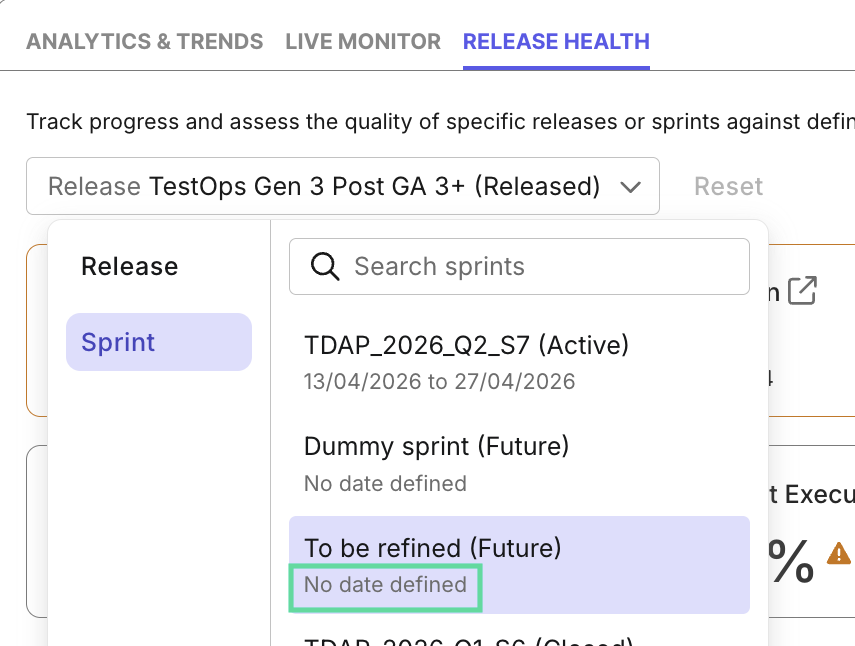
Synced Releases/Sprints:
Sprints and releases without start or end dates now appear in Katalon True Platform to help teams keep workflows consistent.
Apr 7, 2026
Changes
Katalon has rebranded its products across the platform. All existing capabilities, access, and core workflows remain unchanged.
Updated product names:
- Katalon TestOps is now presented as Katalon True Platform.
- StudioAssist is now Katalon AI Assistant.
- TestCloud is now Katalon Test Execution - Cloud.
- KRE is now Katalon Test Execution - Local.
New editions for Katalon True Platform:
- Team: built for teams that need core platform capabilities to plan, execute, and analyze testing work in one place.
- Enterprise: built for organizations that need additional scale, governance, and administrative controls beyond the Team edition.
Refer to True Platform Pricing for more details.
Updated purchasing portal: the purchasing experience now reflects the new branding and edition structure. For details, visit the Purchasing portal.
New features
Katalon AI Assistant
-
What's new: Katalon AI Assistant is now available in Katalon True Platform, providing QA teams with a single conversational experience that supports planning, execution, and analysis in one place.
-
Why this matters: Instead of moving between different tools for different workflows, teams can stay in one conversational experience: to create tests, execute them, investigate failures, and assess project health faster.
-
How this works: With Katalon AI Assistant, you can:
- Turn draft requirements into manual test cases that you can later ask AI to execute.
- Autonomous manual test execution - Katalon AI Assistant handles the test flow and asks for your input only when needed.
- Quick root-cause analysis on failed test results.
- AI-assisted bug ticket creation with failure context synced to your ALM tool.
- Instant project health and readiness analysis without going through dashboards.
Learn more at Katalon AI Assistant.
Mar 11, 2026
Enhancements
Improved Test run details page > Tests:
- New filters: you can now filter test runs by Failure Categories, Profile, and Configurations (OS and Browser).
Improved Custom Dashboard widget:
- Custom Widget template: you can now choose from pre-set templates instead of manually adjusting fields while creating custom widgets. Learn more at Custom Widgets - Custom widget template
Feb 25, 2026
New features
Cross-Project Reporting
-
What’s new: Katalon True Platform now allows users to view data from multiple projects within a single custom dashboard. This feature provides greater flexibility for tracking and visualizing data across different projects in one centralized view.
-
Why this matters: Instead of switching between projects to manage multiple projects, you can now do so in one dashboard, which is time-saving and much more efficient without navigating back and forth.
-
How it works:
For more information, refer to Creat Cross-Project Dashboards.
Enhancements
Improved Dashboards:
- Widget Filters: dashboards now display applied filters to make detecting filtering conflicts easy. Learn more at Custom Dashboard - Choosing filters
Feb 4, 2026
New features
-
We're excited to announce the addition of Custom Roles, giving you granular control over user permissions across your organization. You can now create and manage custom roles that define exactly what users can see and access within the system.
This enhancement provides flexibility beyond our standard Account and Project roles, allowing you to tailor permissions to your organization's specific needs.
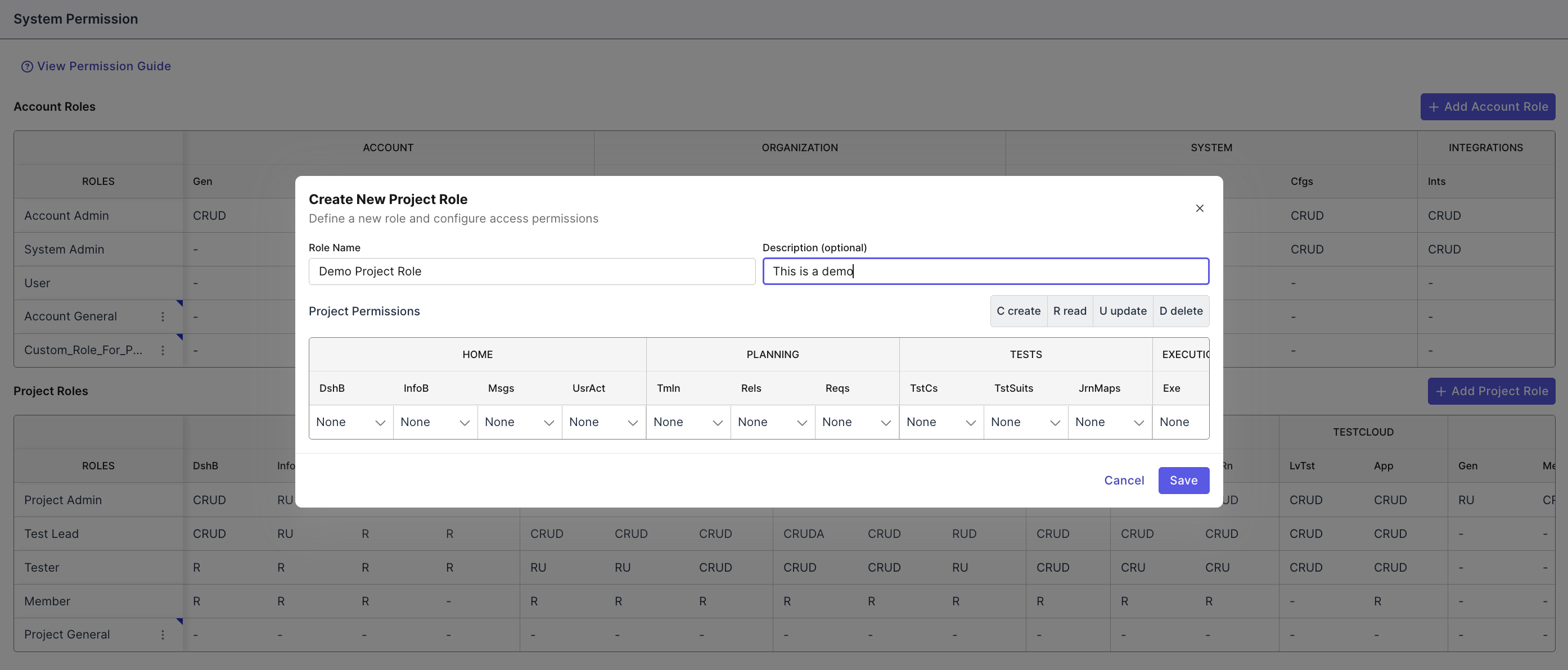
Screenshot shown is for Project-level Custom Roles. Account-level role setup may differ.
Enhancements
- Improved manual test run details page for a high-level analytical overview:
- Overview tab: displaying result distribution and defects if any.
- Test Results tab: displaying current/past results for easy flakiness detection.
Jan 28, 2026
New features
-
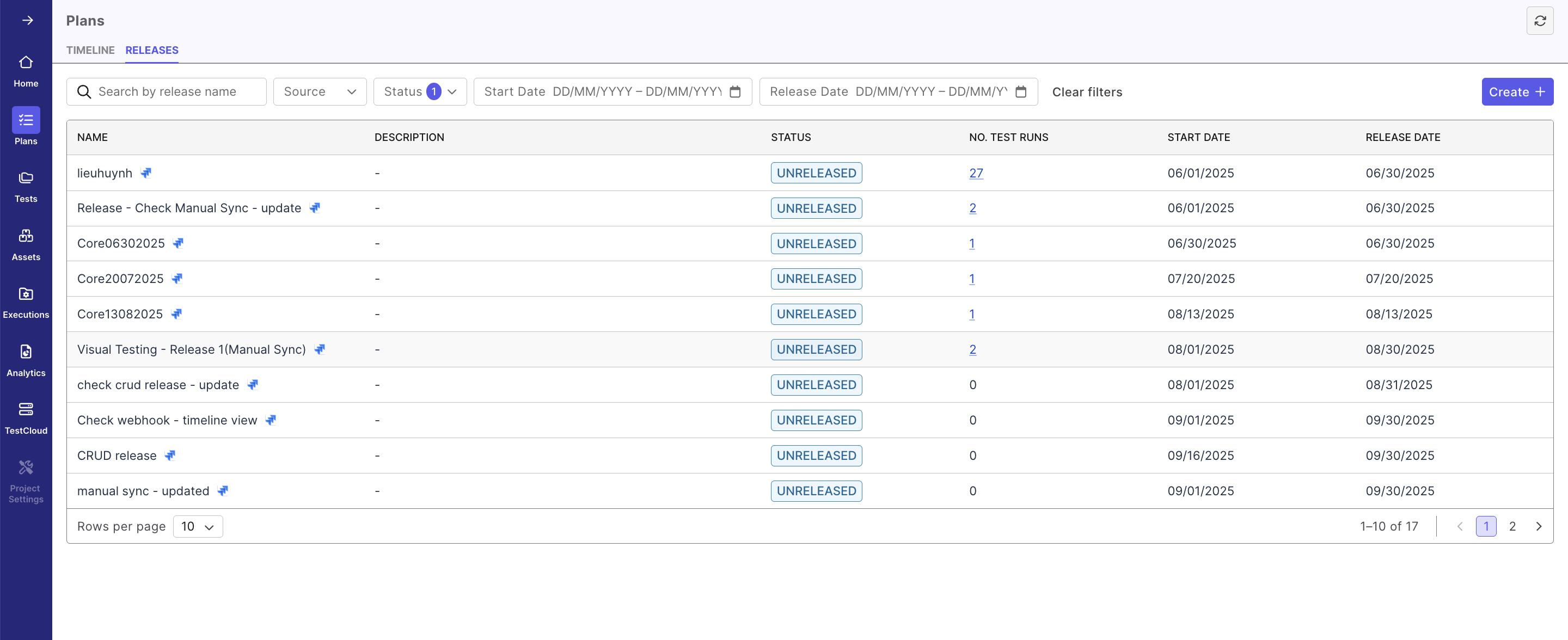
Plans module reworked, to give you more flexibility and control over release management:
- New Releases view - a structured, table-based overview of all your releases with searchable, filterable access to key release details.
- New manual release creation - Create and manage releases directly in Katalon True Platform without needing to switch to your ALM tool.
-
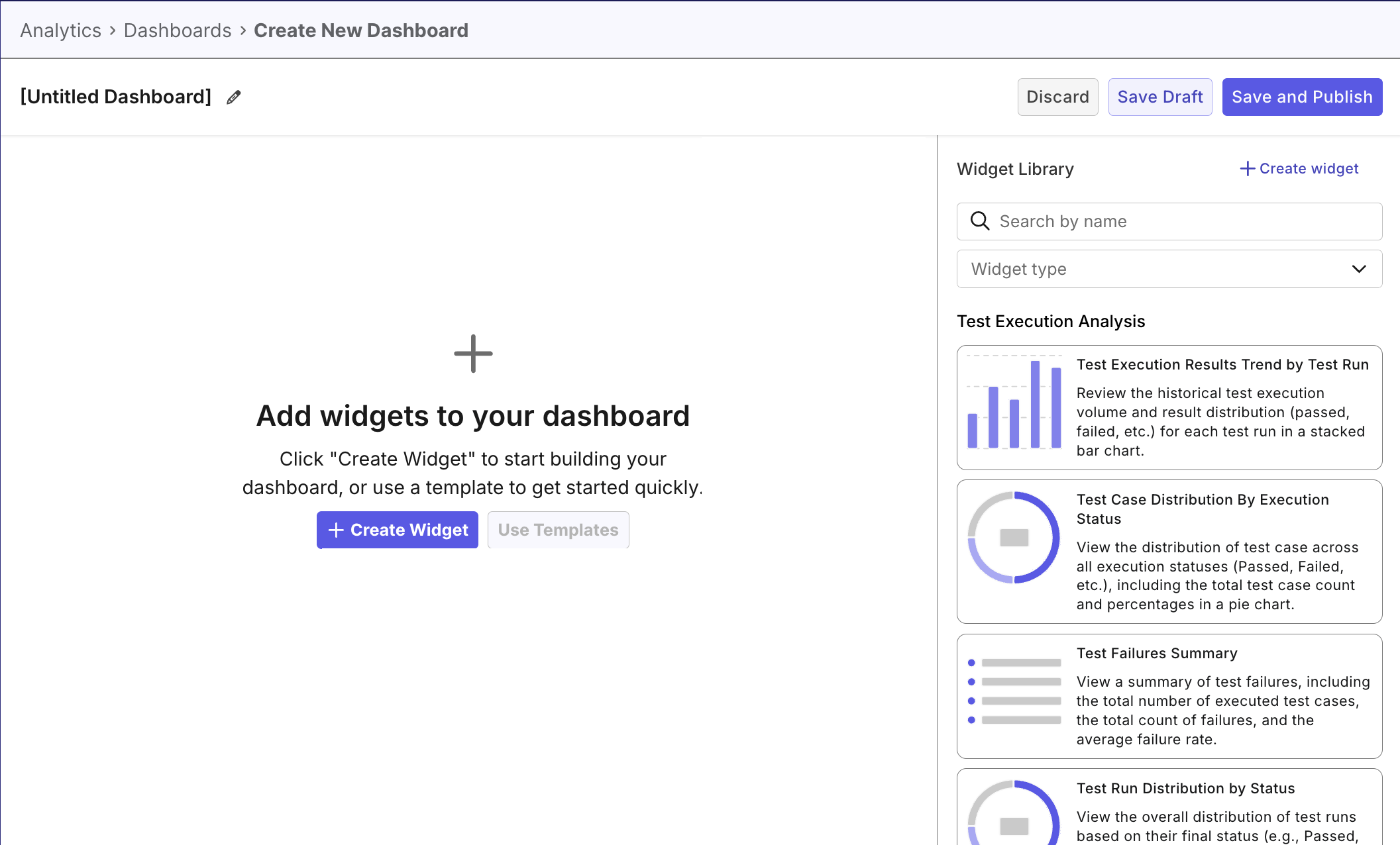
Create Custom Dashboards: You can now create custom dashboards using widgets in the library widget. Learn more at Create Custom Dashboards
Enhancements
-
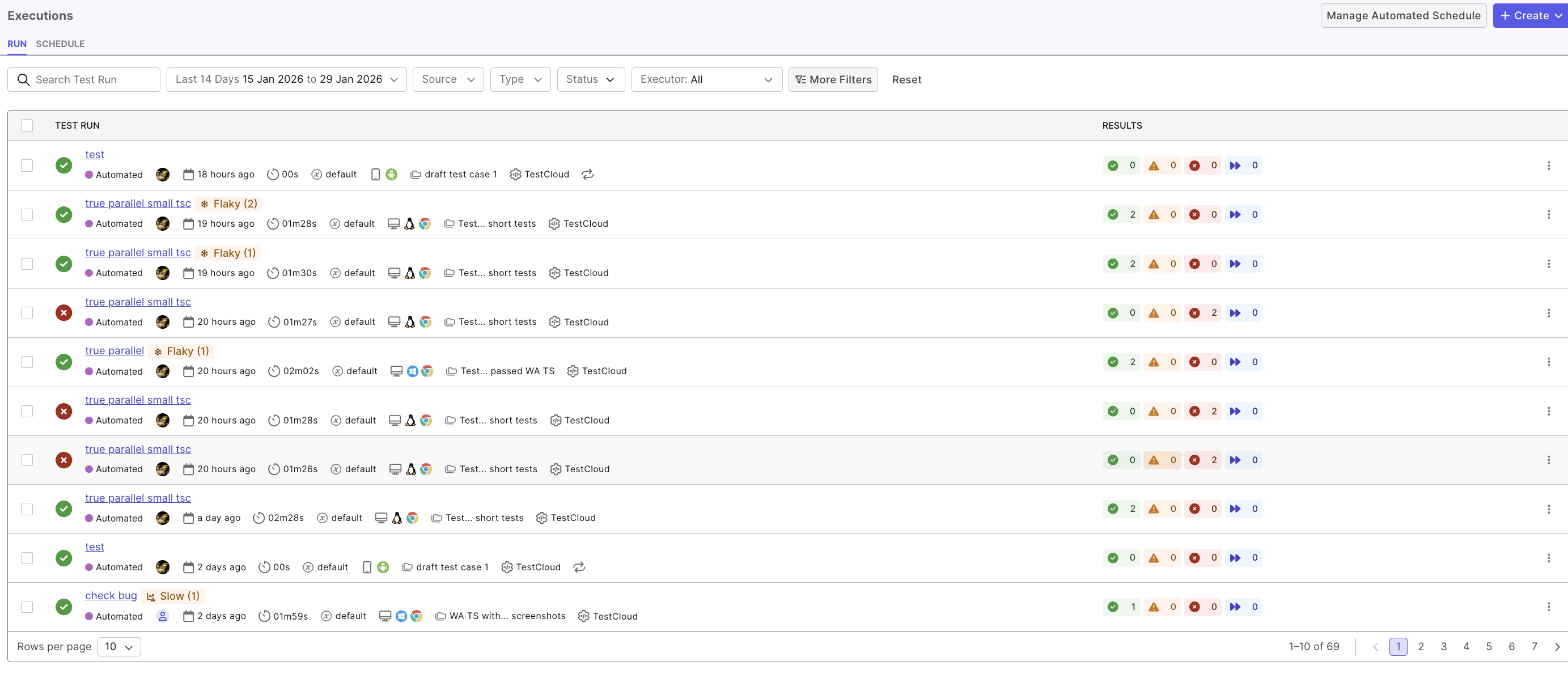
Redesigned Run view in Executions module, with a cleaner, more intuitive interface for better visibility and management:
- Richer execution details: view execution metadata including type, executor, environment, and test case associations at a glance.
- Advanced filtering - filter executions by date range, source, type, status, executor, and more filter options available.
-
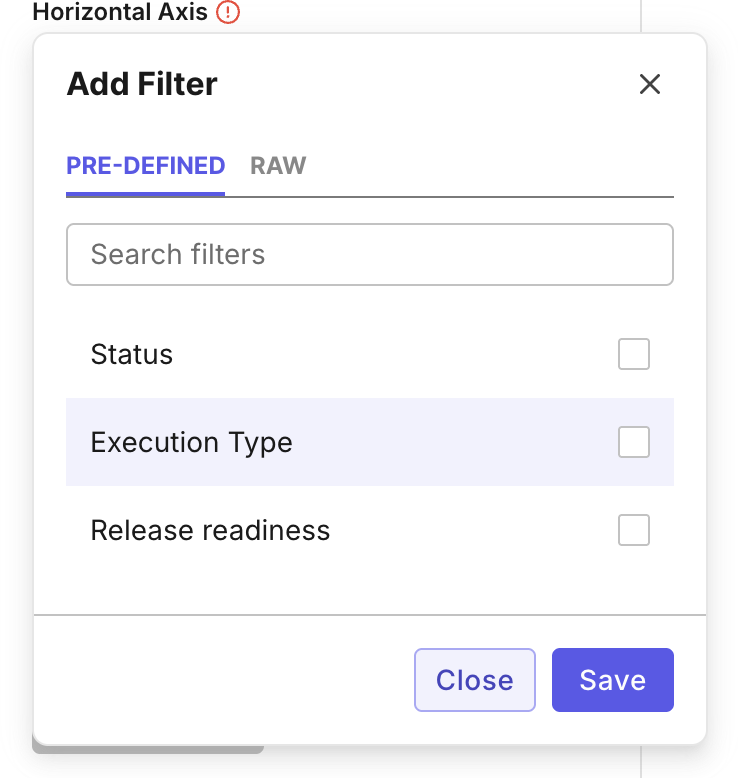
Added pre-defined filters to custom widgets to simplify data filtering:
Jan 14, 2026
New features
✨ New: ZIP Repository Upload: You can now upload Katalon Studio projects directly to Katalon True Platform as ZIP files.
- Key capabilities:
- Upload
.zipfiles containing valid Katalon Studio projects - Automatically extract and import test cases, test suites, test suite collections.
- Create instant or scheduled automated test runs using test suites from uploaded ZIP repositories, and analyze the results in Katalon True Platform.
- Upload
Enhancements
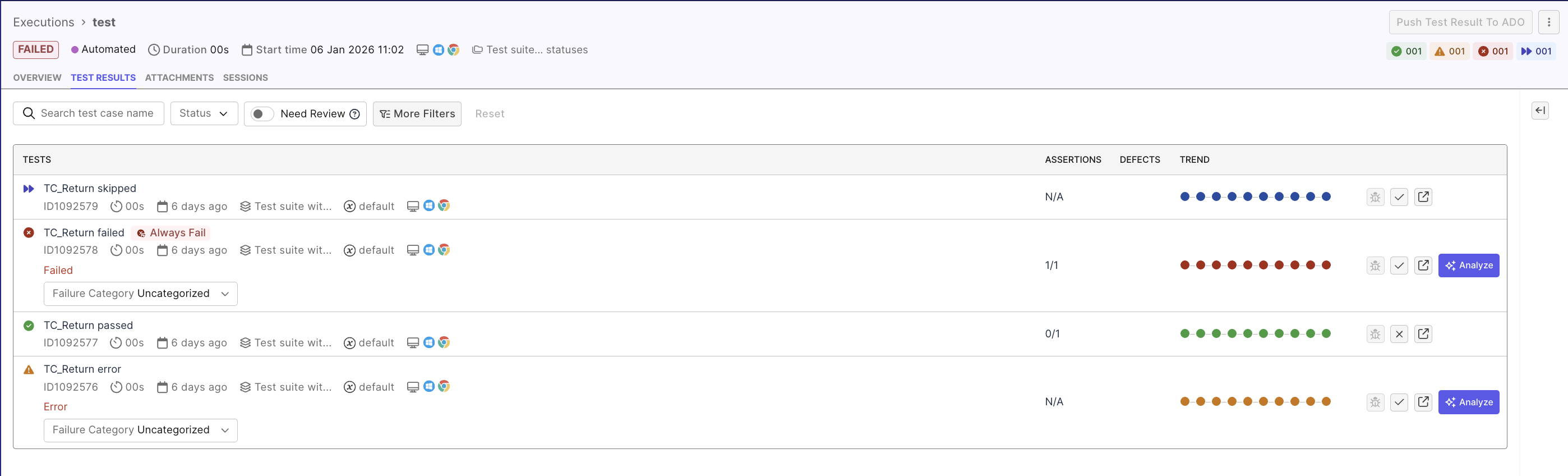
Redesigned the Test Result detail page UI to make test result analysis and management easier and more efficient.
Jan 7, 2026
New Region Available: EU Multi-Tenant SaaS: We’re excited to announce the launch of Katalon’s EU Multi-Tenant SaaS region, expanding our global footprint beyond the US for the first time.
- What’s new
- EU data residency for organizations that require it
- Same Katalon experience, now delivered from the EU
- Improved performance for teams based in Europe
- Designed for compliance-driven industries operating in the EU European teams can now use Katalon with greater confidence around data location, compliance, and performance, without changing how they work. This option is ideal for customers who explicitly require EU data residency due to regulatory, security, or regional performance needs.
Dec 22, 2025
Enhancements
Redesigned Analytics and Trends dashboard to include flaky, always failing, new failing, and slow test counts of the selected scope. This allows you to quickly understand test quality and drill down into detailed reports while maintaining filter context.

Dec 17, 2025
New features
-
Expanded Deletion Capabilities: Katalon True Platform now supports additional deletion actions, giving users greater control over data lifecycle management.
- Delete Account: Permanently remove unused accounts to support lifecycle management and compliance requirements.
- Delete Organization: Completely remove inactive or obsolete organizations and their associated data.
- Delete Project: Delete unused or deprecated projects to keep workspaces organized and manageable.
- Delete User Profile: Fully remove user profiles to support offboarding, access control, and data governance.
-
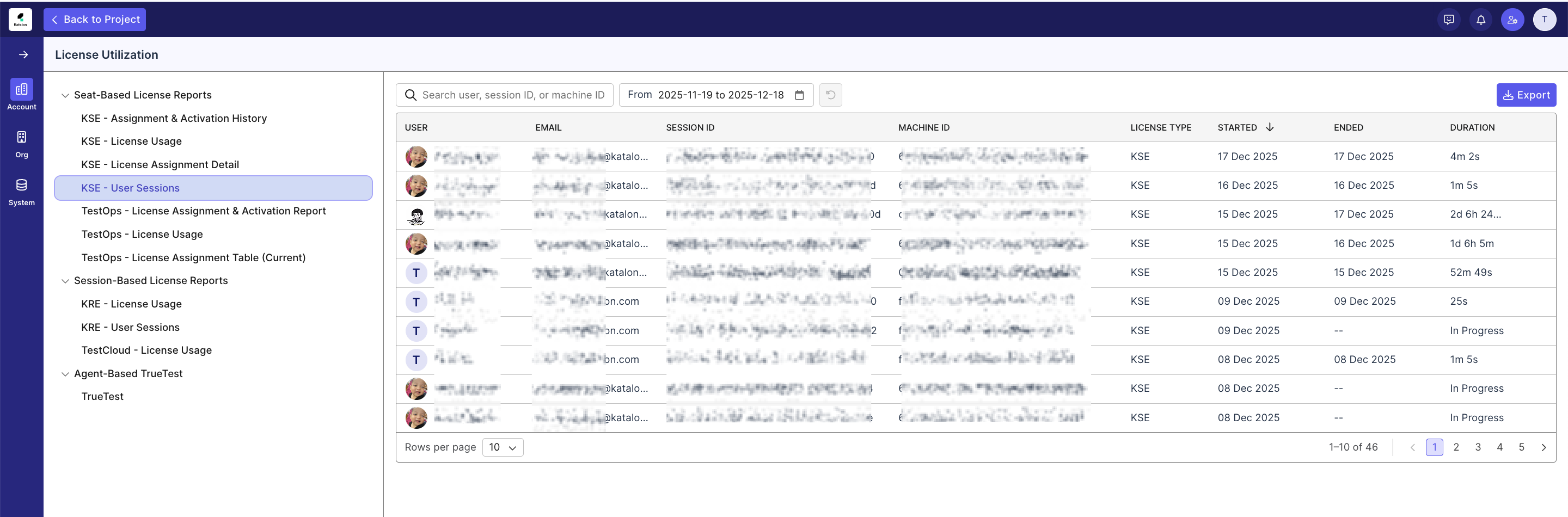
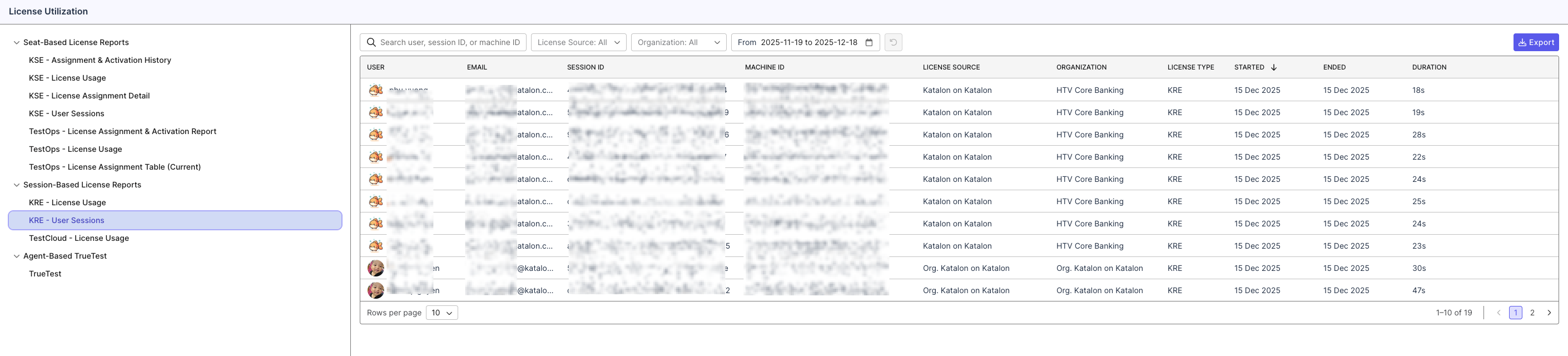
Added two new Session Duration reports for KSE and Katalon Runtime Engine:
- KSE User Session (Duration) Report: Track real user session usage while consuming Katalon Studio Enterprise (KSE) licenses. This report helps admins understand actual usage duration per member and optimize license allocation.
- Katalon Runtime Engine Execution Session (Duration) Report: Monitor real execution session duration per user for Katalon Runtime Engine licenses, providing better transparency into runtime license consumption.
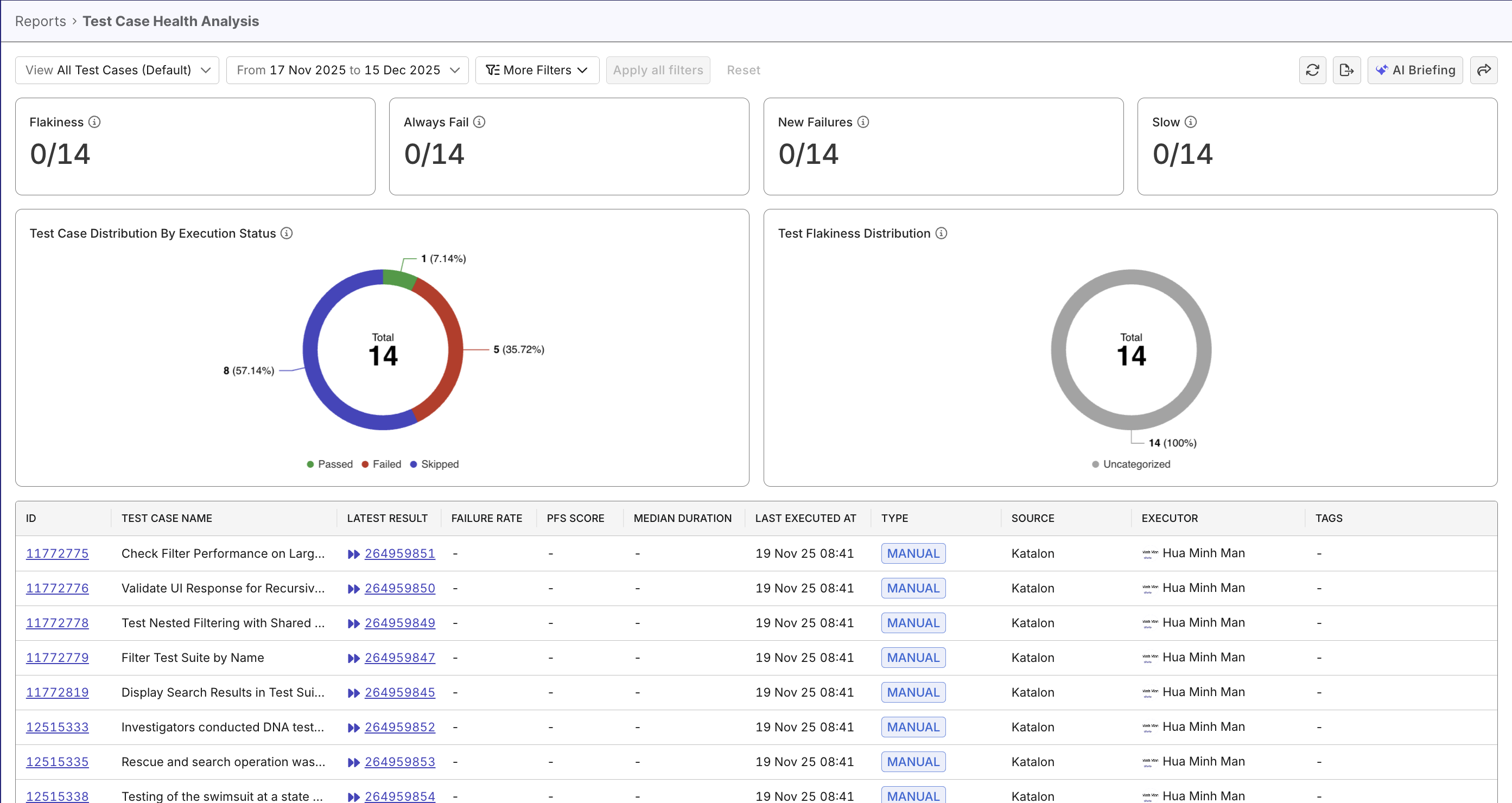
Enhancements
Included test stability metrics and charts in Test Case Status Analysis Report (now Test Case Health Analysis Report) for a better understanding into test case health.
Dec 10, 2025
New features
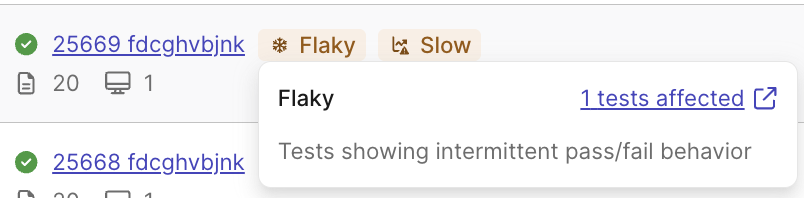
- Smart Tags: Gain immediate insight into flaky tests, recurring failures, and overall test health across your execution workflows. For details, refer to Smart Tags.
- Git Server Integration via Tunnel (GitHub Server & GitLab Server): Enable secure tunnel connectivity so Katalon True Platform can access private or on-prem GitHub Server and GitLab Server repositories without exposing them publicly. All Git workflows—repository detection, syncing, and execution—run entirely through the tunnel layer, allowing teams in highly regulated or restricted network environments to use either platform without changing their network posture.
Enhancements
-
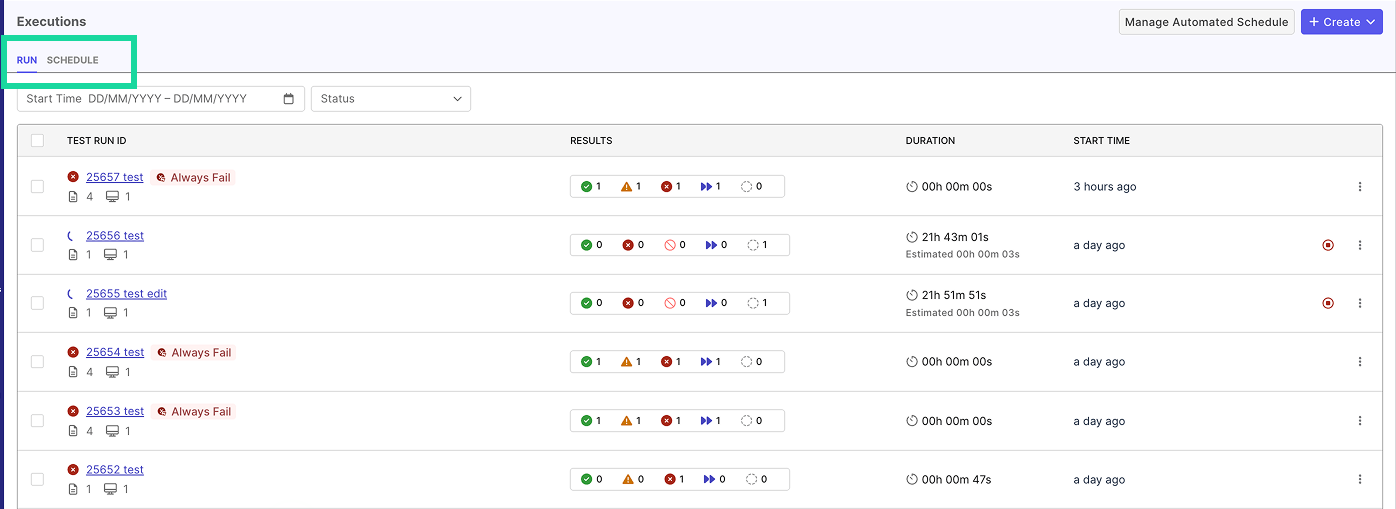
Redesigned Executions to make navigating and analyzing your test runs clearer and more efficient. It is now split into two dedicated sections—the Run and Schedule tabs—so you can manage ad-hoc runs and scheduled executions independently with better focus and organization.
-
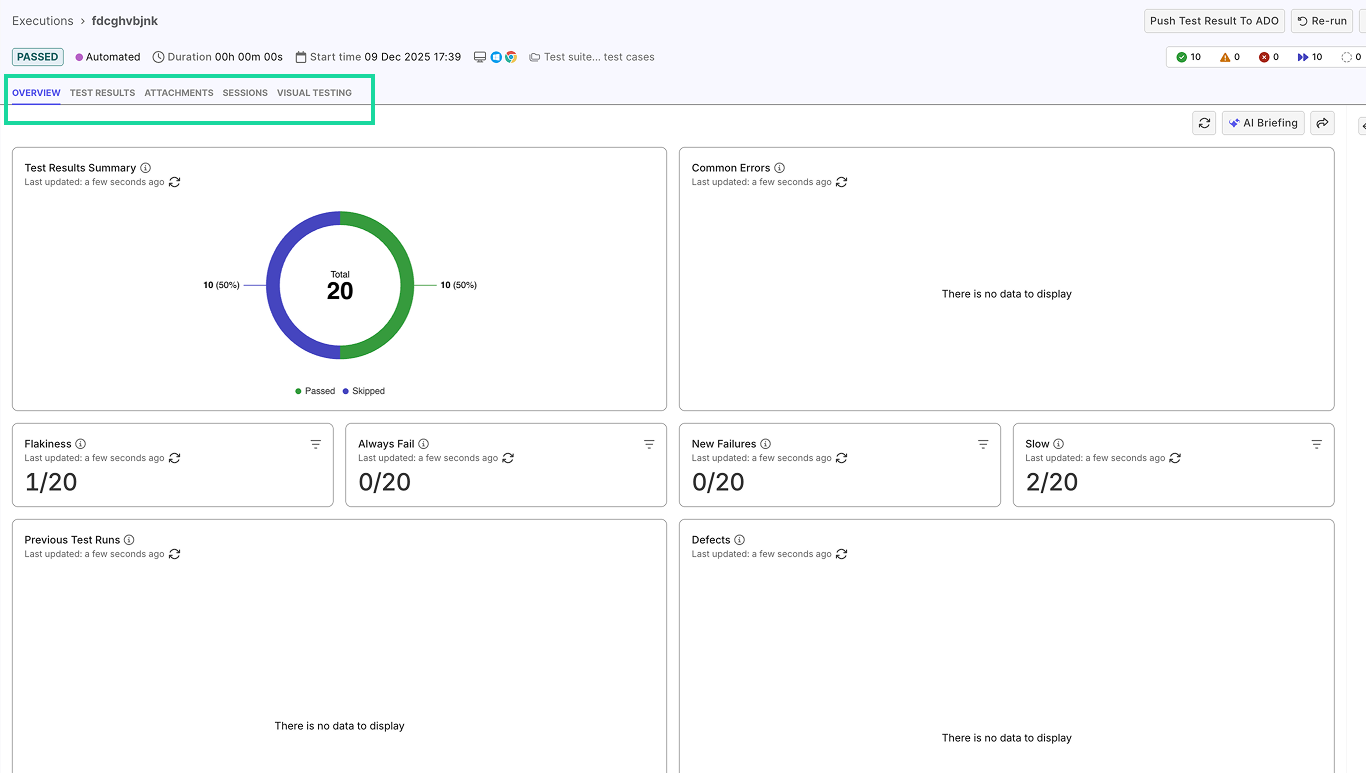
We’ve significantly expanded the capabilities of Manage Automated Schedule. Previously limited to bulk actions for scheduled automated runs, it now includes additional tabs—Test Results, Attachments, Visual Testing, and more—providing deeper visibility into execution quality and trends. Key improvements include:
- Overview – New widgets including results summary, common errors, run history, defect list, coverage by OS/browser, and failure category distribution.
- Test Results – Real-time execution updates with an improved results table and trend visibility.
- Attachments – Centralized files with preview, filtering, and search across logs, images, videos, reports, and metadata.
- Sessions – Enhanced session monitoring with grouped session details, log filtering, and downloadable logs.
- Visual Testing – Dedicated tab for streamlined visual testing review and accessibility.
To learn more, refer to View Test Results.
-
🚀 New MCP Tools Released for Katalon True Platform Analytics: We’ve added four new MCP tools that provide deeper, more actionable insights across your Katalon True Platform projects. You can use these tools to gain deeper insights into:
- Defect Insights: Retrieve enriched defect analytics, including trends by severity and priority for any sprint, release, or date range.
- Requirement Coverage Insights: Access comprehensive requirement coverage statistics—total requirements, coverage breakdown (fully, partially, not covered), and overall coverage rate—along with detailed requirement-level data such as requirement/issue ID, summary, type, linked/published/executed test cases, pass/fail counts, total defects, and coverage, testing, and quality status.
- Test Case Insights: Gain enhanced visibility into test execution with test case–level attributes, automation status, and granular execution metrics.
- Test Configuration Insights: Explore platform and configuration analytics, including executed test counts, coverage rates, pass/fail results, platform health indicators, usage patterns, and configuration-based execution outcomes.
Nov 26, 2025
New features
-
Jira Datacenter (On-Premises) Integration Support: You can now integrate Jira Datacenter projects with Katalon True Platform, enabling on-prem teams to connect their self-managed Jira instances and bring requirements and defects directly into Katalon True Platform. This update extends the same integrated workflow experience previously available only for Jira Cloud.
For more information on Jira DC Integration, go to this document.
-
You can now build custom widgets and add them directly to your Analytics & Trends dashboard. Custom widgets let you surface the exact KPIs and trends that matter - tailoring the dashboard to your project, your workflow, your goals.
- AI briefing can also pull data from custom widget, turning it into quick, ready-to-use summaries for fast decision-making.
Enhancements
The Common Automation Errors report now groups automation errors by their Failure Category labels. This helps you understand quickly whether issues are caused by your application, test script, data, or an unknown pattern, without reading long descriptions.

Nov 19, 2025
New features
- Tag(s): Introduce a streamlined tagging system that helps teams organize and categorize test cases more efficiently.
- Tags stay automatically synchronized between Katalon Studio and Katalon True Platform
- Easily filter and manage test cases using flexible, customizable labels
- Save Filter Configurations as Views: This lets you save and reuse your filter configurations across reports and dashboards, so you can quickly switch between different analysis setups without reconfiguring filters each time.
-
Time Savings: Instantly access frequently-used filter combinations without manual reconfiguration
-
Consistency: Ensure team members analyze data using standardized filter sets when views are shared via URL
-
Flexibility: Quickly switch between different analytical perspectives (e.g., "Last Sprint Failures" vs. "Production Critical Issues")
-
Enhancements
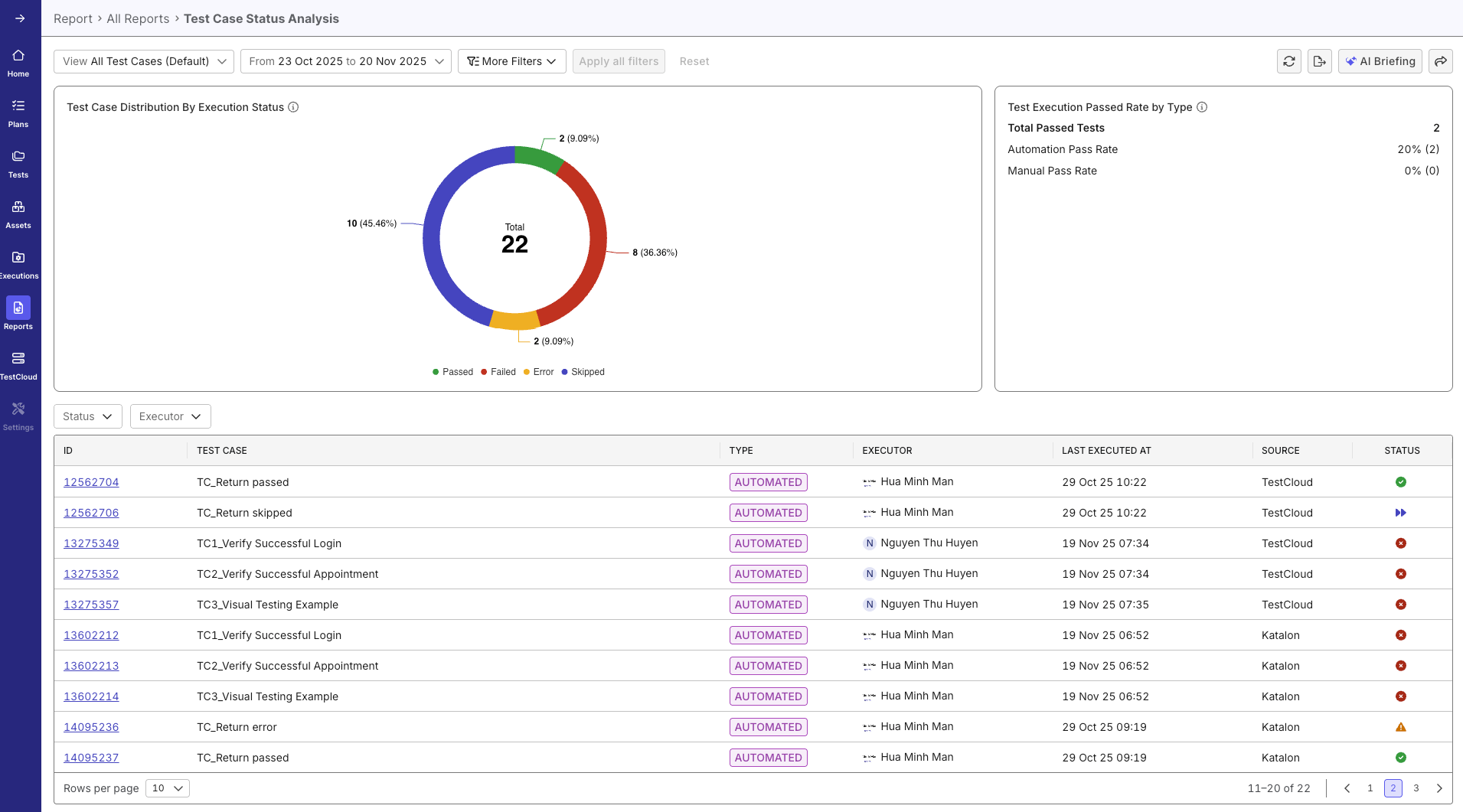
Enhanced Test Case Status Analysis: The Test Case Status Analysis data table now includes the Source column, giving you complete context about where each test case originates and enabling better traceability across your test automation framework.
Nov 13, 2025
Enhancements
-
Added GitHub Server (On-Premises) Integration Support: You can now integrate with GitHub Server (on-prem) in addition to GitHub Cloud. This update allows teams using self-hosted GitHub instances to connect repositories and access the full range of GitHub-based workflows within the platform.
For more information on Github Server Integration, go to this document.
Oct 29, 2025
New features
-
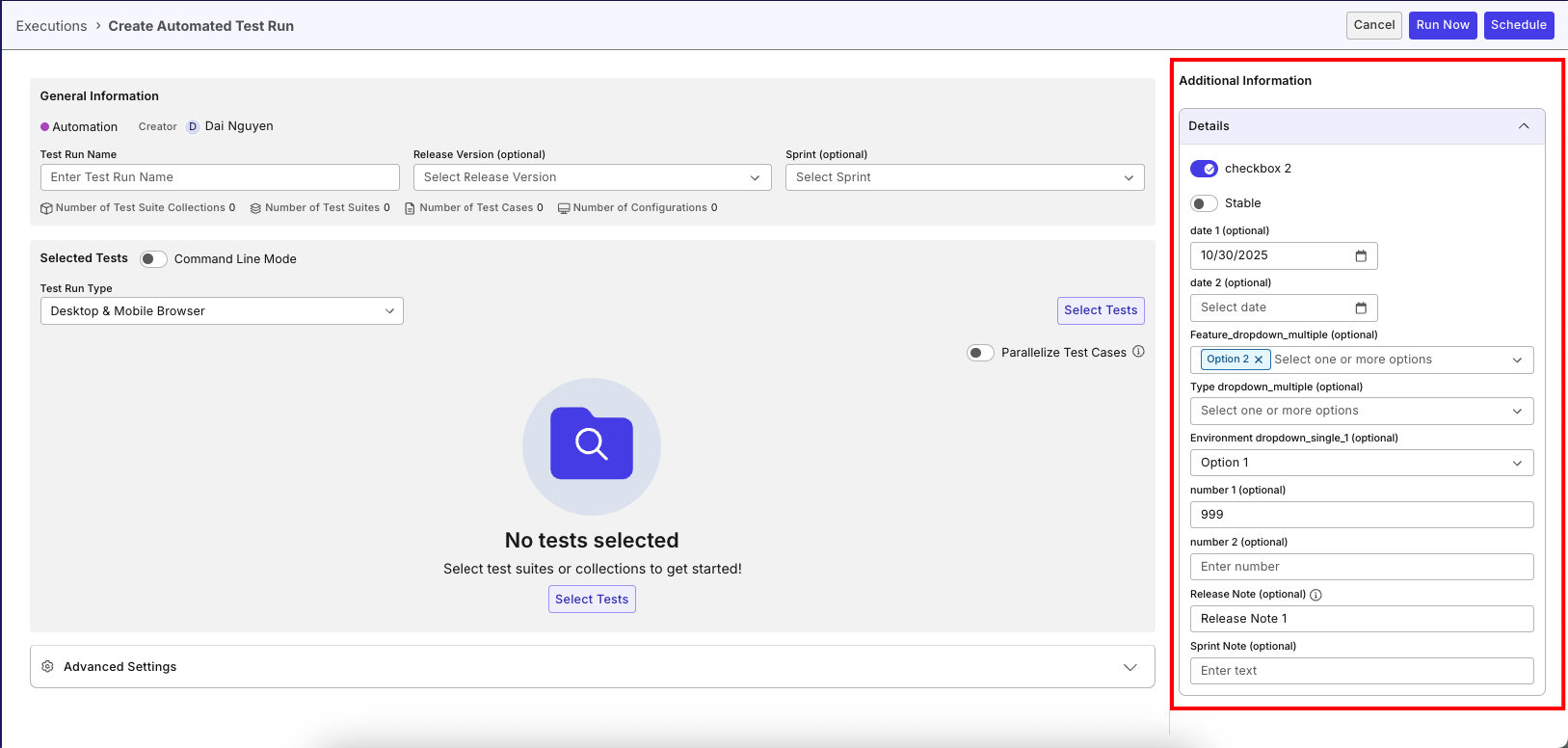
Customizable Fields: Extend Katalon True Platform to match your team's unique workflows and processes with flexible customizable field capabilities across multiple areas of the platform. Please refer to this document to learn more
-
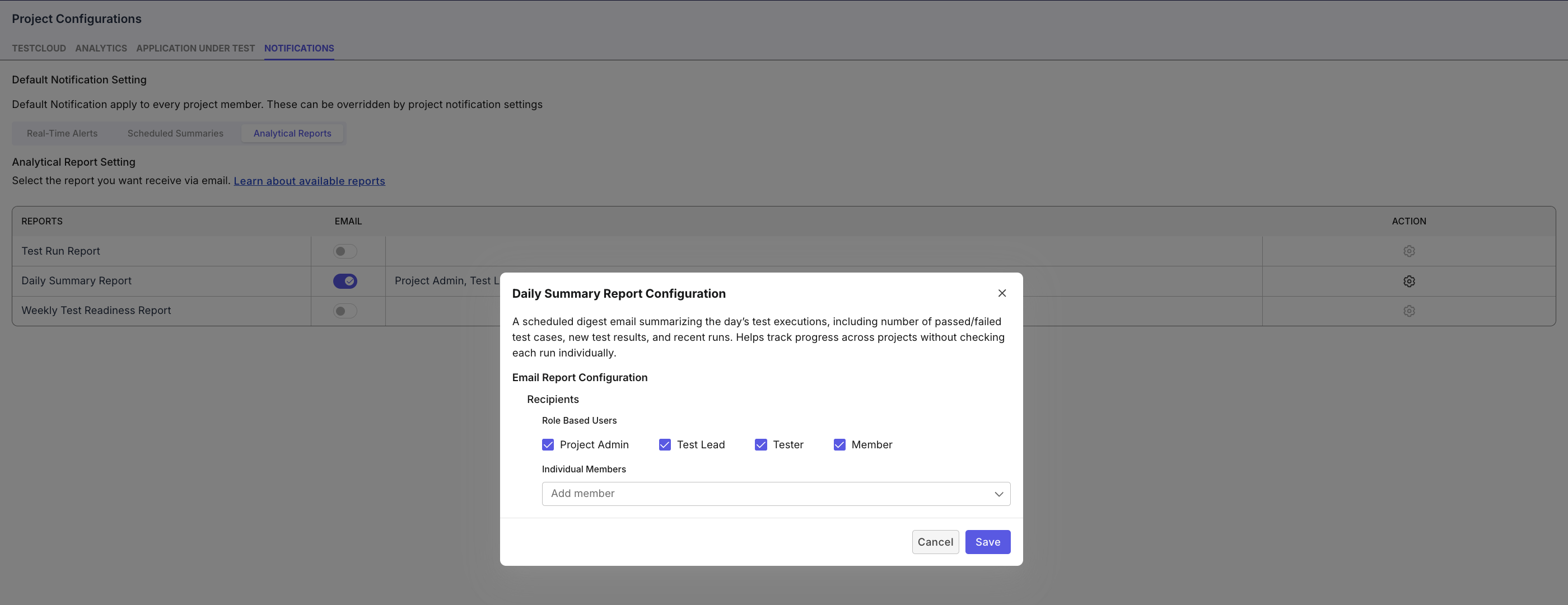
Project Notifications: Receive a daily digest email summarizing your test executions — including the number of passed and failed test cases, new results, and recent runs. It helps you easily track project progress without checking each run individually.
-
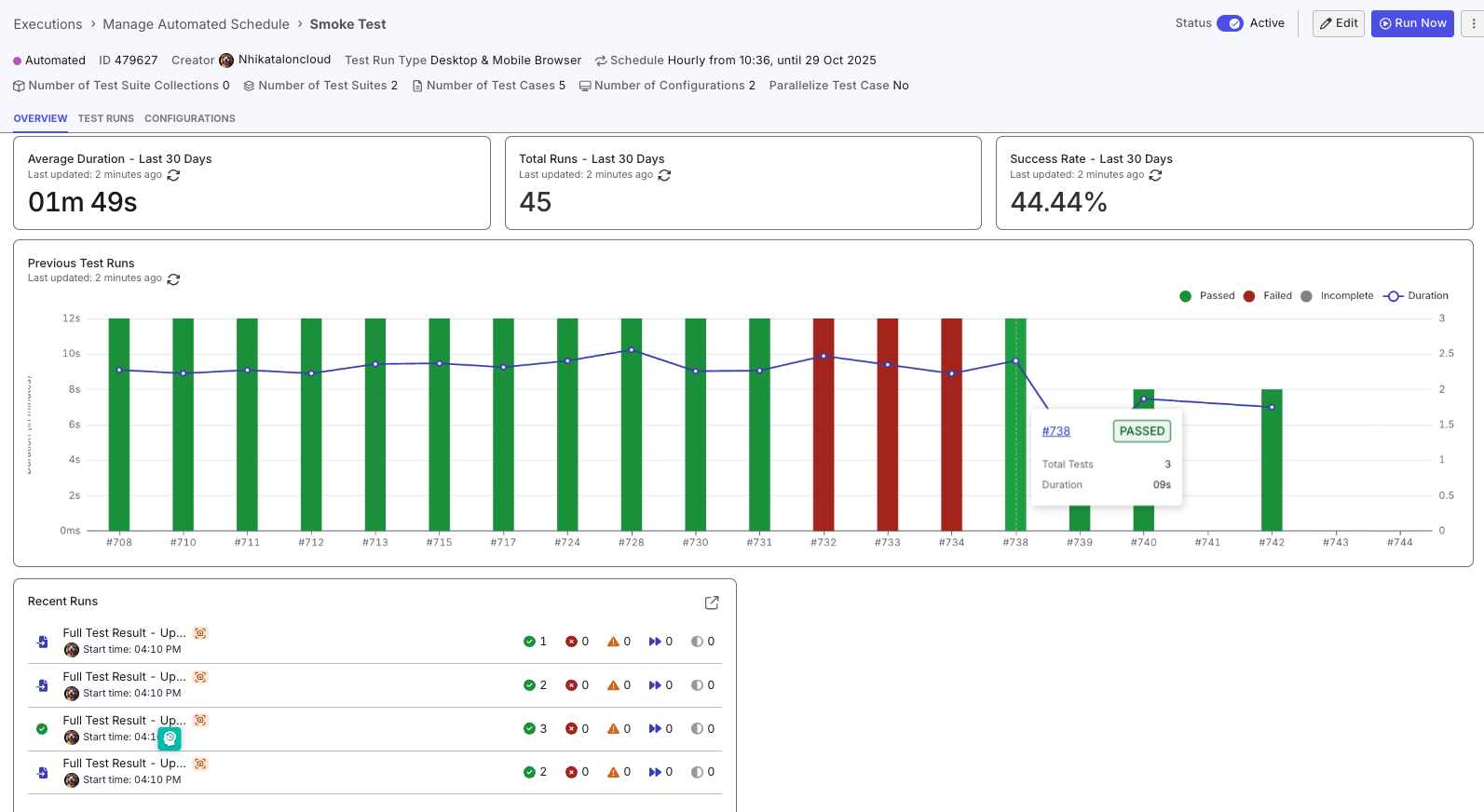
Schedule Overview Dashboard in Schedule Details:
- Get a complete view of your schedule performance in one place. Track key metrics such as average duration, success rate, and total runs over the last 30 days — all updated in real time. Visual charts highlight trends and test outcomes, helping you quickly identify issues, monitor progress, and make data-driven improvements.
- AI Briefing: Let AI do the heavy lifting. With a single click, generate an intelligent summary of your recent test executions.
Oct 22, 2025
New features
-
Introducing Manage Automated Schedule where you can manage multiple schedules at once, quickly turn runs on or off, and edit details with just a few clicks. The improved experience makes it effortless to adjust configurations, update settings, and review results — all in one place.
This update gives you a faster, smoother way to stay in control of your automated testing, so you can focus more on quality and less on setup.
-
Introducing AI-powered Manual to Automation Conversion — a seamless integration between Manual Testing and TrueTest. This feature enables testers to automatically convert manual execution sessions into automated test cases.
- Key benefits:
- Remove friction between manual and automation testers by aligning tools and workflows.
- Accelerate automation at scale by reducing manual scripting effort.
- Unify test strategy by connecting manual, automated, and AI-generated test cases in one platform. Learn more about this feature in our guide: Generate automated tests from manual executions.
- Key benefits:
Oct 16, 2025
New features
📝 Personal Notification: Users can now set up project-level notifications via email in Katalon True Platform, allowing customization of reports for all or specific projects. You can tailor which reports to receive — such as Test Run Report or Daily Summary Report — and manage preferences across projects.
See this document for more details.
Oct 15, 2025
New features
🤖 This release introduces the Katalon True Platform MCP Server, enabling seamless connection between Katalon TruePlatform and supported Large Language Models (LLMs) via the Model Context Protocol (MCP).
Users can now perform operations on Test Cases, Test Suites, Requirements, Sprints, and Releases directly through their LLM interface. After configuring the MCP server, you can create, update, move, duplicate, delete, and search Katalon True Platform objects — streamlining test management and improving automation efficiency.
Watch how Claude Desktop integrates with the Katalon True Platform MCP Server to analyze project data and summarize test activities. Refer to this Katalon True Platform MCP Server document to learn more.
Oct 8, 2025
Enhancements
-
📤 We’ve enhanced the AI Insights experience. You can now share AI-generated insights directly via email, making it easier to collaborate and keep your team aligned.
Additionally, you can use AI to re-write or format insights before sharing—perfect for polishing tone, structure, or clarity in just a few clicks.
-
Drill-Down for Error Analysis - Quickly investigate automation failures with new interactive drill-down features:
- Click any error category to filter results instantly
- View affected test cases with direct links to their latest and historical results
- Share investigation links with saved context
Oct 1, 2025
Enhancements
📝 Bulk Edit Profile & Configuration for Test Suite Collections – Quickly update execution profiles or configurations across all Test Suites in a collection with one action for faster, consistent setup.
Sep 23, 2025
New features
🚀 We’re excited to introduce powerful new ways to make sense of your test results and speed up decision-making:
- AI-Powered Dashboard & Report Briefings: No more sifting through dashboards. Get instant, AI-generated summaries that surface key trends, risks, and recommended actions—all in clear, actionable language. Perfect for quick stand-ups, release reviews, or executive updates.
✅ Works across both dashboards and reports. Demo below shows a dashboard example.
- Added Common Automation Error Report: Spot systemic issues faster. Our new report automatically groups recurring automation errors, helping teams focus on the problems that matter most instead of chasing one-off failures.
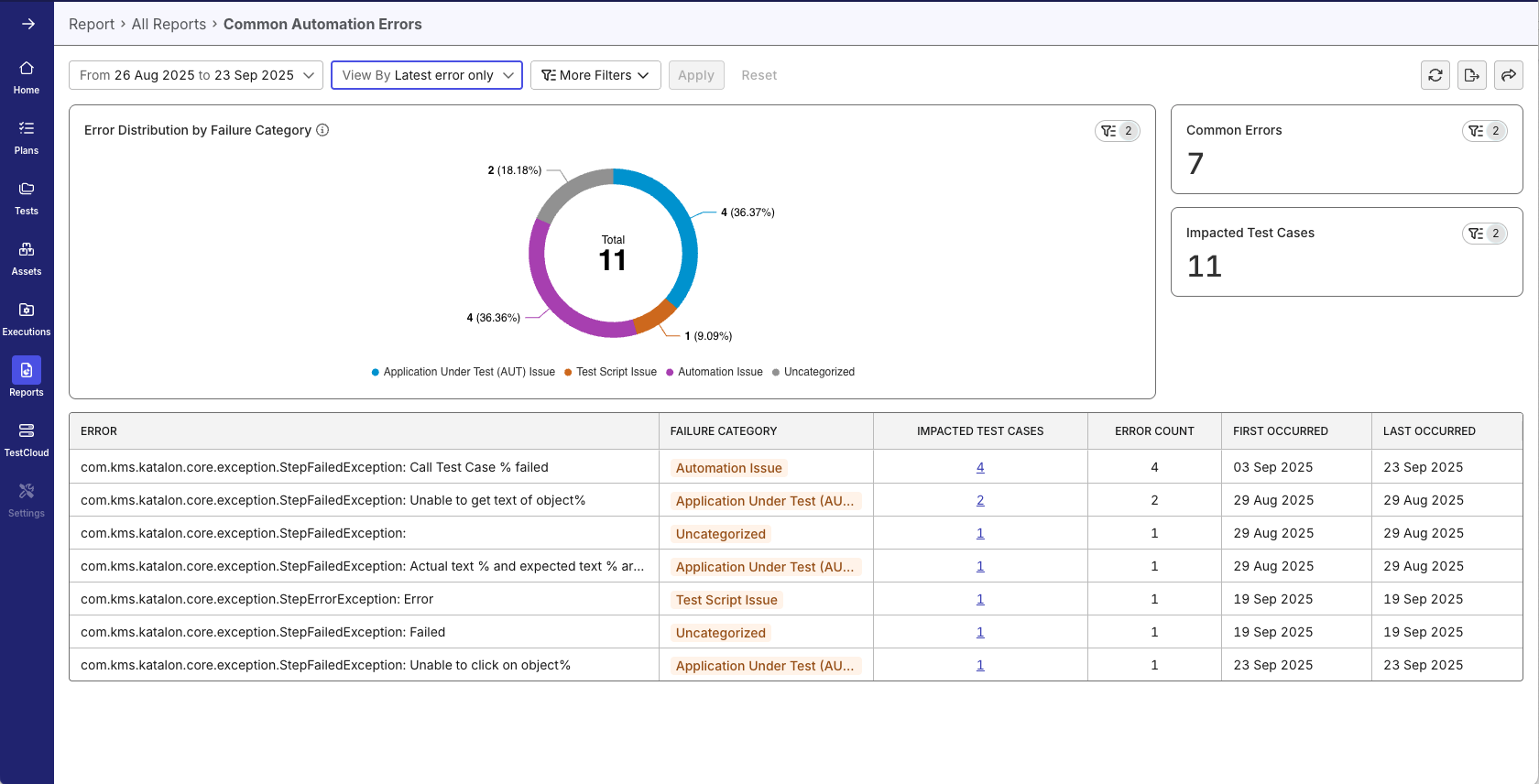
- Smarter Filtering: A cleaner, more intuitive filtering experience plus new options to drill down by execution profile, test suite, and test suite collection.
Sep 22, 2025
Enhancements
✨ Managing users just got a whole lot easier! With Bulk User Edit, you can now update multiple users at once—saving time, reducing repetitive work, and ensuring consistent settings across your team. Whether it’s adjusting roles, updating access, or applying changes to entire groups, you can handle it all in just a few clicks.
At the Account level, Account Admins can now:
- Update roles in a single action
- Assign or change organizations for multiple users simultaneously
- Modify license sources in bulk
- Adjust project assignments without repetitive manual steps
- At the Project-level, Project Admin can:
- Update user roles for multiple users at once
Sep 11, 2025
New features
This release brings powerful enhancements to Katalon True Platform for smarter, faster, and more efficient testing.
-
📌 Schedule & Execute Dynamic Test Suites: Run test suites that are dynamically generated or updated at runtime based on rules, criteria, or external data sources.
-
⚡ Parallel Test Case Execution: Enable Parallelize Test Cases mode to significantly reduce execution time by running test cases in parallel within a suite or across suites. Learn more in the Parallel Test Case Execution guide.
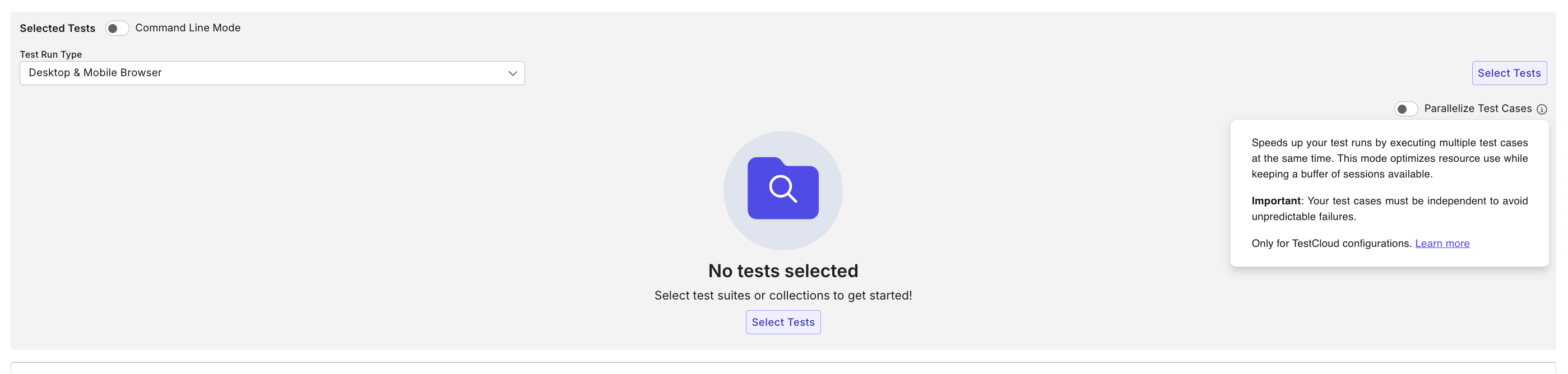
Sep 4, 2025
New features
🎉 Added System for Cross-domain Identity Management (SCIM) Integration for IdP Provisioning.
Benefits:
- Future-proofed for SSO/SCIM-based governance at enterprise scale
- Centralized identity management
- Reduces the need for manual admin intervention
Sep 3, 2025
New features
🎉 We’re excited to introduce AI-powered root cause analysis to help you diagnose test failures faster and more accurately. With this new capability, you can now analyze failures directly from the Test Result List or Test Result Summary, and receive intelligent insights to speed up debugging.
What’s Included:
- Failure Category Classification: Automatically identifies the type of failure (e.g., Application Under Test Issue, Environment Issue, Timing Issue, Broken Selector, Assertion Error) so you can quickly prioritize fixes.
- Plain-English Root Cause Summary: Translates complex errors into clear, human-readable explanations your whole team can understand.
- Actionable Recommendations: Provides practical next steps (like updating selectors, adjusting wait times, or checking application changes), complete with confidence scores to guide your decisions.
Aug 27, 2025
New features
-
Added the option for test suites to run through either the TestCloud Tunnel or TestCloud IP Whitelisting.
-
External Sharing for Analytics Dashboards via Email: Share your quality insights with stakeholders inside and outside your organization through our new secure external sharing capabilities.
-
CSV export for all reports: You can also export data from any report in CSV format for deeper analysis and custom reporting.
Enhancements
- Live Monitor Dashboard
- Added In-Progress Test Run Counter: A new widget that instantly displays the number of active test runs.
- Added Today’s Test Runs: View all test runs executed today, including start times and summarized results, for faster insights and actions.
July 30, 2025
New features
-
Introduced Katalon Account Manager access. This is a default administrative access automatically assigned to certain users in organizations that do not have a full Katalon True Platform subscription but still use Katalon products such as Katalon Studio Enterprise (KSE), Katalon Runtime Engine, or TestCloud.
-
Katalon TruePlatform now lets Account and System Admins centrally manage Katalon Studio settings, including AI auto-tagging, idle time-out behavior, version update alerts, and test result uploads — all from the Katalon Studio tab in Admin Settings.
-
Katalon now automatically monitors and enforces limits on session-based licenses (Katalon Runtime Engine & TestCloud) when your organization exceeds the purchased session quota. You will need to:
- Reallocate session licenses across organizations within 30 days of overage detection.
- Reduce session usage or purchase additional licenses if needed.
If no action is taken within 30 days:
- Session license allocations across organizations will be automatically reset to default.
- Affected features (like license assignment) will be restricted until compliance is restored.
-
You can now configure KPI widgets and thresholds directly in the Release Health tab to better assess readiness for release.
July 23, 2025
New features
-
Added
Assigneefield to test case import and creation. -
Test case Linking: Enable users to create direct relationships between test cases within the Test Management Module, allowing for better traceability and dependency management in test execution workflows.
July 16, 2025
New features
- Added two new fields:
Feature areas&Test typeto test case import and creation.
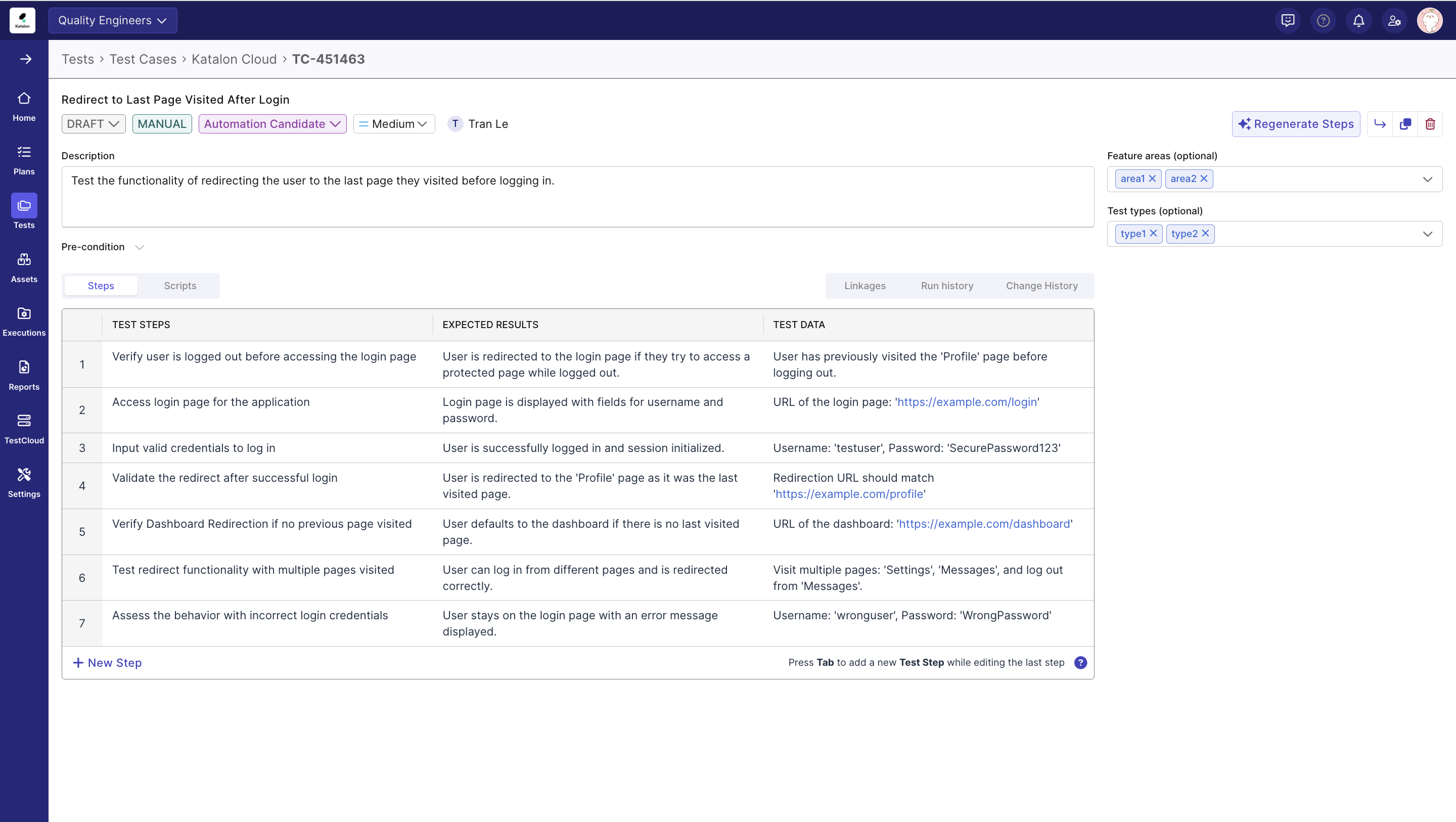
July 9, 2025
New features
We’ve added a Live Monitor tab to Katalon TruePlatform — a real-time dashboard designed to give you instant visibility into test automation metrics, defect trends, and test coverage. This helps teams stay aligned, respond to issues faster, and make informed release decisions.
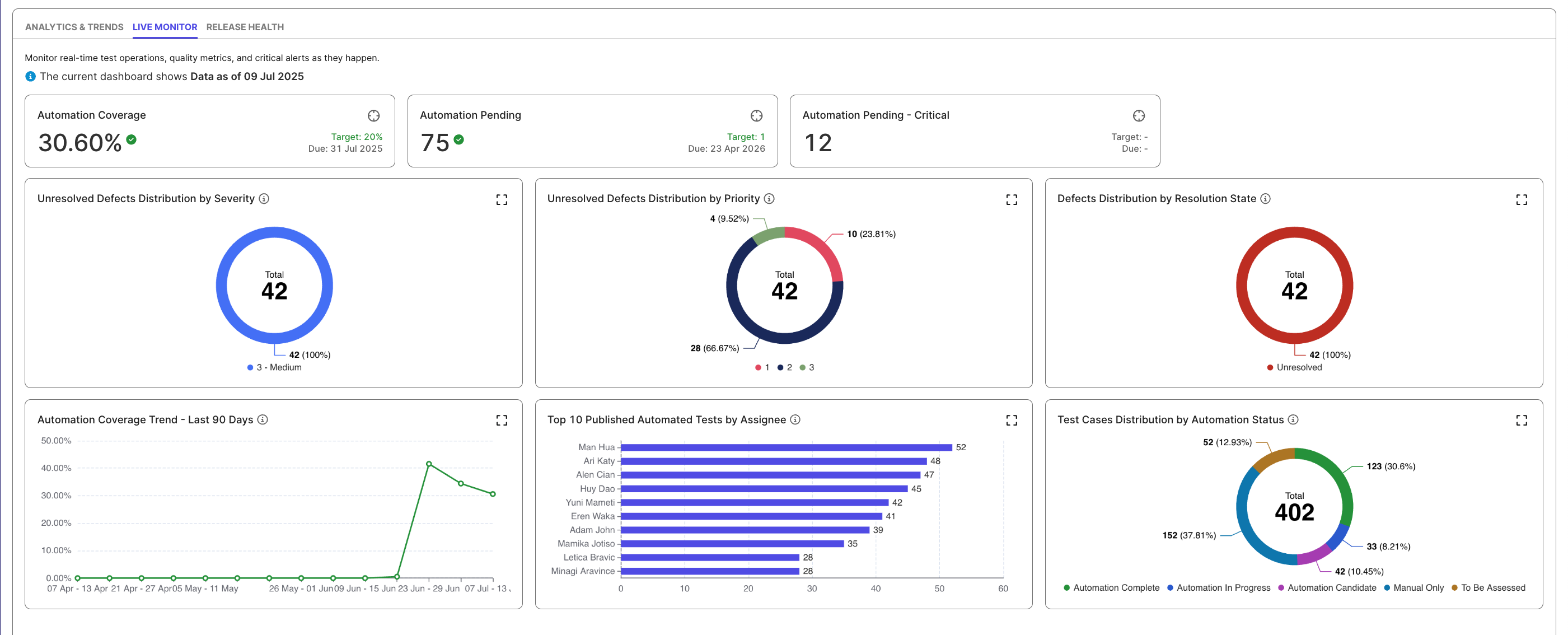
July 1, 2025
New features
- Katalon now automatically enforces license limits when your assigned users exceed your purchased seats, helping your team stay compliant. You’ll need to:
- Reduce assigned users within 30 days.
- Reallocate licenses between organizations within 7 days.
- If no action is taken:
- Extra users will be automatically deactivated based on usage.
- Organization-level license allocations will be reset to default.
- Introduced Application Under Test (AUT) as a new configurable object across Katalon True Platform. Currently, this supports seamless integration with TrueTest in the platform. See this document for more information.
June 30, 2025
New features
- Added
Automation Statusfield to test cases to track their automation lifecycle. This helps QE teams assess automation coverage and generate actionable metrics. - Added
Priorityfield to help teams assess and triage test case importance. This enables better planning and ensures critical test coverage is addressed first. - Test case import updates:
- Test case import now supports the new Automation Status and Priority fields, allowing teams to populate them during import.
- Added support for importing ALM linkages as part of the test case import process. This allows teams to include associations with ALM requirements, defects, or other artifacts directly during import, streamlining integration and reducing the need for manual linking post-import.
- Enhanced Smart Import flow to support defining a location path for test cases during import. This preserves folder structure and makes post-import organization seamless.
June 11, 2025
New features
-
Jira Integration: Connect Katalon True Platform directly with Jira to enable automatic requirements mapping, improved sprint and release planning, and one-click defect creation from test results. This eliminates manual updates and enhances traceability across the testing lifecycle.
-
Repository Integration for Azure Repos, GitLab, and Bitbucket: Extend test case management beyond GitHub with support for additional platforms. Features include bi-directional synchronization, direct test case edits from Katalon True Platform, and seamless version control—helping teams work efficiently within their preferred development stacks.
June 5, 2025
New features
- Manual testers can now add notes to individual test steps during TestPak executions, enabling precise documentation of actual results, issues, and observations. This enhancement provides developers with clearer context about what occurred during test execution, facilitating faster issue resolution.
June 4, 2025
New features
- Introduced the new Defect Analysis report, featuring interactive pie charts that visualize defect distribution by severity, priority, and resolution state. The report defaults to showing unresolved defects and includes a detailed data table for deeper insights into current issues.
Enhancements
- Improved interactivity in the Test Failures Analysis bar chart. A vertical guideline now appears on hover, and tooltips can be triggered in the space above each bar for a more intuitive experience.
- Added advanced filters to the Defect Analysis report, including a new "Current" scope option that shows real-time defect status by default. Users can now filter by time, sprint/release, reporter, severity, priority, and resolution state to focus on relevant subsets of defect data.
- Added advanced filters to the Defect Analysis report, including a new “Current” scope option that shows real-time defect status by default. Users can now filter by time, sprint/release, reporter, severity, priority, and resolution state to focus on relevant subsets of defect data.
- Also added a description panel to the report for improved clarity on its purpose and scope.
- Added standard interactions to the Defect Analysis report. Users can now hover for tooltips, click pie chart slices to filter data, and drill down into detailed tables. Clicking a defect row opens its full detail view, with support for sorting and pagination.
May 21, 2025
New features
- Introduced Custom AI Prompt for Test Case Generation. This allows you to add text-based instructions that guide the AI in generating more relevant, domain-specific test cases tailored to your testing requirements.
- Introduced Step-Level Attachments in TestPak. This enables you to attach files directly to individual manual test steps, providing enhanced clarity and comprehensive issue documentation throughout your testing process.
- Introduced the Requirement Traceability Report, a key feature bridging Katalon True Platform Legacy and Katalon True Platform' capabilities. This new, comprehensive report shows relationships between requirements, test cases, test executions, and defects in a unified table view.
May 15, 2025
New features
- Introduced AI-powered Visual Testing, which allows you to detect visual regressions in an application. Baseline collections can be managed and ignore zones can be set.
- Introduced TestCloud Live Testing License Management. This allows Account Admins to manage or allocate these licenses across Organizations within an Account, providing better visibility and control.
- Introduced TestCloud Live Testing License Utilization, which allows Account Admins to monitor the utilization of these licenses.
Enhancements
- Enhanced Test Suite management with Git Integration. This allows you to synchornize test suites between Katalon Studio and Katalon TruePlatform directly for a more seamless experience.
April 23, 2025
Katalon TruePlatform has been updated with new features and enhancements.
New features
- Introduced a new license tracking feature that provides visibility into allocation and usage across organizations and users.
- Introduced a dedicated TestCloud configuration area directly within Katalon True Platform, allowing for easier management of TestCloud-related features.
Enhancements
- Refined permissions for Non-Katalon True Platform Admins, now allowing them restricted access to Katalon True Platform-specific settings, where an enhanced user experience prevents misconfigurations and enhances security.
- Implemented major improvements to dashboards and reports, enhancing usability and performance.
- Enhanced dashboard usability with customizable empty states, improved widget layouts, smarter default values, and clearer data visualizations for faster onboarding and better insights.
- Improved reporting with better test case distribution insights, clearer empty states, streamlined filters, and faster loading on the Test Run Detail page.
April 16, 2025
Katalon TruePlatform' TestPak has been updated with new minor features.
New features
- Added the ability to stop generating a test case should it take too long.
April 2, 2025
A new version of Katalon TruePlatform has been released! 🎉
Katalon True Platform is a unified platform that integrates manual, automated, and AI-generated testing capabilities to provide comprehensive testing solutions. You gain complete end-to-end visibility across projects, teams, and releases, allowing you to monitor quality metrics, readiness status, and progress from a single consolidated interface. The platform is engineered to minimize quality-related costs by reducing the time and resources typically required for test creation, ongoing maintenance, and team coordination activities. Katalon True Platform incorporates built-in artificial intelligence that automatically generates test cases to enhance coverage and ensures all tests maintain full traceability to business requirements. This alignment between testing activities and business objectives enables you to accelerate development cycles while maintaining confidence in your product quality.
This new version introduces a modernized interface and enhanced capabilities to improve your test automation management experience.
There are currently two versions of Katalon Platform available:
Katalon True Platform
Documentation for Katalon True Platform can be found at Katalon TruePlatform section.
Katalon TestOps Legacy
Documentation for TestOps Legacy can be found at Katalon TestOps Legacy
March 26, 2025
Katalon TruePlatform has been updated with new features and enhancements.
New features
- Introduced KSE release alerts.
- Introduced a seamless integration between Katalon True Platform and GitHub.
- Introduced the ability to link existing test cases to requirements.
- Introduced the ability to link specific releases or sprints to test runs.
- Added Iteration (Sprint/Release) filtering to key reports.
- Introduced AI-assisted test case generation from a requirement.
- Introduced in-app notifications for the executor of manual test schedule updates.
- Introduced the ability to associate manual test runs with a specific sprints.
Enhancements
- Integrated the new configuration for AI services menu.
- Enhanced tracking for Katalon Runtime Engine and TestCloud License Utilization.
- Expanded the GitLab repostory Integration support at both system and project levels.
- Customer-Driven UX Enhancements:
- Chart/data table interaction improvements for Test Execution and Test Case Activity reports
- Auto-apply local filters in Dashboards
- Quick data preview with expandable widgets
- New dashboard reset functionality
- Enhanced report organization
- Optimized query performance for release quality dashboard
March 19, 2025
Katalon TruePlatform' manual execution section has been updated with new features, enhancements, and general bug fixes.
New features
- Added executor notifications for test runs:
- Instant notifications when assigned as a test run executor
- Automated 15-minute reminders before scheduled test runs
March 5, 2025
Katalon TruePlatform has been updated with new features and general bug fixes.
New features
- Added the ability to specify the Katalon Runtime Engine version during test run creation, allowing for better control over test execution environments.
- Upgraded Jira Plugin to Jira DC 10.3.x.
- Added the ability to deep-dive from the Release Quality Dashboard into detailed reports.
- Added the ability o highlight relevant metrics that correspond to a certain quality crtieria in the Release Quality Dashboard.
Bug fixes
- Fixed errors with the Schedule Details interface.
- Resolved general UI issues.
February 19, 2025
Katalon TruePlatform has been updated with new features, enhancements, and general bug fixes.
New features
- Added the ability to manage a Github integration.
- Added the ability to manage Katalon Runtime Engine dedicated licenses for Organizations.
- Added the ability to edit manual test runs that have been scheduled. Users can modify anything from selected test suites, configurations, the assigned test executor, test run name, etc. (Note: test runs that are past its planned start time cannot be rescheduled.)
- Added the feature for executors to receive notification upon being assigned to a test run.
- Added the feature for executors to receive reminders prior to scheduled test runs.
- Added the Release Quality Dashboard: A new feature that provides a comprehensive view of release performance metrics, helping teams streamline their release management workflow.
Enhancements
- Fixed accessibility issues for TestPak, the Create a Manual Test Run page, and the View Results page.
- Added internationalization to the Manual Editor.
- Enhanced the Schedule Details interface with a new UI.
Bug fixes
- Fixed errors related to the internal portal.
- Fixed errors related to project integrations.
- Fixed errors related to license management.
- Fixed errors related to system integrations.
- Resolved various UI inconsistencies.
- Improved system stabilty and performance.
- Fixed errors related to the Release Quality Dashboard and Home widgets.
February 7, 2025
Katalon TruePlatform' manual executions have been updated with new features and general bug fixes.
New features
- Added the ability to assign an executor for a manual test run.
- Added the ability to select a release version for a manual test run.
Bug fixes
- Fixed an error where the test case duration count continued even after a test run's end.
- Fixed an error where a user without the correct permissions could update test cases.
- Fixed an error where switching manual test cases while uploading attachments could cause errors.
- Fixed general UI errors.
January 22, 2025
Katalon TruePlatform has been updated with new features for the Home Dashboard and bug fixes.
New features
-
Replaced statistics widget with pie charts for more intuitive data visualization. Impacted reports are:
- Test execution during period by status
- Total defect during period by status
- Test case activity during period by status
-
Implemented pie chart widgets for the Home Dashboard for the following statistics:
- Execution Summary
- Open Defects by Priority
- Published Test Cases by Type
-
Bar charts now support weekly Intevals, allowing for a clearer view of test execution trends.
Bug fixes
- Fixed an error where the Test Execution Result Report chart displayed incorrectly when there was no data.
- Optimized the page loading time for the Requirement Coverage report.
- Fixed a bug with the Configuration Coverage Report imporperly showing data after filtering.
- Fixed general UI issues.
January 15, 2025
Katalon TruePlatform has been updated with new features, enhancements, and general bug fixes.
New features
- Added the ability to schedule a manual test run, allowing for planning and better test execution efficiency.
- Introduced multiple licensing Report Features designed to enhance visibility for license usage.
- Introduced the Seat-based: KSE License Usage chart that displays license assignment and activity trends over time.
- Introduced the Seat-based: KSE License Assignment and Activation History chart that displays license allocation and usage trends.
- Introduced the Seat-based: KSE Assignment Details table that displays actionable insights into individual license allocations and usage activity.
- Introduced API support for manual testing, allowing for the creation or cancellation of manual test schedules.
Enhancements
- Automation Executions have been improved:
- Scheduled test run times can now be edited.
- Completed test runs can now be re-run to facilitate faster validation.
Bug fixes
- Fixed general UI errors.
- Fixed general permission issues.
- Fixed an error where scheduled test runs did not follow its automated start time.
- Fixed an error where the Jira integration could not be turned off in Katalon True Platform (original).
- Fixed an error where ALM projects wouldn't switch properly.
- Fixed an error where ADO requirements could not be linked to test case detail.
January 8, 2025
Katalon TruePlatform has been updated with new features, enhancements, and general bug fixes.
New features
- Added the Configuration Coverage Report to provide users a detailed assessment of test coverage across various platforms within the Katalon software ecosystem.
- New dashboard widgets have been added to the Home Dashboard to provide users with a more comprehensive overview of their test statuses and results:
-
Test Execution Result Trend: track daily test execution results with breakdown of passed, failed, error, incomplete, blocked, and skipped tests.
-
Execution Summary: view distribution of test results across all statuses with total execution count and percentages.
-
Test Configuration Top Coverage: monitor test execution coverage across operating systems and browsers with execution count.
-
Open Defects by Priority: view total defect count categorized by priority levels (High, Medium, Low).
-
Defect Activity Trend: track created, closed and accumulated open defects over time with daily breakdown.
-
Published Test Cases by Type: view published test cases categorized by type (Manual only, Automated only, Manual & Automated).
-
Test Case Activity Progress: monitor test case activity showing workflow progression from Draft to Published status.
-
- Added the Azure DevOps Integration to allow users to sync their Azure DevOps projects with Katalon True Platform.
- Added the ability to archive and unarchive ADO project configurations.
- Added the ability to edit ADO project configurations for enhanced flexibility.
- Added the ability to pull configurations from ADO.
- Added the ability to create, edit, or disconnect an ADO integration.
Enhancements
- The Project Dashboard has been renamed to the Home Dashboard.
- The Home Dashboard filter has been changed:
- Default time range is now the last 28 days
- Users can select a sprint as a time range
- Users can adjust time intervals for better data grouping
- The filters for Profile and Release have been removed
-
Enhanced permissions for the Member role, allowing for better role-cased acccess control.
-
Simplified the User Profile by removing the phone number field.
-
Automated Executions have been improved:
- Scheduled test runs can now be viewed in a full list with detailed insights.
- Scheduled test runs can be run immedaitely using the Run Now option or cancelled if needed.
- Scheduled test runs' configurations can be edited dynamically.
- Added the ability to terminate a running test run, allowing for more granular control over execution processes.
Bug fixes
- Fixed multiple erros when scheduling or interacting with scheduled test runs.
- Fixed an error with the Requirement Coverage report showing incorrect data when filtering by release for the first time.
- Fixed an error with the Requirement Coverage report not showing Jira IDs.
- Fixed an error with Configuration Coverage report where the local date range filter did not correctly update alongside the global date range filter.
- Fixed an error where reports were not generating properly.
- Fixed general backend errors.
- Fixed general user permission errors.
- Fixed general UI errors.
- Fixed general licensing errors.
- Fixed an error where Katalon True Platform would not run with a local agent when choosing Visual Interface.
January 6, 2025
Katalon TruePlatform has been updated with new features, enhancements, and general bug fixes.
New features
- The Create Manual Test Run UI has been completely overhauled to streamline the user experience and match consistency with Automated test run workflows.
- Users can now log defects directly within TestPak for more seamless defect management.
Enhancements
- Added support for Comments and Attachments in TestPak.
- Added support for similar keyboard shortcuts with Excel to improve user experience.
Bug fixes
- Fixed an error with TestPak where videos couldn't be downloaded in full.
- Fixed an error with user permissions regarding test case management.
- Fixed general UI errors.
December 5, 2024
Katalon TruePlatform has been updated with a new report type and general bug fixes.
New features
- The Test Case Activity During Period by Status Report has been introduced. This new report empowers users to better manage and analyze their test case workflows, ensuring improved organization and efficiency.
- Track Test Case Activity: Monitor test cases created or updated within a specific time period or during a single sprint.
- Comprehensive Status Insights: Gain visibility into test case statuses, including Draft, Ready for Review, In Review, and Published, for a clear understanding of the test case management process.
- Manual vs. Automated Classification: Identify test cases as either manual or automated.
November 27, 2024
Katalon TruePlatform has been updated with two new features and general fixes.
New features
- The Test Execution During Period by Status Report has been introduced. This new feature enhances visibility into test progress and supports better-informed decision-making with:
- Visual Charts: Gain insights with clear, visual representations of test execution results during a specified time period, categorized by status.
- Customizable Dashboard Integration: Add this report directly to your project's dashboard for streamlined access and effortless monitoring of test execution trends.
- TestPak has been updated so users can view test results during an execution.
- System integrations are now shown in a list.
October 16, 2024
The newest iteration of Katalon TruePlatform has been launched.
New features
- Users with a Katalon True Platform Guest license can access the User Profile, User Settings, Dashboard, and Reports.
Enhancements
- Account Admins can resend or copy the invitation link for users with Pending status in User Management.
- Minor UI enhancements in the User Management page.
October 10, 2024
The newest iteration of Katalon TruePlatform has been launched.
New features
This minor Katalon True Platform update includes new features aimed at enhancing general administrative functions, as well as minor enhancements and bug fixes.
- Users can:
- Verify or remove Business Domains from their Account.
- Account Admins can:
- Manage all Projects in their Account.
October 2, 2024
The newest iteration of Katalon TruePlatform has been launched.
Enhancements
This minor Katalon True Platform update includes features aimed at enhancing general functions to make them easier to work with.
- Test case search improvement: Users can now locate specific test cases via their IDs, simplifying the search process especially for large projects.
- Test suite search improvement: Users can now more easily locate test cases when building test suites.
- Sprint/release timeline auto-sync: Sprint, release, and requirement updates from Jira now automatically sync with Katalon True Platform, ensuring the latest information is always shown without manual intervention.
- Bulk selection for test cases: Users can now select all test cases in the test case table for quick bulk actions like move or delete.
September 18, 2024 - GA
The newest iteration of Katalon TruePlatform has been launched.
New features
-
View Jira releases or sprints in Katalon True Platform:
Katalon True Platform now features a real-time release and sprint timeline within the Plans section. This seamless integration with Jira ensures you can easily stay up-to-date with the latest project schedules directly within Katalon True Platform. -
View requirements and assign testers:
Within the timeline, users can click on sprints or releases to view linked requirements. QE leads can assign testers to these requirements for improved test coverage. -
Create test cases from requirements and link them together:
Test cases can be created directly from the requirement detail page, establishing an automatic, editable link between the test case and the requirement. -
Enter manual test case results:
Users can easily input test case outcomes for manual test executions and then view the results in reports. -
View the manual execution list:
A consolidated list now houses all manual executions, providing a single location to view them.
August 28, 2024 - Beta 3
The Beta 3 iteration has been launched. This update introduces manual test step generation for test cases and a user detail page for enhanced administration, as well as improvements to the test run search bar and overall loading times.
New features
-
Generate test steps with AI:
A test case's steps can now be automatically created using AI, speeding up test development. -
Administrate individual users:
Enhancements
- Test Run list search enhancement:
Test runs can now be searched by their test run ID or name. - Performance fixes:
Improved loading times for Reports and the Dashboard.
July 24, 2024 - Beta 2
The Beta 2 iteration has been launched. This update introduces sub-organizations, the User Management page, the Project Dashboard, and UI enhancements related to manual test case creation.
New features
This update includes features aimed at refining organizational functions, enhancing manual test case generation, and improving analytics monitoring via the Project Dashboard.
-
Organizational nesting:
An organization can now contain sub-organizations, allowing flexible hierarchical structuring within accounts. -
User management:
The new User Management page lists all users and their information, allowing admins to quickly locate users via search or filtering. -
Project Dashboard:
A customizable page with widgets that provides a bird's eye view of test statuses or results. -
New manual test case editing features:
The following functions have been added:- Wrap text for multiple lines within a cell.
- Cut, copy, or paste content in steps.
- Live hyperlinks in steps.
- Undo and redo actions (up to 20).
- Tab key navigation between rows.
- A help menu explaining all supported shortcuts.
June 26, 2024 - Beta 1
The Beta 1 iteration of Katalon True Platform 3 has been launched. This update enables users to create, edit, and manage test cases, executions, and reports, as well as administer organizations and projects—all within a streamlined interface.
Introducing Katalon TruePlatform Gen 3
- This update introduces enhanced features aimed at refining test management processes, providing more granular user permission capabilities, and enhancing data visualization functions.
- Significant modifications to core testing workflows have been implemented to improve usability and efficiency.
- The user interface (UI) has been redesigned for more intuitive navigation and task execution.
End of Release Notes