Connect external apps to Katalon AI Assistant
This document explains how to connect external apps to Katalon AI Assistant in Katalon True, so the assistant can use content from those apps as context for your testing workflows.
For example, after connecting the apps your team uses, you can ask the assistant to generate test cases from a Confluence requirement page or a Jira issue's acceptance criteria, summarize an Azure DevOps work item and its attachments, read a GitHub PR diff to find impacted tests, import a PRD stored in Google Drive, or export Figma screens for UI test coverage.
Each app connects through OAuth: you sign in and grant access. Figma additionally supports a personal access token (PAT) as an alternative to signing in: you paste a token instead of authorizing through the dialog. On accounts where it is enabled, Azure DevOps also supports a PAT connection alongside its Entra ID (OAuth) connection; see Connect Azure DevOps with a personal access token. Jira and Confluence share the same Atlassian OAuth connection. See Connect an app below.
- Available only for Katalon True.
- Access to Katalon AI Assistant in your Katalon True project.
- An account on the external app with permission to view the content you want the assistant to use. The assistant accesses each app on your behalf and can only see what your account can see.
Supported apps
| App | Auth | What the assistant can do |
|---|---|---|
| Jira | OAuth (Atlassian) | Search issues by JQL, read issue detail, changelog, transitions, and accessible projects; generate test cases from an issue's acceptance criteria; create and edit issues, add comments, transition issues, and link related issues. |
| Azure DevOps | OAuth (Entra ID), or personal access token (PAT) on accounts where it is enabled | Search and read work items, Test Plans, pipeline builds, pull requests, and attachments; generate test cases from work item acceptance criteria; create and update work items, open PRs, add PR comments, and create test runs. The same actions are available on both authentication methods. |
| GitHub | OAuth | Read repositories, pull requests and diffs, issues, code search, file contents, and branches; suggest tests impacted by a PR diff; create issues, PRs, branches, and comments, and update issues (within your OAuth scope). |
| Google Drive | OAuth | Search, list, and read files and folders; download and auto-extract text from Docs, Sheets, Slides, and PDFs (images inline); import PRDs, checklists, and requirement documents; read sharing permissions. |
| Figma | OAuth, or personal access token (PAT) | Read the file tree and specific nodes, list project files, read designer comments, and export frames as PNG/SVG for UI test authoring; add and reply to comments. |
| Confluence | OAuth (Atlassian) | Search content via CQL, read pages, child pages, spaces, and attachments; generate test cases from requirement pages and specs; create and update pages, add comments, and add labels. |
Read actions run immediately. Before the assistant writes to a connected app, such as adding a comment, creating an issue or page, or creating a Drive file or folder, it shows an Approval needed card with the exact request and waits for you to allow or deny it. See Tool permissions and approvals in Katalon AI Assistant.
Connect an app
- In your project, open Katalon AI.
- In the message box, click Connect apps.
- Click Connect next to the app you want to add.
- Sign in to the external app and grant the requested permissions. For Figma, you can use a personal access token instead, as described in Connect Figma with a personal access token. For Azure DevOps, accounts where a personal access token option is enabled can use one instead, as described in Connect Azure DevOps with a personal access token.
- Confirm that the app is enabled in the connector list. Its icon appears under the message box, indicating that the assistant can use it in the current chat.
Connecting Jira or Confluence authorizes both apps because they share the same Atlassian OAuth connection.
Connect Figma with a personal access token
If you prefer not to connect through OAuth, select the PAT option and enter a Figma personal access token. You can generate one in Figma under Settings → Account → Personal access tokens.
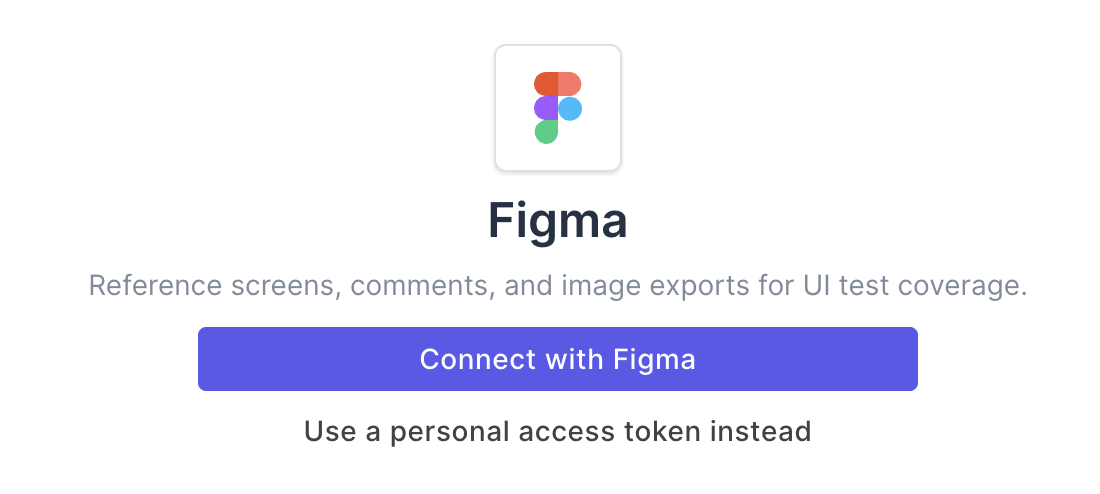
Grant the token the following scopes:
| Permission | Access | Scope |
|---|---|---|
| File content | Read | file_content:read |
| Comments | Read and write | file_comments:read, file_comments:write |
| Projects | Read | project_metadata:read |
| Current user | Read | current_user:read |
Copy the token into the connector and store it securely as you would a password. If any required scope is missing, the connection fails with a scope-mismatch error.
Connect to private GitHub repositories
Your GitHub authorization gives the assistant access to public repositories. To access private repositories in an organization, ask an organization owner to install the Katalon GitHub App for that organization. This is a one-time setup.
Connect Azure DevOps for an enterprise organization
Enterprise Azure DevOps organizations authenticate through Microsoft Entra ID. Before members can connect, a Global Administrator, Application Administrator, or Cloud Application Administrator must approve the Katalon True connector app.
Azure DevOps does not send the admin an approval request. If your connection stops at an Approval required screen, ask an admin to grant consent from the Microsoft Entra admin center:
- Open the Microsoft Entra admin center (or the Azure portal).
- Go to Identity → Applications → Enterprise applications.
- Search for Katalon True (filter by All Applications if needed) and open it.
- Under Security, select Permissions.
- Click Grant admin consent for [your organization]. The button displays your tenant domain, such as
example.com. - Sign in with an admin account, review the requested scopes, and click Accept.
The admin can also grant consent directly from a member's Approval required screen. Select Have an admin account? Sign in with that account, sign in as an admin, select Consent on behalf of your organization, and click Accept.
Consent is granted once for the entire organization. After approval, members can connect without encountering the admin block.
If your account belongs to multiple Azure DevOps organizations, include the organization name in your request. The assistant selects an organization automatically only when your account belongs to one, or when a personal access token connection is active (see below).
Connect Azure DevOps with a personal access token
The personal access token option for Azure DevOps is enabled only for some accounts. If you don't see a PAT option when connecting Azure DevOps, use the Entra ID (OAuth) connection described in Connect Azure DevOps for an enterprise organization.
Where enabled, the PAT connection exists alongside your Entra ID (OAuth) connection; it does not replace it. You can only have one Azure DevOps authentication method connected at a time. To switch between OAuth and a PAT, disconnect the existing connection first, then connect again with the other method.
To reconnect or switch, open the connector's settings and select Reconnect. The form pre-fills the organization URL you connected with, in the form dev.azure.com/<your-organization>. Connect stays disabled until you paste a token.
The read and write actions available to the assistant are the same on both authentication methods. The one difference is how the assistant resolves which organization to use:
- With a PAT connection, the assistant reads the organization URL from your connection and uses that one organization automatically, so a request such as listing your projects works without naming an organization.
- With an OAuth (Entra ID) connection, the assistant looks up every organization your account can access. If your account belongs to more than one, name the organization in your request so the assistant knows which one to use.
If a PAT connection is configured, it takes precedence over an OAuth connection for Azure DevOps requests.
Write actions still require your confirmation through the Approval needed card on both authentication methods, and writes are attributed to you as the connection owner either way.
The myorg.visualstudio.com organization URL format, and how the connection surfaces a revoked token, have not been verified. If you use that URL format or hit an unexpected error after revoking a token in Azure DevOps, report it to your Katalon contact.
You connect each app once per user. The connection stays available across your chats until you disconnect it.
Use a connected app in a chat
Reference the content you want the assistant to work with directly in your message: by URL, by ID, or by name. The assistant only reads from a connected app when your request calls for it; it does not sync or scan the app in the background. If your request needs an app that isn't connected yet, the assistant tells you and points you to the Connect apps panel.
Example prompts
The assistant recognizes the workflow behind your request and pulls from the right connected app. The prompts below are grouped by what you're trying to do.
Generate tests from a requirement, spec, or issue
-
Generate test cases from this requirement page: <Confluence page URL>With Confluence connected, the assistant reads the page, including attachments and open comments, and drafts test cases for you to review. It can save the test cases you approve to your project and turn open questions in page comments into explicit test scenarios.
Check out this example video: Generate test case from requirement page.
-
Write test cases from the acceptance criteria of PROJ-123With Jira connected, the assistant reads the issue's description, acceptance criteria, and comments, and drafts test cases for you to review before saving them to your project. The same works for an Azure DevOps work item or a GitHub issue: reference it by URL or ID and the assistant classifies it as a requirement before generating.
-
Import the PRD named "Payment flows" from my Google Drive and list the acceptance criteriaWith Google Drive connected, the assistant finds the named document, imports its content, and extracts the acceptance criteria for you to review.
-
Export the checkout screens from this Figma file and write UI test cases: <Figma file URL>With Figma connected, the assistant exports the referenced frames as images, inspects the screens, and drafts UI test cases with expected visuals. It captures the flow and expected UI, such as screens, states, and on-screen copy, rather than component-level design details.
When an issue you reference embeds a Figma, Confluence, or Google Drive link in its body or comments, the assistant fetches that source as context too. You don't have to ask for it separately. For example, generating tests from a Jira story that links a Figma flow uses both.
Validate an implementation or tests against a design
-
Does the login screen in PR #58 match this Figma frame? <Figma frame URL>With Figma and GitHub connected, the assistant renders the referenced frame, compares it against the change, and flags where the expected UI, states, or copy differ, so you can turn gaps into test scenarios.
-
Check whether our existing checkout tests still cover this updated Confluence spec: <page URL>With Confluence connected, the assistant reads the updated spec and points out acceptance criteria that your current test cases don't yet cover.
Analyze a code change and its test impact
-
What should I test for this PR? <GitHub or Azure DevOps PR URL>With GitHub or Azure DevOps connected, the assistant reads the diff, identifies the changed areas (files, modules, endpoints, UI flows), maps them to your existing Katalon test coverage, and reports covered areas, coverage gaps, and a suggested run scope: which suites or cases to execute for this change. It reads product code as read-only and never writes to a product repository.
-
Summarize what changed in this Azure DevOps build and which tests it affects: <build URL>With Azure DevOps connected, the assistant reads the build and PRs behind it and maps the changes to impacted test coverage.
Import and sync test cases from a test-management system
-
Import the test cases from this Azure DevOps work item into my project: <work item URL>With Azure DevOps connected, the assistant reads the Test Case work item's Steps grid as structured actions and expected results. After you approve the import, it creates a matching Katalon test case step by step.
-
Bring in all the test cases from this Azure DevOps Test Plan: <Test Plan URL>With Azure DevOps connected, the assistant walks the Test Plan's suites and imports each case verbatim: title, ordered steps, expected results, and test data preserved exactly, and links each imported case back to its source. If a case was already imported, it reuses the existing Katalon case instead of creating a duplicate. It imports as-is; it only rewrites or normalizes cases when you explicitly ask.
-
Summarize Azure DevOps work item 5924 and list its attachmentsWith Azure DevOps connected, the assistant combines the work item history, description, and attached screenshots into one summary. After you confirm, it can also post its findings as a comment on the work item.
Run a multi-step workflow across a tracker
Some requests span several operations on one app; the assistant runs the whole sequence in one turn.
Review the open pull requests in <owner>/<repo> and show what changed in each, with GitHub connected.Triage my open Jira bugs and comment on the highest-priority one, with Jira connected. The comment is a write, so the assistant previews it and waits for your confirmation before posting.List the Azure DevOps work items assigned to me and summarize the comments on the first one, with Azure DevOps connected.
- Reference content explicitly: paste the URL or ID instead of describing the document. The assistant reads only what you point it to, so precise references produce precise answers.
- Scope one request to one outcome, such as "generate test cases from this page." Chain follow-up requests in the same chat instead of packing several goals into one message.
- Connect only the apps a chat needs, and use the per-chat toggle to mute the rest. A shorter tool list helps the assistant choose the right source.
- Review every write before you confirm it. The assistant shows what it is about to post, and nothing is written to a connected app without your approval.
Manage app connection
-
Under the message box, click the connected app icon.
-
To keep the app connected but stop the assistant from using it in the current chat, use the toggle to turn the app on or off.
The change applies from your next message. When the app is turned off, the assistant tells you that it is unavailable if your request needs it.
-
To adjust the app connection:
- Click the settings icon next to the connected app.
- On the connector details page, expand the Manage menu.
- Click Reconnect to reload the connection.
- Click Disconnect to remove the connection.
Disconnecting revokes the authorization for your user. The assistant can no longer access the app until you connect it again.
To switch to a different account on the same app, disconnect it first, then connect again and sign in with the other account.
Data access and security
- Each connection is scoped to your user account. The assistant accesses the external app with your permissions only. It cannot read content that your account cannot access, and connections made by other users are never shared with you.
- Katalon does not store your reusable credentials for the external app. For OAuth apps, access is granted through OAuth: Katalon stores the authorization token server-side, never exposes it to your browser or chat messages, and revokes it when you disconnect the app. If you connect Figma or, on accounts where it is enabled, Azure DevOps with a personal access token instead of OAuth, the token is stored server-side the same way, never exposed to your browser or chat messages, and deleted when you disconnect the app; revoke it in the external app as well if the token is no longer needed.
- Every write action requires your explicit confirmation in the chat before the assistant performs it.
Permissions each connection requests
The assistant requests only the access it needs to read the content you reference and perform confirmed write actions. What each connection grants:
| App | Permissions requested |
|---|---|
| Jira | Atlassian scopes read:jira-work and write:jira-work, plus offline_access for token refresh. |
| Confluence | Atlassian read/write content scopes (shares the Jira authorization). Adding a label uses the classic write:confluence-content scope. |
| Azure DevOps | Microsoft Entra ID OAuth granting read/write access to work items, Test Plans, pipelines, and repositories. The exact scope set is configured by Katalon on the connector. On accounts where the personal access token option is enabled, the PAT connection reads and writes with the access granted directly to the token you provide; see Connect Azure DevOps with a personal access token. |
| GitHub | GitHub App authorization (not classic OAuth scopes). Access to repositories, issues, and pull requests follows the app's granted permissions and the organizations where it is installed. |
| Google Drive | OAuth access to your Drive files (read, and create/upload for confirmed writes). The exact scope set is configured by Katalon on the connector. |
| Figma | OAuth access to read designs, files, and comments and to add comments; the exact scope set is configured by Katalon on the connector. If you connect with a personal access token instead, grant it the scopes listed under Connect an app: current_user:read, file_content:read, file_comments:read, file_comments:write, project_metadata:read. |
These per-user connectors are separate from the project-level Jira integration and Azure DevOps integration, which link requirements, defects, and sprints/releases into your Katalon True project for the whole team. The per-user Jira and Azure DevOps connectors here give the assistant on-demand, read/comment access scoped to your own account; the project-level integrations are the team-wide sync. You can use both at the same time.
Troubleshooting
| Problem | What to check |
|---|---|
| The assistant cannot find a document, page, or work item you referenced. | Verify the account you connected with can open that content in the external app. For Confluence, also confirm the connected Atlassian account belongs to the same site (for example, yourcompany.atlassian.net) that hosts the content. |
| The assistant tells you an app you connected earlier is unavailable. | Open Connect apps and check that the app's toggle is on and the connection is still active. Reconnect the app if it was disconnected. |
| A write action fails after you confirm it. | Ask the assistant for the exact error message and retry, or perform the change directly in the external app. |
| Figma stops working or reports it is unavailable. | Open Connect apps and reconnect Figma: sign in again for an OAuth connection. If you connected with a personal access token, the token may have expired or been revoked in Figma; paste a new one when reconnecting. |
| Azure DevOps stops working or reports it is unavailable. | Open Connect apps and reconnect Azure DevOps. If you connected with an Entra ID (OAuth) connection, sign in again. If you connected with a personal access token, the token may have expired or been revoked in Azure DevOps; paste a new one when reconnecting. If you no longer see a PAT option, the account may no longer have it enabled; use the Entra ID connection instead. |