Azure DevOps Integration
This document explains how to set up and manage an Azure DevOps integration in Katalon True Platform.
Connect Azure DevOps to Katalon True Platform to sync requirements, bugs, and release planning data, link Azure DevOps Test Plans cases, and push test results between the two systems.
Find your starting point:
- You are setting up Azure DevOps for the first time? -> Start from Step 1
- Your organization is already connected and you need to configure a project link? -> Skip to Step 2
- You need to manage an existing integration (disconnect, archive, or restore)? -> Skip to Managing Your Azure DevOps Integration
- You need to link Azure DevOps Test Plans cases? -> Go to Link Azure DevOps Test Plans cases
- You need to publish execution results to Azure DevOps? -> Go to Push test results to Azure DevOps
Step 1: Authorize the Azure DevOps Connection (Account-level)
This step establishes the connection between Katalon True Platform and Azure DevOps. No project data is synced yet.
- You must have the Account Admin or System Admin role in Katalon True Platform.
-
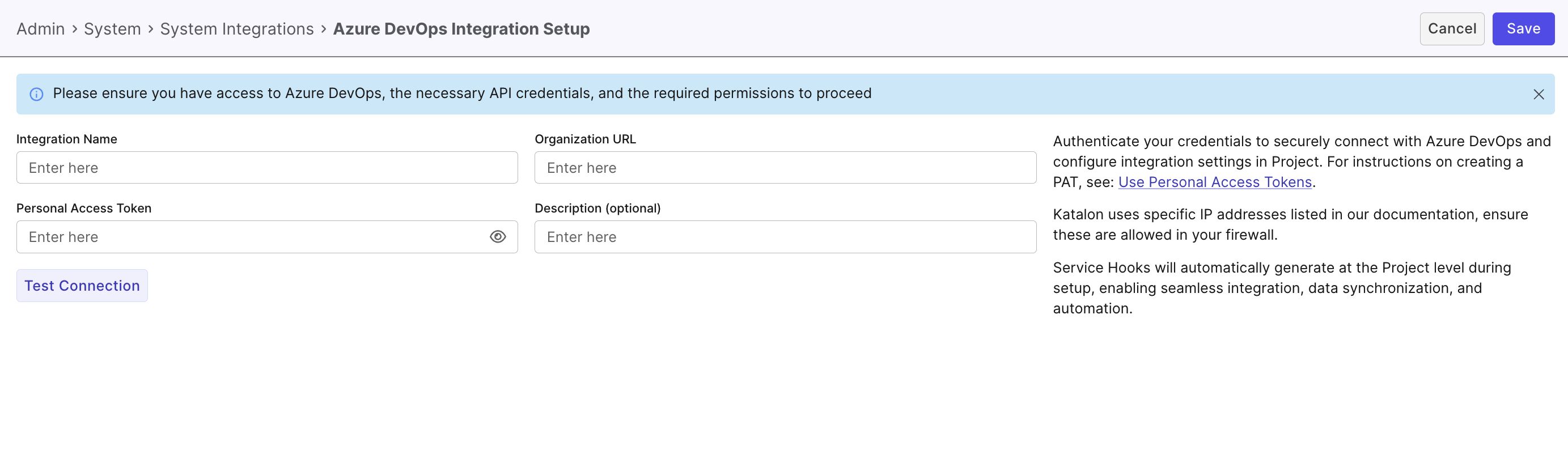
Go to Account Settings > Integrations and click
+ Create Integration. -
In the Available Integration list, select Azure DevOps.
-
Fill in the required fields:
- Integration Name: A custom label (max 50 characters).
- Organization Account URL: Your Azure DevOps organization URL (must start with
https://).- Example:
https://dev.azure.com/your-workspace
- Example:
- Personal Access Token (PAT): Refer to Microsoft documentation on creating a PAT. Ensure your PAT includes required permissions.
Azure DevOps Permissions Required for Katalon True Platform Integration
Integration Feature Required Permissions Notes Manual Sync Read Project and Team,Read Work Items,Read Analytics
Access level: at least BasicRequired to fetch test and work item data. Link Defect Read Project and Team,Read Work ItemsEnables linking Azure DevOps work items to Katalon True Platform. Create Defect Read Project and Team,Read & write Work ItemsNeeded to create new Azure DevOps work items (for example, bugs) from Katalon True Platform. Push Test Result Read Project and Team,Read & write Test ManagementEnables pushing test execution data from Katalon True Platform to Azure DevOps. Link Test Case to KS Read Project and Team,Read & write Test ManagementRequired to associate Katalon Studio test cases with Azure DevOps test cases. Handle Webhook Events Read Project and Team,Read Work Items,Read Analytics
Access level: at least BasicNeeded for syncing Azure DevOps events to Katalon True Platform. Webhook Setup Member of the Project Collection Administrators group Required only when configuring webhooks from Azure DevOps to Katalon True Platform. - Description (Optional): Max 255 characters.
-
Click Test Connection to validate, then click Save.
Result
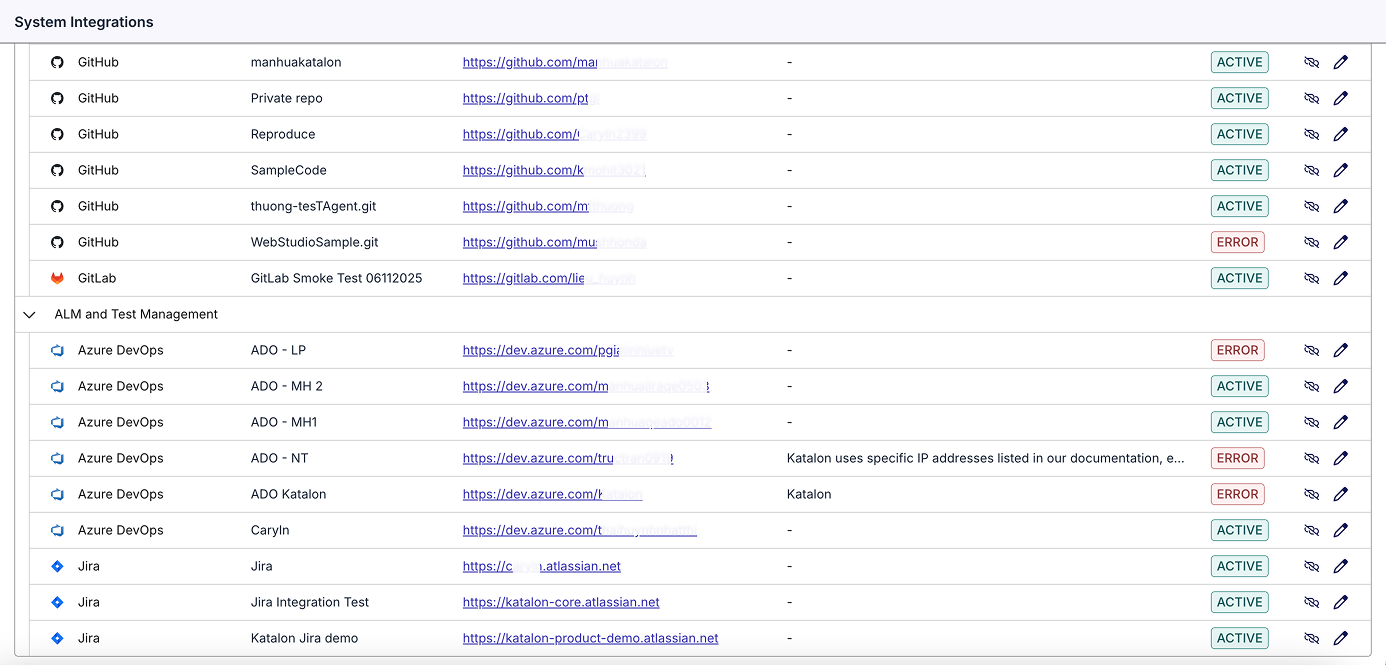
To verify the connection is active, navigate to Account Settings > Integrations.
- If the status initially shows Inactive, reload the page to update it to Active.
- If the status shows Error, verify all required configuration fields, especially the PAT.
Step 2: Link Azure DevOps to Project (Project-level)
This step shows how to connect an Azure DevOps project to your Katalon True Platform project and configure synchronization settings.
- You must have the Project Admin role in this project.
- An Azure DevOps account must already be connected at the Account-level (Step 1).
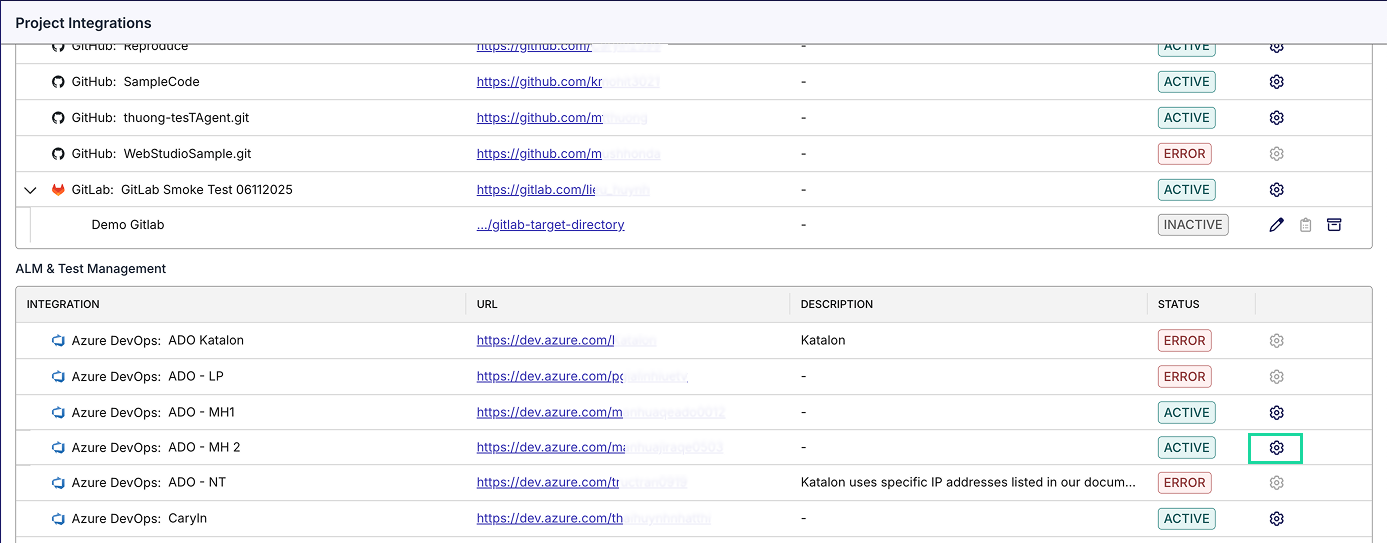
- Navigate to your project > Settings > Integrations.
- On your linked Azure DevOps connection, click the right edge and select New configuration (Settings icon).
-
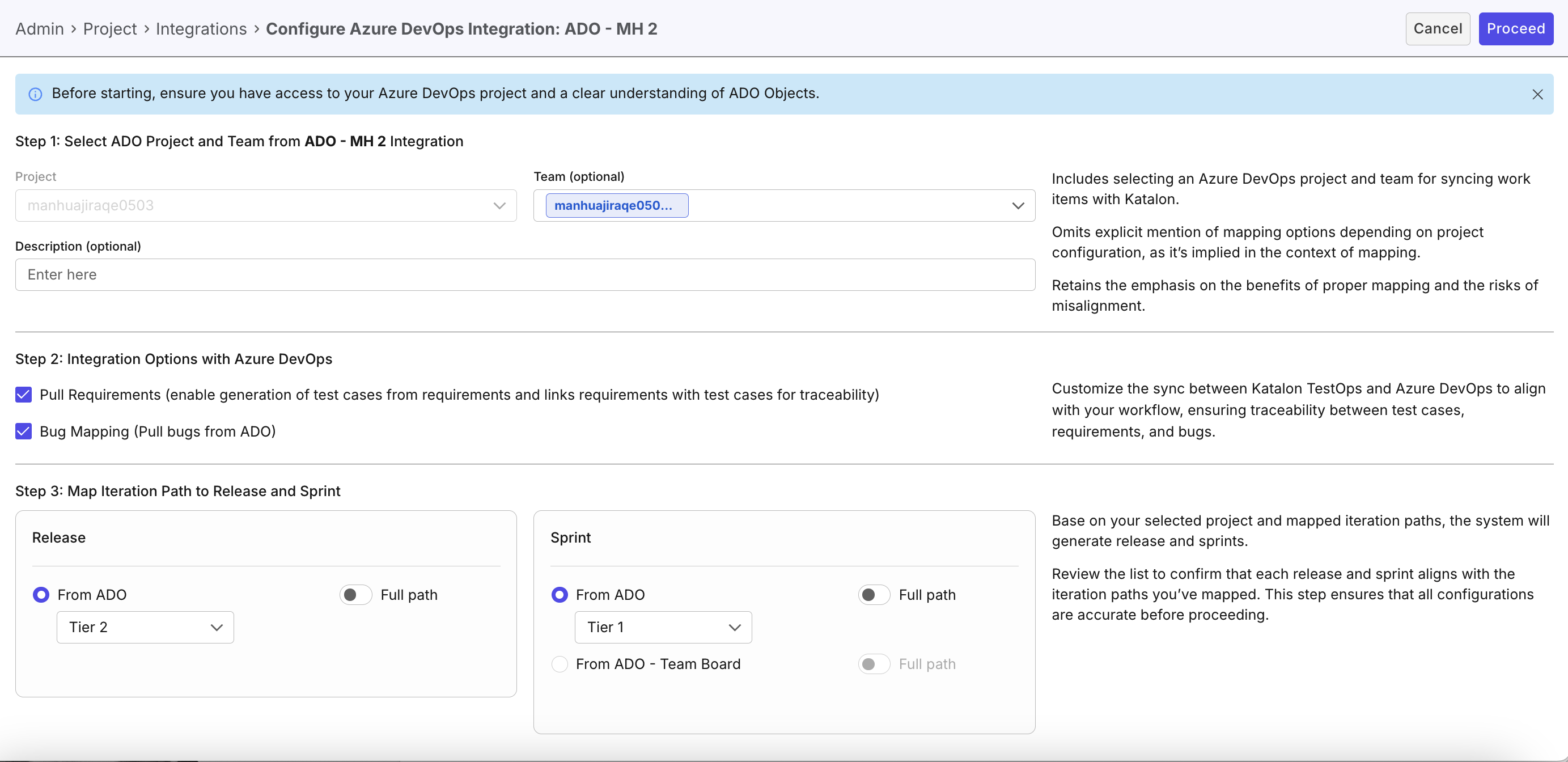
Configure the project-level settings:
Step 1: Select the Project and Team
- Project: Select the Azure DevOps project to link.
- Team (Optional): Select a team to support team-based board mapping.
- Description (Optional): Max 255 characters.
Step 2: Additional Integration Settings
- Pull Requirements: Enable generation of test cases from requirements and requirement-to-test-case traceability.
- Bug Mapping (Pull bugs from ADO): Enable bug synchronization from Azure DevOps.
notesEnabling either option above controls which mapping sections are available in later steps.
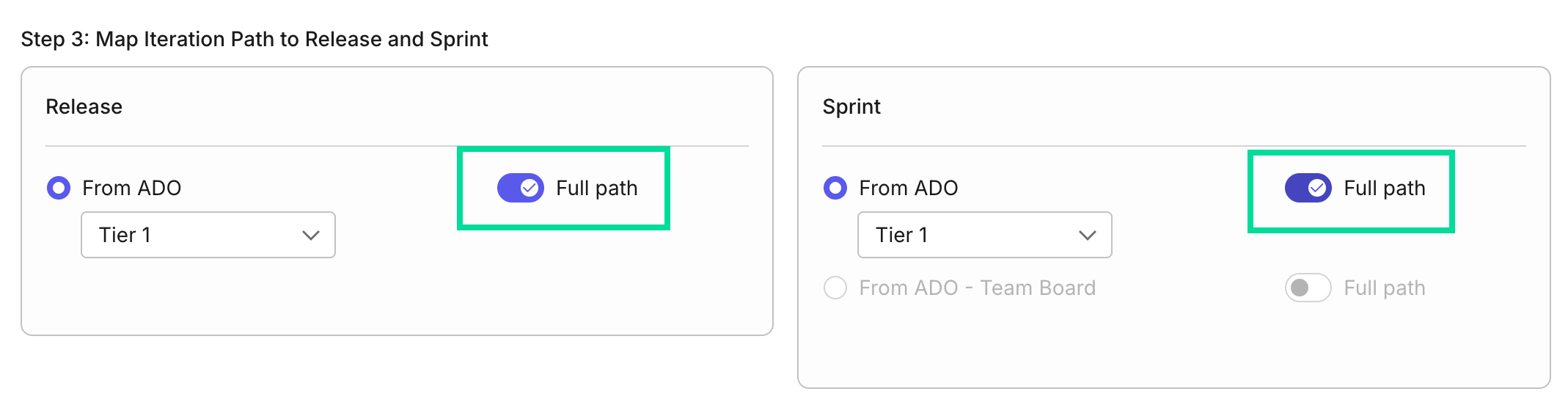
Step 3: Map Iteration Path to Release and Sprint
info- This step is enabled only if Pull Requirements and/or Bug Mapping is selected in Step 2.
- Tier levels follow your Azure DevOps work-item hierarchy configuration.
Select an iteration path and map it to Release/Sprint in Katalon True Platform.
- Use Full path when you need full hierarchy paths for clearer resource mapping.
- To enable For ADO - Team Board, you must select a Team in Step 1.
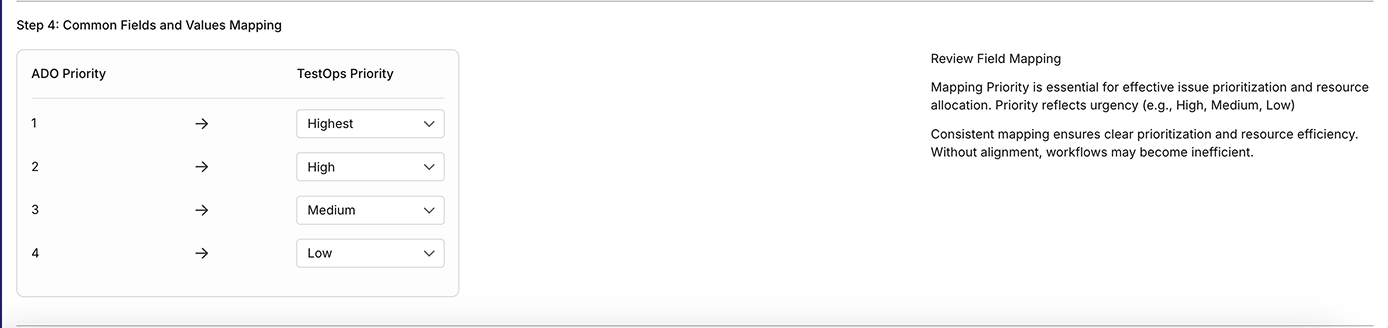
Step 4: Common Fields and Values Mapping
Map ADO Priority levels (1 to 4) to Katalon True Platform Priority levels.
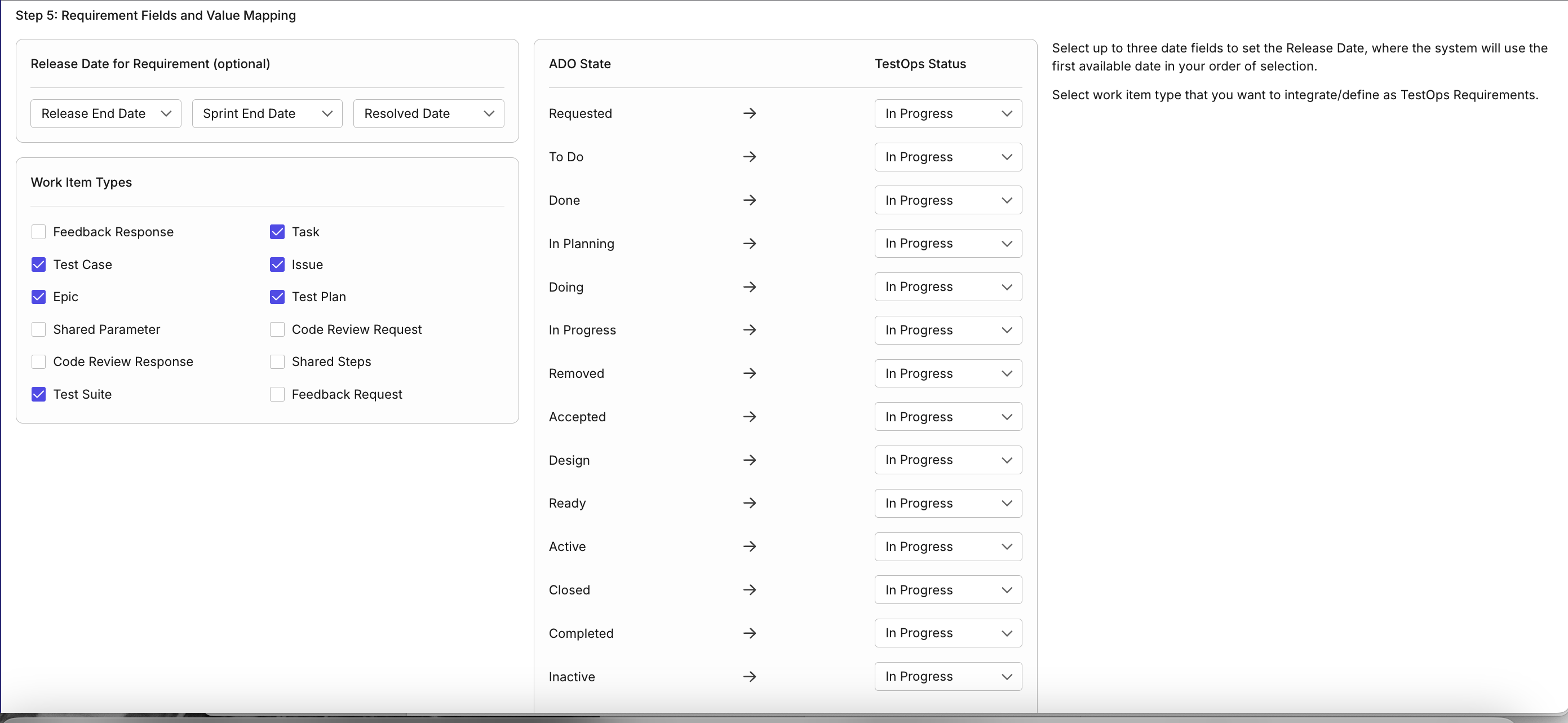
Step 5: Requirement Fields and Values Mapping
infoThis step is enabled only if Pull Requirements is selected in Step 2.
- Release Date for Requirement (Optional): Select up to three Azure DevOps date fields.
- The system uses these fields in priority order (left to right) and picks the first available date.
- Map ADO State to Katalon True Platform Status.
- Select Work Item Types to sync.
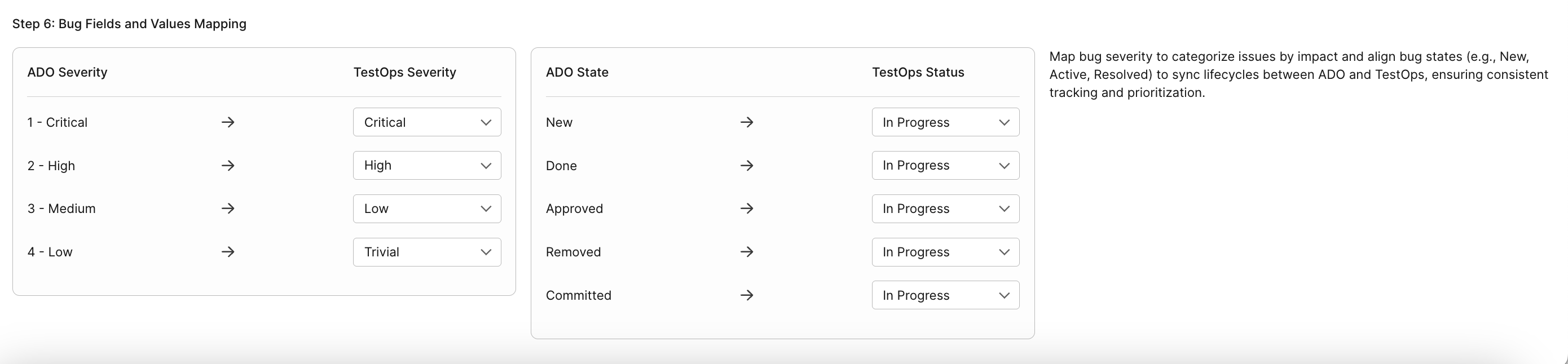
Step 6: Bug Fields and Values Mapping
infoThis step is enabled only if Bug Mapping is selected in Step 2.
- Map ADO Severity to Katalon True Platform Severity.
- Map ADO State to Katalon True Platform Status.
-
Click Proceed to sync data and finalize the connection.
- If the status initially shows Inactive, reload the page to update it to Active.
- If you click Save after modifying details, changes are saved but status may remain Inactive.
- To complete syncing, click Proceed.
-
[Optional] To edit an existing linked Azure DevOps integration, click the Edit (pen) icon, update the settings, and click Proceed.
Result
Your Azure DevOps integration is now active within your project.

Link Azure DevOps Test Plans cases
Link an Azure DevOps Test Plans case to a True Platform test case when you need test-case traceability. This linkage is separate from linking a requirement or defect.
Before you begin, make sure the project-level Azure DevOps integration is active and the connected Azure DevOps identity has Read Project and Team and Read & write Test Management permissions.
- Go to Tests > Test Cases and open the True Platform test case.
- In the test case detail view, open Linkages.
- Under ADO Test Cases, click Click to link ADO Test Cases.
- Search for and select the Azure DevOps test case you want to link, then click Link.
A True Platform test case can link to multiple Azure DevOps test cases. For the generic linkage-management workflow, see Create and manage test cases: Linkages.
To copy Azure DevOps test cases into Katalon True Platform instead of linking to them, see Import test cases from Azure DevOps.
ADO Test Cases creates test-case-to-test-case links for Azure DevOps Test Plans. Use Requirements or Defects in the Linkages panel for those artifact types instead.
Push test results to Azure DevOps
You can push a completed run manually or configure results to be pushed automatically. The Azure DevOps integration requires Read Project and Team and Read & write Test Management permissions.
Push manually
- Open a completed run's Test Run Details page.
- Select Push Test Result to ADO.
- Complete the push configuration and confirm the action.
When the push strategy is Push manually, selecting an Azure DevOps Test Plan is optional.
Push automatically
When configuring the Azure DevOps integration for a run or schedule, select the push strategy appropriate for that execution. Scheduled manual test runs support automatic Azure DevOps result pushes. The Push on passing runs strategy pushes results only when every test in the run passes.
Verify the push
After a successful push, Test Run Details includes a link to the corresponding Azure DevOps test run. The pushed Azure DevOps result also includes a link back to the corresponding True Platform test result.
View Release Plans Synced from Azure DevOps
To view release plans synced from your linked Azure DevOps integration:
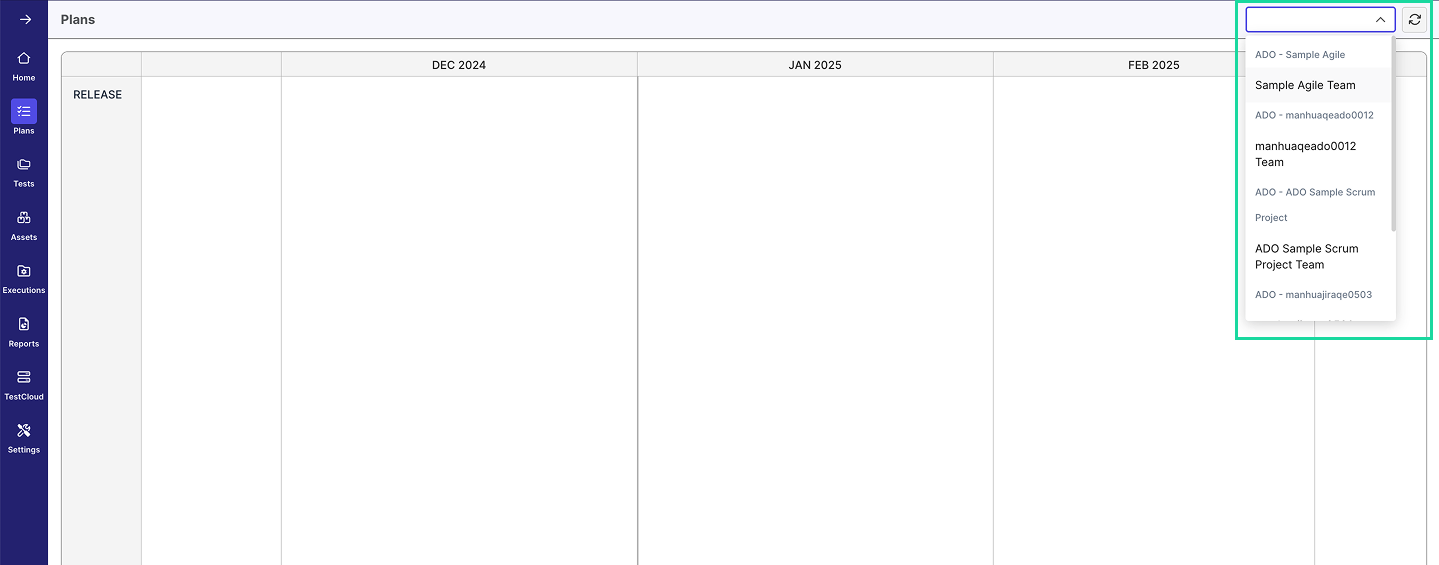
- Navigate to your project > Plans.
- In the top-right dropdown, select the linked Azure DevOps integration.
- Click Sync to fetch the latest data.
Managing Your Azure DevOps Integration
Katalon True Platform provides multiple ways to manage Azure DevOps integrations without losing historical data.
- Use Disconnect to disable the Azure DevOps integration across all projects (Account-level).
- Use Archive to disable an Azure DevOps connection for a single project (Project-level).
Katalon does not support permanently deleting integrations. This ensures audit history is preserved and enhances security and traceability.
Disconnect an Azure DevOps Connection
Required role: Account Admin or System Admin.
Disconnecting makes the integration inactive across all projects. Katalon True Platform does not support fully deleting integrations to preserve audit history.
For any Azure connections, modifying this connection can also affect Azure Repos configuration when both are set up.
-
Go to Account Settings > Integrations.
-
Click the Disconnect icon next to the connection.
-
Confirm by clicking Disconnect in the dialog.
=> The status changes to Inactive. All projects using this integration lose the ability to sync with Azure DevOps.
-
To reconnect, click the Reconnect icon next to the integration and confirm. All projects will resume syncing once reconnected.
Archive a Linked Jira integration
Required role: Account Admin or System Admin to perform this action
Archiving disables the connection for that project only — other projects using the same Jira integration are unaffected. Archived configurations no longer appear in Project Integrations list, and any scheduled test runs will be canceled at runtime.
- Go to Project Settings > Integrations.
- Click the right edge of your linked connection and select Archive.
- Confirm by clicking Archive in the dialog.
Restore an Archived integration
- Go to Project Settings > Integrations.
- Click New configuration (settings icon) on the Azure DevOps connection.
- Enter the same repository URL as the archived configuration and click Proceed.
Katalon True Platform will restore the archived configuration rather than creating a duplicate.