Playwright Integration
Katalon True Platform works with your existing Playwright project in two ways. You choose one or both, depending on how much of the workflow you want the platform to own.
| Approach | Where tests run | Use it when | |
|---|---|---|---|
| Approach 1 | Manage, run, and report on Playwright tests | Katalon True Platform | You want the platform to parse your test files into test cases and test suites, trigger the runs for you, and report the results — one place to manage, execute, and analyze your Playwright tests. |
| Approach 2 | Upload test reports | Your own machine or CI | You already have a Playwright pipeline and only want results, dashboards, and analytics in Katalon True Platform. |
Both approaches report into the same Test Runs and reporting surfaces, so Playwright results sit alongside Katalon Studio results.
Use cases
- Keep one reporting surface across two frameworks. A team running Katalon Studio suites for regression and Playwright suites for a newer web app can see both in the same Test Runs list and the same reports, instead of checking two tools. Uploaded Playwright reports can be separated out with the Testing Framework filter.
- Move an existing Playwright suite onto platform infrastructure. A team whose Playwright tests run on a self-managed CI runner can add the project as a repository and trigger runs from Katalon True Platform, without editing the spec files.
- Report from CI you want to keep. A team that has invested in its own GitHub Actions or Jenkins pipeline can keep that pipeline and add only
@katalon/playwright-reporter, so results, history, and analytics land in the platform. - Give non-engineers visibility into Playwright coverage. Once tests are parsed into test cases and test suites, a test lead can browse Playwright coverage in the test tree without reading the repository.
- Test an internal app without exposing it. A team whose application runs behind a corporate firewall or on a private subnet can route platform-triggered Playwright runs through an existing Katalon Tunnel or IP whitelist — the same connection their Katalon Studio runs already use. See Run against a private or internal application.
Approach 1 — Manage, run, and report on Playwright tests in True Platform
Add your Playwright project as a script repository so Katalon True Platform can read its test files, create matching test cases and test suites, and run them for you. Your .spec.ts files stay as they are in your project — no rewrite to Katalon Studio is required. You get the same Test Runs, dashboards, and analytics as the report-upload approach (Approach 2), and the platform also triggers the runs for you — so you manage, execute, and report your Playwright tests in one place.
Before you start, confirm your project meets the conditions in Limitations. In particular, the project must be TypeScript and playwright.config.ts must sit at the root of the directory you connect.
Connect the project from a Git provider
Connect your Playwright project from a Git provider — this is how you tell the platform that the repository holds Playwright tests rather than Katalon Studio tests.
Step 1. Create the account-level repository integration
Skip this step if your Git provider is already connected.
- Click Account in the lower-left navigation, then go to Integrations > Integrations.
- Click Create Integration and connect your provider. Katalon True Platform supports GitHub, GitLab, Bitbucket, and Azure Repos. For provider-specific setup, see GitHub integration.
Connected providers are listed under Repository with a status of ACTIVE or ERROR. An integration in the ERROR state — for example, one with an expired token — cannot be used until you fix it.
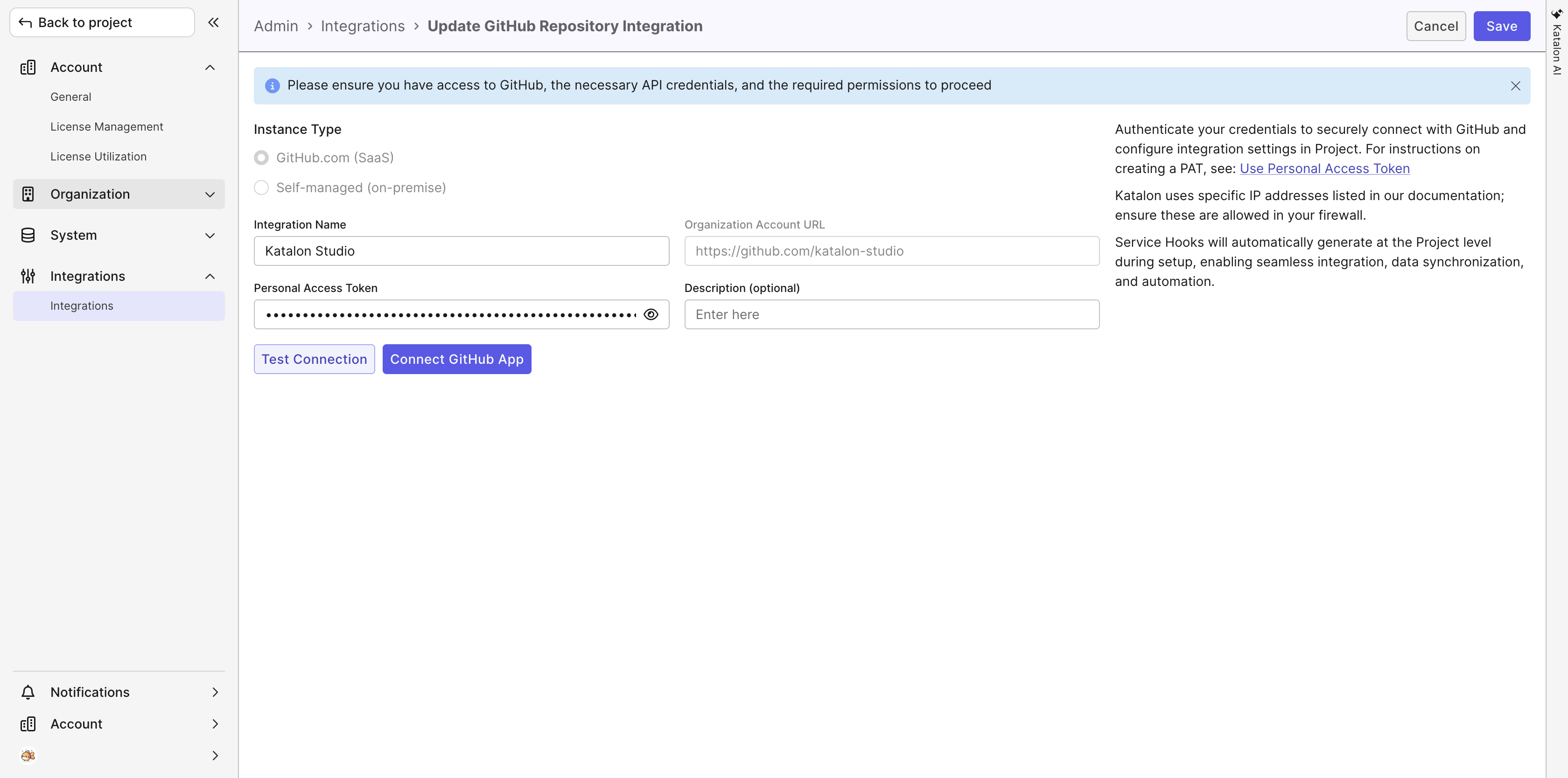
Step 2. Add a Playwright configuration to the integration
-
Click Back to project, then go to Settings > Integrations in your project.
-
On the Project Integrations page, find your provider under Repository and click the New configuration icon at the end of its row.
-
The configuration page opens, titled for your provider and integration — for example, Configure GitHub Integration: Katalon Studio. Fill in the following:
Field What to enter Display Name The name that identifies this repository in the test tree. For example, Playwright.URL The directory URL. In your Git provider, navigate to the repository, branch, and directory that contains playwright.config.ts, then copy the URL from your browser and paste it here. For example,https://github.com/my-org/my-repo/tree/main/playwright.Description Optional. Test Framework Select Playwright. The default is Katalon Studio, and a repository left on the default is not parsed as a Playwright project. -
Check the Review panel. It shows the Repository, Branch, and Directory the platform resolved from the URL you entered.
-
Click Proceed.
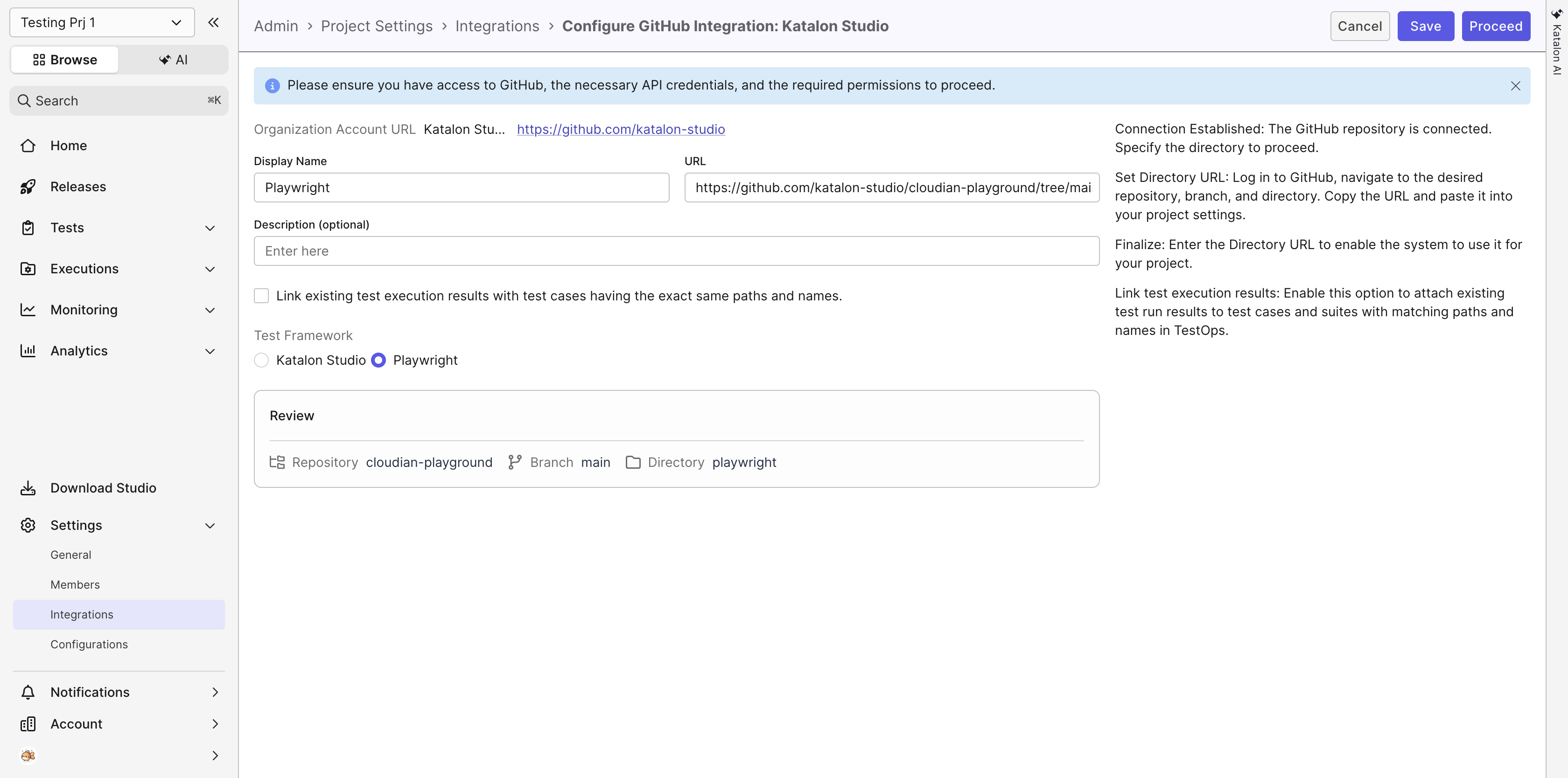
Each configuration appears nested under its provider on the Project Integrations page, with its own status and its own edit and delete controls. One provider integration can hold several configurations, so you can connect more than one Playwright directory from the same account.
For the general Git repository options that are not specific to Playwright, see GitHub integration.
Once the repository is added, Katalon True Platform parses the Playwright test files in it and creates the corresponding test cases and test suites.
View parsed Playwright test cases and test suites
After the repository is parsed, your Playwright tests appear in the test tree next to your Katalon repositories.
- Go to Tests > Test Cases. The test tree lists your Playwright repository under All Repositories.
- Expand the repository. Each
.spec.tsfile appears as a folder, and each directory in your project appears as a folder too. - Select a spec file folder to see the test cases parsed from it. Each one has the type Automated.
- Go to Tests > Test Suites and expand the same repository to see the test suites parsed from your
describeblocks.
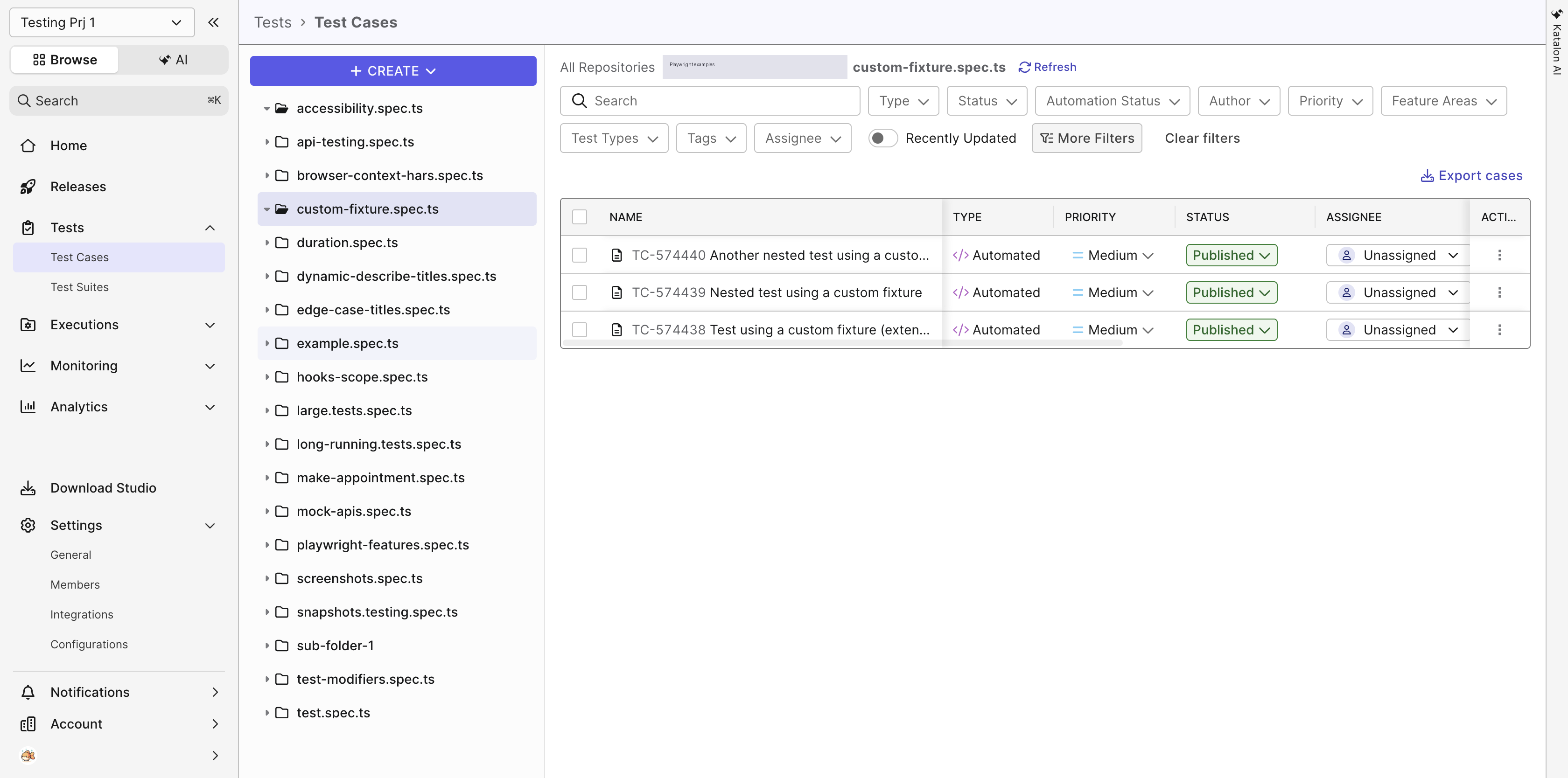
How your test files map to platform test assets:
| In your Playwright project | In Katalon True Platform |
|---|---|
A .spec.ts file | A folder, in both the test case tree and the test suite tree |
| A directory | A folder |
A test() | A test case with the type Automated, listed directly inside its spec file's folder |
A describe block | A test suite with the type Automated, inside its spec file's folder |
A nested describe block | Its own test suite, named for the full path of block titles. For example, a Level 2 block inside a Level 1 block becomes Level 1 describe tests > Level 2 describe tests. |
A test() outside any describe block | A test case, but no test suite. See Limitations. |
Test cases are listed flat inside their spec file's folder. The describe structure of a file shows up in the test suite tree, not as subfolders of test cases.
To pick up changes after you push to your project, select the repository and click Refresh repository. Katalon True Platform re-parses the test files and updates the test cases and test suites.
To narrow the test list by framework, click More Filters on the Test Cases page, then select Testing Framework.
For more about working with test cases in the platform, see Create or import test cases.
The Testing Framework value is not yet set automatically on test cases parsed from a Playwright repository. Until it is, set it on the test case detail page in the Additional Information panel if you want to filter or report by framework. The same field appears under Additional Information when you create a test run, where it defaults to Katalon.
Run a Playwright test suite
You run a Playwright test suite the same way you run a Katalon Studio one, from an automated test run.
- Go to Executions, then click Create > Create Automated Test Run.
- In the Test Run Name field, enter a name for the run.
- Click Select Tests. In the Select Test Suites dialog, expand your Playwright repository, then expand a spec file folder to find its test suites.
- Click the add icon next to each test suite you want to run, then click Save.
- In the PROFILE column, select the Playwright project to run with. This list comes from the
projectsdefined in yourplaywright.config.ts. - In the CONFIGURATION column, click Add configuration. The chosen environment appears in the column as a chip, for example
Windows Chrome 150. - Optional: In the Additional Information panel, set Testing Framework to Playwright so the run can be filtered and reported by framework. The field defaults to Katalon.
- Click Run Now. To run it later instead, click Schedule.
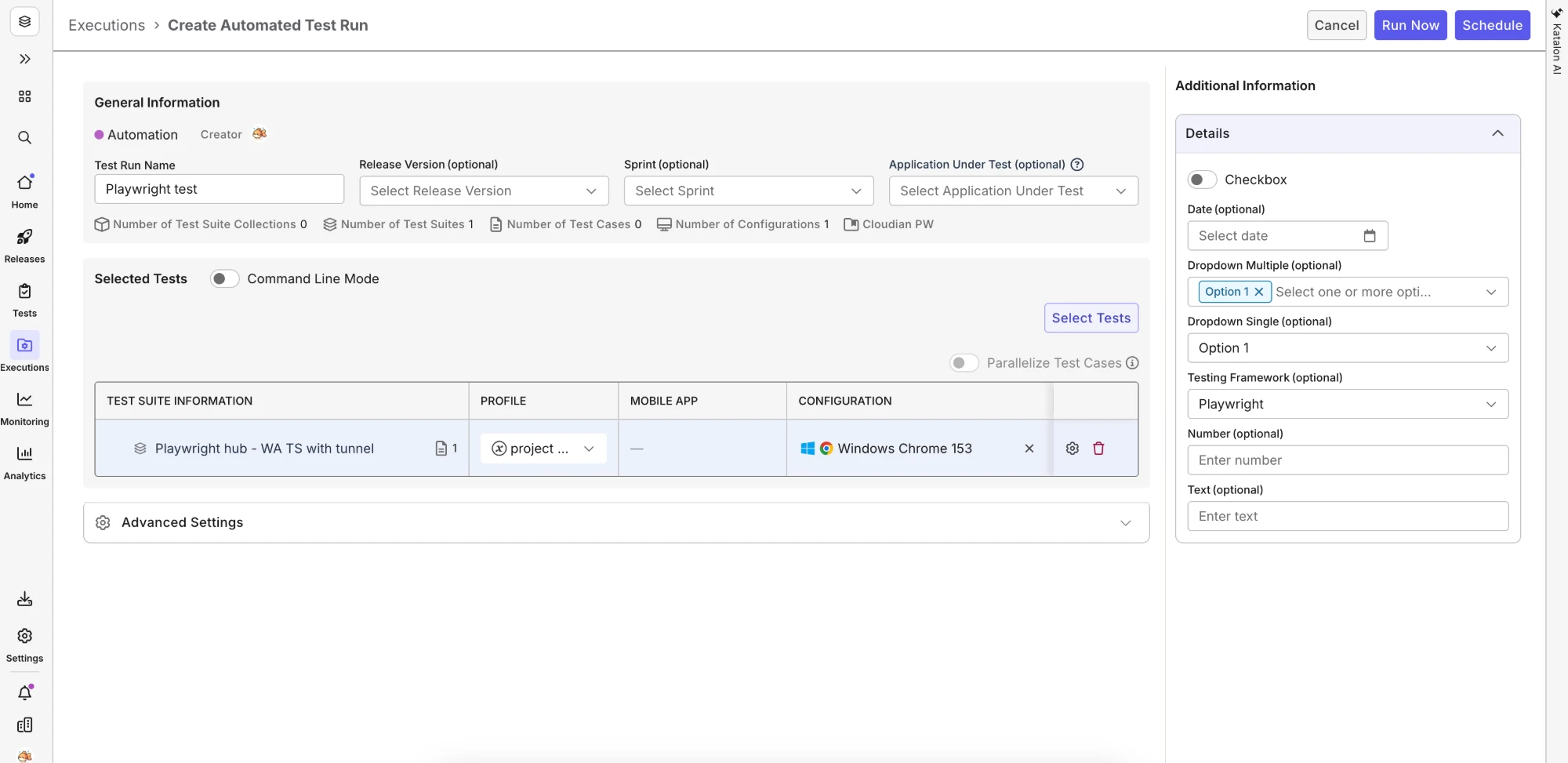
Only supported browser versions appear in the version list.
The run appears under Executions > History, where you can follow its progress the same way you follow a Katalon Studio run.
Run against a private or internal application
A platform-triggered Playwright run can reach an application that is not on the public internet — a UAT environment behind a corporate network, staging on a private subnet, or an application behind a firewall — through the same Private/Local Testing option that Katalon Studio runs use. The run selects an existing connection; it does not create one.
| Your application is | Use | What to prepare |
|---|---|---|
| In a private network, not reachable from outside | Katalon Tunnel | An Account or System Admin configures a tunnel, and a tunnel client runs on a machine that can reach the application. See Configure Katalon Tunnel. |
| Behind a firewall but publicly resolvable | IP Whitelisting | Your network team allowlists the Cloud Execution IP addresses and endpoints. See Network configuration for Test Execution - Cloud. |
To confirm a tunnel is ready before the run, go to Account Settings > System > Configurations > Tunnel and check that its status is Active.
Because the platform runs your Playwright project as-is, the private address comes from your own project configuration — the baseURL in playwright.config.ts, or in the Playwright project you select in the PROFILE column. You do not rewrite your tests to use a tunnel.
When you create the automated test run (the steps above):
- In the Advanced Settings section, switch the Private/Local Testing toggle on.
- Choose how the run reaches your application:
- Tunnel — select a specific tunnel in the Tunnel (optional) list, or keep Auto-select from available tunnels to let the platform pick an available one. Auto-select prefers a tunnel you own over other users' tunnels, and falls back to another user's active tunnel when you do not have one. If your tests also make API calls into the private network, select Also include API Calls.
- IPs Whitelisting — use this when your application is reachable from the allowlisted Cloud Execution IP addresses, so no tunnel is needed.
- Click Run Now or Schedule. If you schedule the run, you can change the private-testing selection later by editing the schedule.
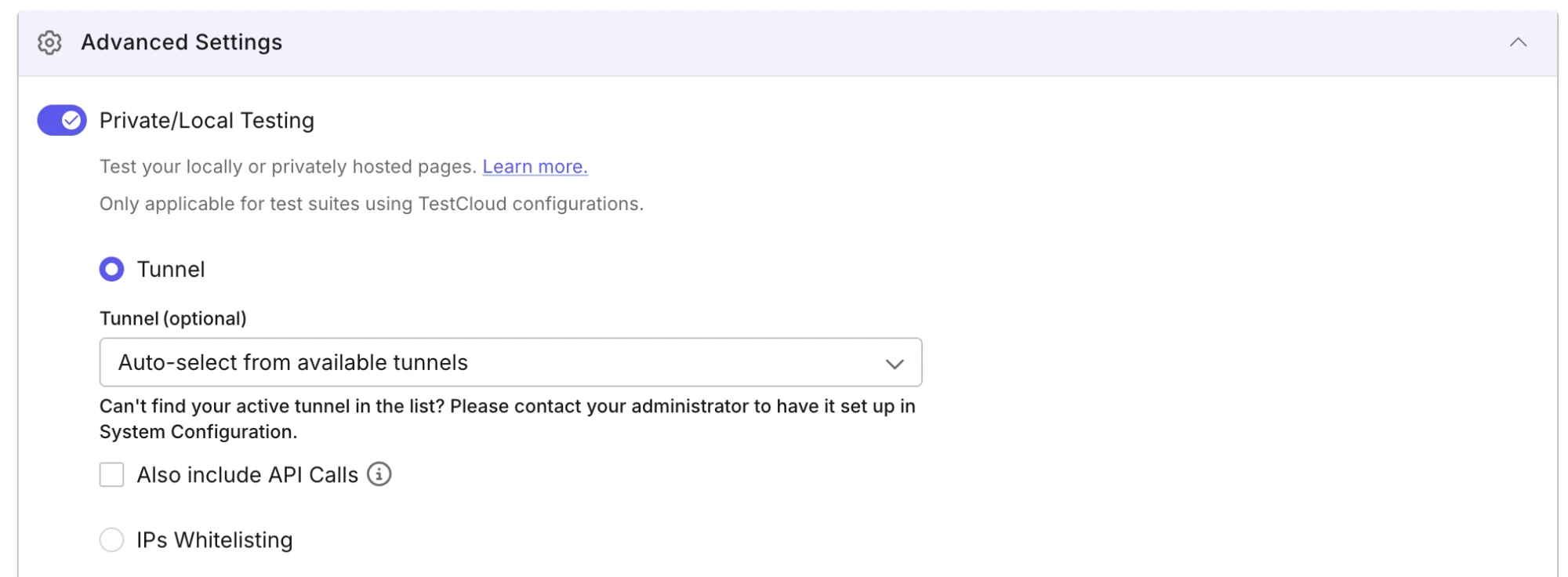
After the run, open it under Executions > History and check the SESSIONS tab to see the execution sessions the run used.
View Playwright test results and report
Playwright test results are sent to Katalon True Platform, including:
- Test name, file path, status, and duration.
- Screenshots, videos, and trace files as attachments.
- Browser and project metadata, such as Chromium, Firefox, and WebKit.
- Error messages and stack traces.
The test run report
Open a run from Executions > History. The report is the same one you get for a Katalon Studio run:
- OVERVIEW — Test Results Summary, Common Errors, the Flakiness, Always Fail, New Failures, and Slow counters, Previous Test Runs, and Defects.
- TESTS — every test in the run with its status, duration, browser, and stability TREND. Filter by Status or turn on Need Review.
- ATTACHMENTS — the files Playwright produced during the run.
- SESSIONS — the execution sessions the run used.
From the run header you can Re-run the run, or push its results to a connected ALM tool with Push Test Result To ADO or Push to Xray.
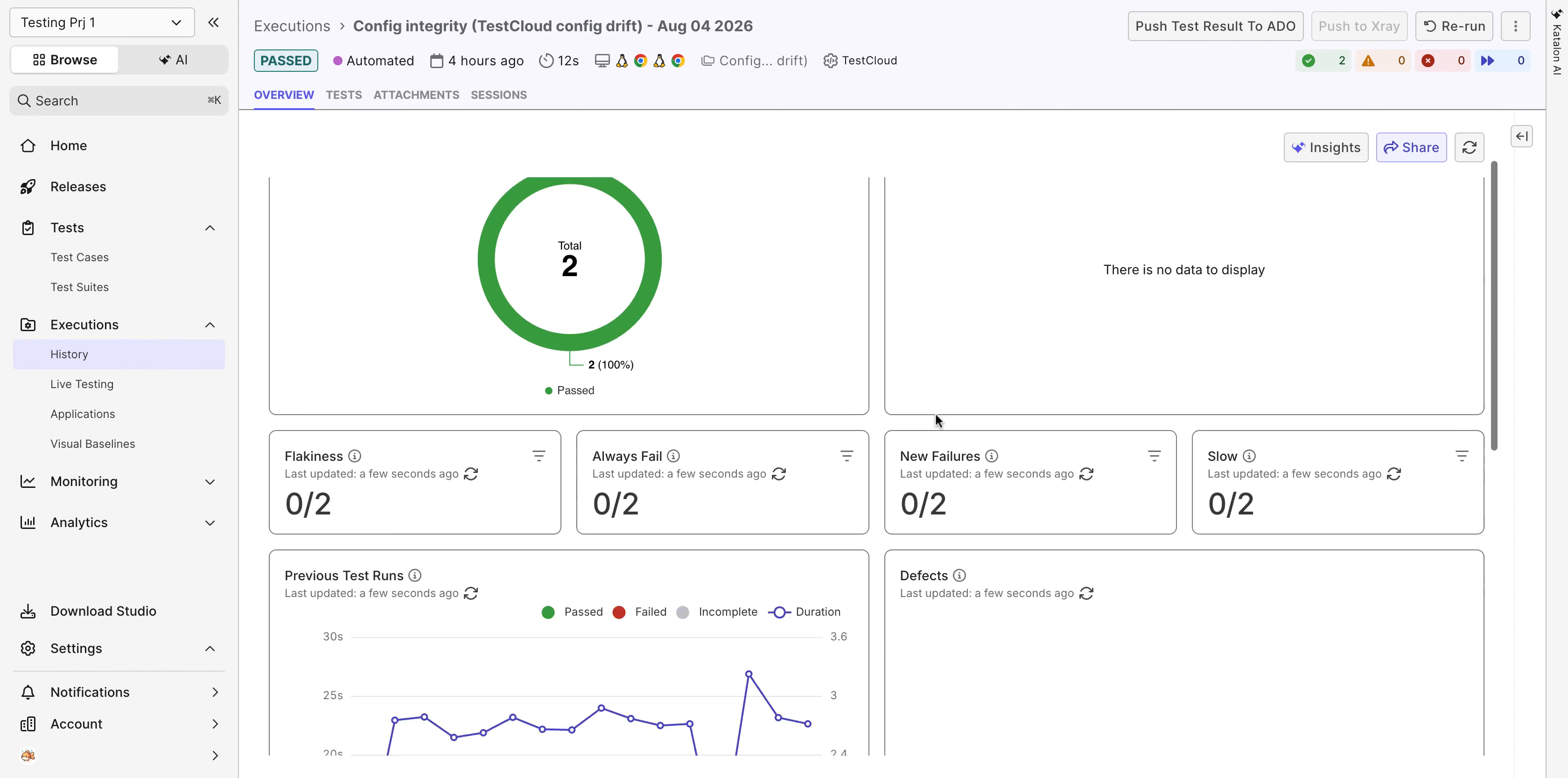
A single test result
Click a test on the TESTS tab to open its result page, which has three tabs: TEST STEPS, REQUESTS, and ARTIFACTS.
TEST STEPS replays the execution in the order Playwright ran it:
- Before Hooks, expandable to the fixtures Playwright set up —
Fixture "browser",Fixture "context", andFixture "page". - Each action and assertion as its own step, named after the call in your script. For example,
Navigate to "/"andExpect "toContain". - Video, Attachment, and Log entries for the artifacts the test produced.
- After Hooks.
Select Video to play the recording in the page. Use Result type to switch between the full log and a filtered view, Download Log to save the raw log, and Mark as Failed to override the status of a test the platform recorded as passed.
The Additional Information panel on the right shows the Stability trend across recent runs, Linked Defects, and the Testing Framework field.
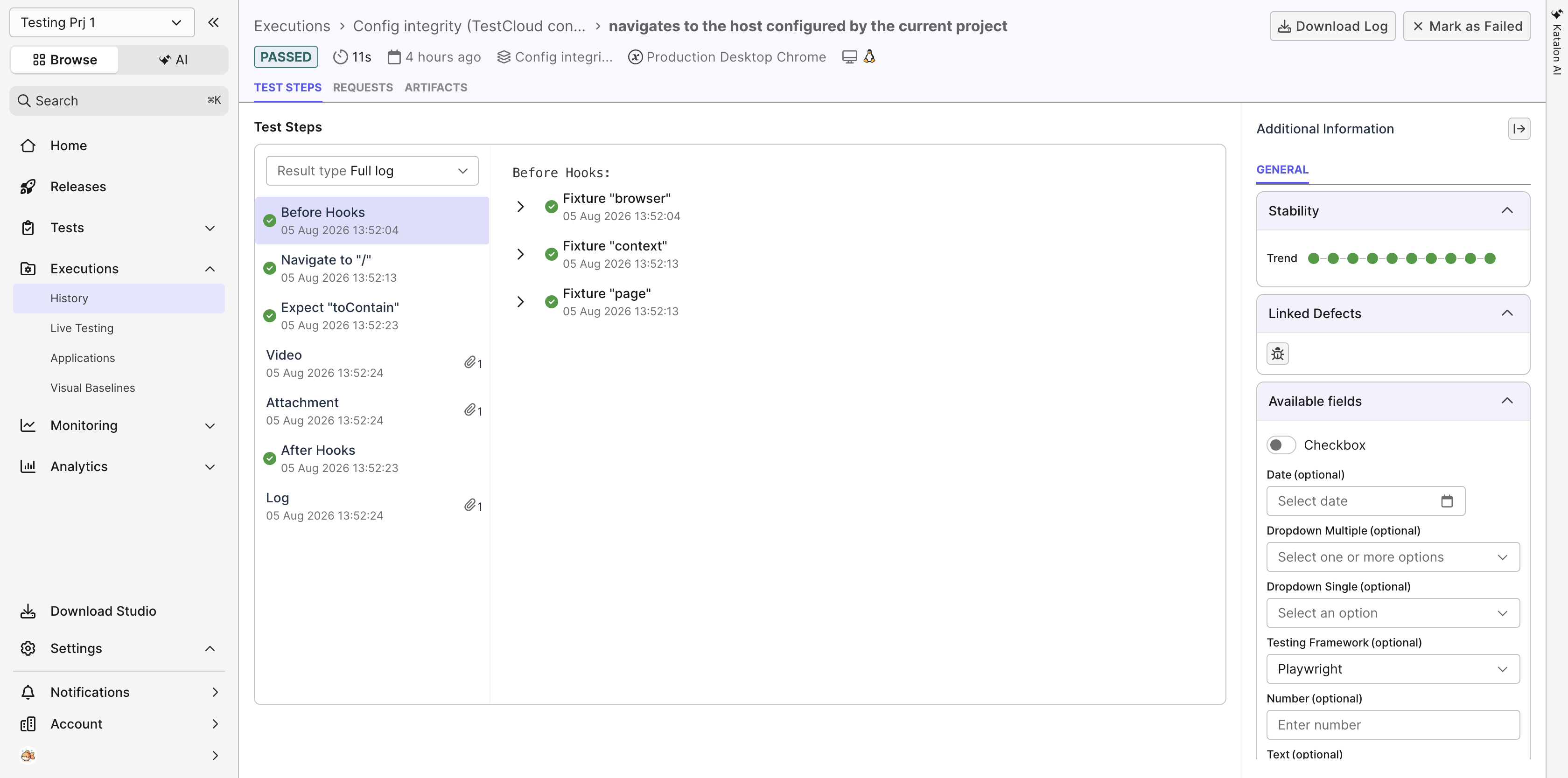
View Report
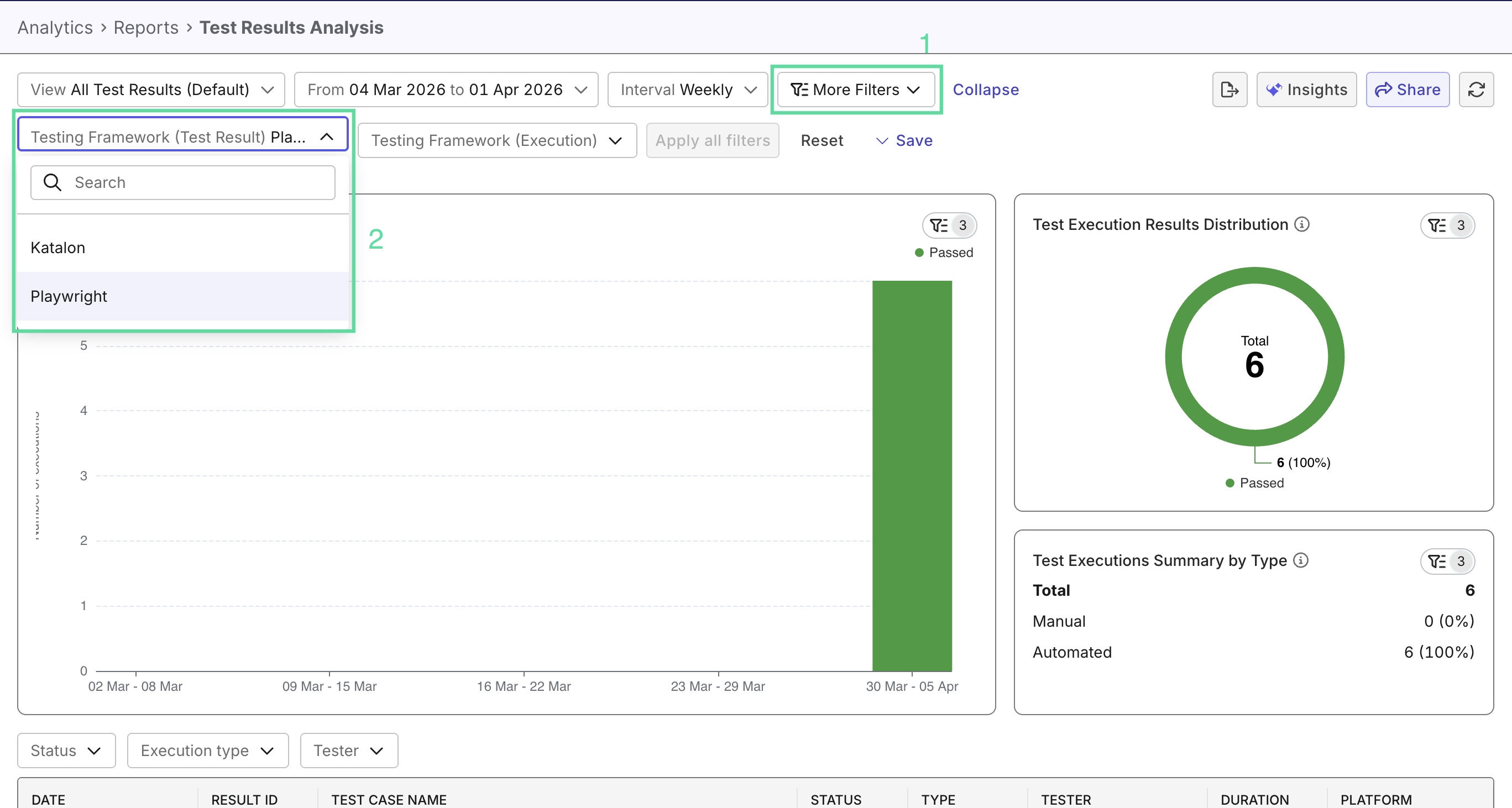
Playwright tests can then be viewed separately in any report, using filters by Testing Framework.
Limitations
The following conditions apply when you add a Playwright project as a repository. They do not affect the report-upload approach (Approach 2).
| Limitation | What it means for you |
|---|---|
| TypeScript only | Playwright projects written in JavaScript are not parsed. Use TypeScript spec files. |
playwright.config.ts must be at the project root | A configuration file in a subdirectory is not detected. Only basic project layouts with the config at the root are supported. |
Tests outside a describe block are not runnable | A test() that is not enclosed in a describe block is still parsed and visible in the test case list, but it does not belong to any test suite. Because runs are triggered from a test suite, you cannot select and run it. Wrap every test in a describe block if you want to run it from the platform. |
| Browsers must not be created in the script | Tests that launch or initialize their own browser instance inside the script are not supported. Let Playwright supply the browser through your playwright.config.ts instead. |
| Chrome only for platform-triggered runs | When you run a Playwright suite from Katalon True Platform, the Select Configurations dialog offers Chrome and Chrome (headless) on Windows and Linux. To run against Firefox or WebKit, run the suite in your own environment and upload the reports instead. |
| Test step previews are not available before a run | The Steps tab on a Playwright test case detail page does not show the steps of the script. Read the script in your project instead. This does not affect execution results: after a run, the TEST STEPS tab of a test result shows the steps Playwright actually executed. |
Unsupported: a test that launches its own browser
A test that opens its own browser instance with chromium.launch() (or firefox.launch() / webkit.launch()) is not supported for platform-triggered runs:
// Not supported: the test creates and closes its own browser.
test('launches, uses, and closes its own browser', async () => {
  const browser = await chromium.launch();
  try {
    const page = await browser.newPage();
    await page.goto('/');
    await expect(page).toHaveTitle('The Internet');
  } finally {
    await browser.close();
  }
});
Supported: take the browser from the page fixture
Let Playwright supply the browser through the page fixture, and control the browser and viewport from playwright.config.ts instead:
// Supported: the browser comes from the page fixture.
test('uses the page fixture', async ({ page }) => {
  await page.goto('/');
  await expect(page).toHaveTitle('The Internet');
});
Best practices
- Wrap every test in a
describeblock. This is the single change that has the most effect on what you can do in the platform: it is what creates the test suite you run from. - Set the Test Framework to Playwright when you create the configuration. It defaults to Katalon Studio. A Playwright directory connected on the default is not parsed as a Playwright project, and the symptom — an empty or wrong test tree — does not point at the cause.
- Copy the directory URL from your browser, not from a clone command. The URL field expects the repository, branch, and directory you are looking at in your Git provider, such as
.../tree/main/playwright. A bare clone URL does not tell the platform which branch or directory to read. - Start with the report-upload approach if your pipeline already works. It is the smaller change and gives you the reporting benefit immediately. Add the repository later when you want the platform to trigger the runs.
- Refresh the repository after each push. Parsing happens when the repository is imported or refreshed, not continuously. If a new test does not appear, refresh the repository first.
- Keep browser and viewport configuration in
playwright.config.ts. The platform reads theprojectsfrom your config and offers them in the PROFILE column, so configuration that lives there is configuration it can honor. Browsers created inside a test script are not supported. - Name repositories so the type is obvious. Katalon and Playwright repositories sit in the same test tree, so a name such as
web-app-playwrightsaves your team a click.
Walkthrough
Watch the end-to-end flow — connect a Playwright project, create an automated test run, and view the report:
Approach 2 — Upload Playwright test reports to Katalon True Platform
Use @katalon/playwright-reporter to generate Playwright test result files and upload them to your Katalon True Platform project. Your tests keep running where they already run — on your own machine or CI — and only the results flow into the platform for dashboards and analytics.
- Node.js version
18or later. @playwright/testversion1.0.0or later.- Access to the Katalon True Platform project that will receive the results.
- Your Katalon project ID. You can find it in the URL after
/project/. - A Katalon API key. If you have not set one up yet, follow this guide to generate your API key.
-
Install dependencies: Open your Playwright project and run one of the following commands:
npm install --save-dev @katalon/playwright-reporterpnpm add -D @katalon/playwright-reporter -
Configure Playwright: Open
playwright.config.ts, then add the reporter and the global setup helper:import { defineConfig } from '@playwright/test';
import { getGlobalSetupPath } from '@katalon/playwright-reporter';
export default defineConfig({
globalSetup: getGlobalSetupPath(),
reporter: [
['list'],
[
'@katalon/playwright-reporter',
{
outputDir: './reports',
...(process.env.KATALON_API_KEY && {
platform: {
apiKey: process.env.KATALON_API_KEY,
projectId: process.env.KATALON_PROJECT_ID,
baseUrl: process.env.KATALON_BASE_URL,
authUrl: process.env.KATALON_AUTH_URL,
},
}),
},
],
],
}); -
Upload reports: Choose an uploading method:
-
Upload during test execution: Specify
KATALON_API_KEYand other environment variables before you run - Reports are automatically uploaded, no separate uploading required.KATALON_API_KEY=your-key \
KATALON_PROJECT_ID=your-project-id \
npx playwright test
Environment variables
| Variable | Required | Default | Description |
|---|---|---|---|
KATALON_API_KEY | For upload | N/A | Your Katalon API key. |
KATALON_PROJECT_ID | For upload | N/A | The target Katalon project ID. |
KATALON_BASE_URL | For upload | https://testops.katalon.io | Your custom domain. For example, “https://prodgen3platform.katalon.io” |
KATALON_AUTH_URL | No | https://api.katalon.com | Overrides the authentication endpoint. |
-
Separate upload: Add a script to
package.json, then run it after your test execution finishes:{
"scripts": {
"upload": "playwright-reporter upload --output ./reports --api-key $KATALON_API_KEY --project-id $KATALON_PROJECT_ID"
}
}Full CLI options:
Option Required Description --output <path>Yes Path to the reports directory. --api-key <key>Yes Your Katalon API key. --project-id <id>Yes The Katalon project ID that receives the results. --base-url <url>No Platform base URL. Default: https://testops.katalon.io.--auth-url <url>No Separate authentication URL. Default: https://api.katalon.com.
-
Run tests: Run the following command:
npx playwright testPlaywright runs your tests and the reporter stores Katalon logs in
./reports/.
Once the upload finishes successfully, navigate to Test Runs to view your Playwright runs alongside Katalon Studio runs.
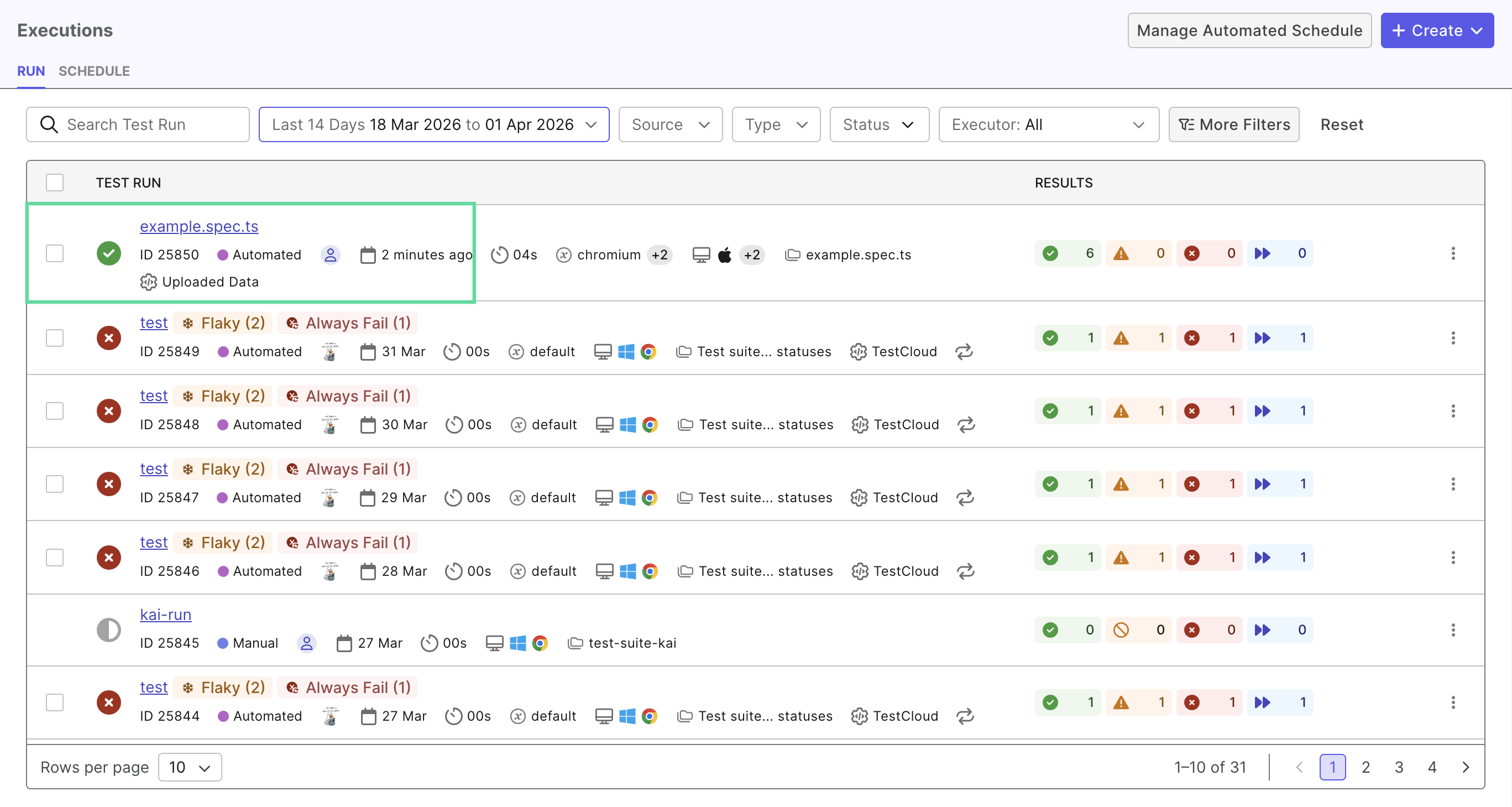
Playwright tests uploaded by the reporter can then be viewed separately in any report, using filters by Testing Framework.