Bitbucket Integration
- Bitbucket has fully deprecated App Passwords as of June 9, 2026 (See Bitbucket Deprecation notice). Any script repository connection using an app password might fail to clone.
- Solution: Switch to API token to authenticate for all integrations previously using app passwords.
This document explains how to set up and manage a Bitbucket integration in Katalon True Platform.
Connect Bitbucket to Katalon True Platform to sync test cases and test suites between the two systems.
Katalon True Platform supports Bitbucket Cloud and Bitbucket Data Center 9.4.9. For Bitbucket Data Center, use an instance that can be reached from Katalon True Platform or through your configured network access.
Find your starting point:
- You are setting up Bitbucket for the first time? -> Start from Step 1
- Your organization is already connected and you only need to link a repository? -> Skip to Step 2
- You need to manage an existing integration (disconnect, archive, or restore)? -> Skip to Managing your Bitbucket integration
Step 1: Authorize the Bitbucket Connection (Account-level)
This step establishes the connection between Katalon True Platform and Bitbucket. No data is synced yet.
- You must have the Account Admin or System Admin role in Katalon True Platform.
- Go to Account Settings > Integrations and click
+ Create Integration. - In the Available Integration list, select Bitbucket.
- Select your Bitbucket instance type and fill in the required fields.
- Bitbucket Cloud
- Bitbucket Data Center
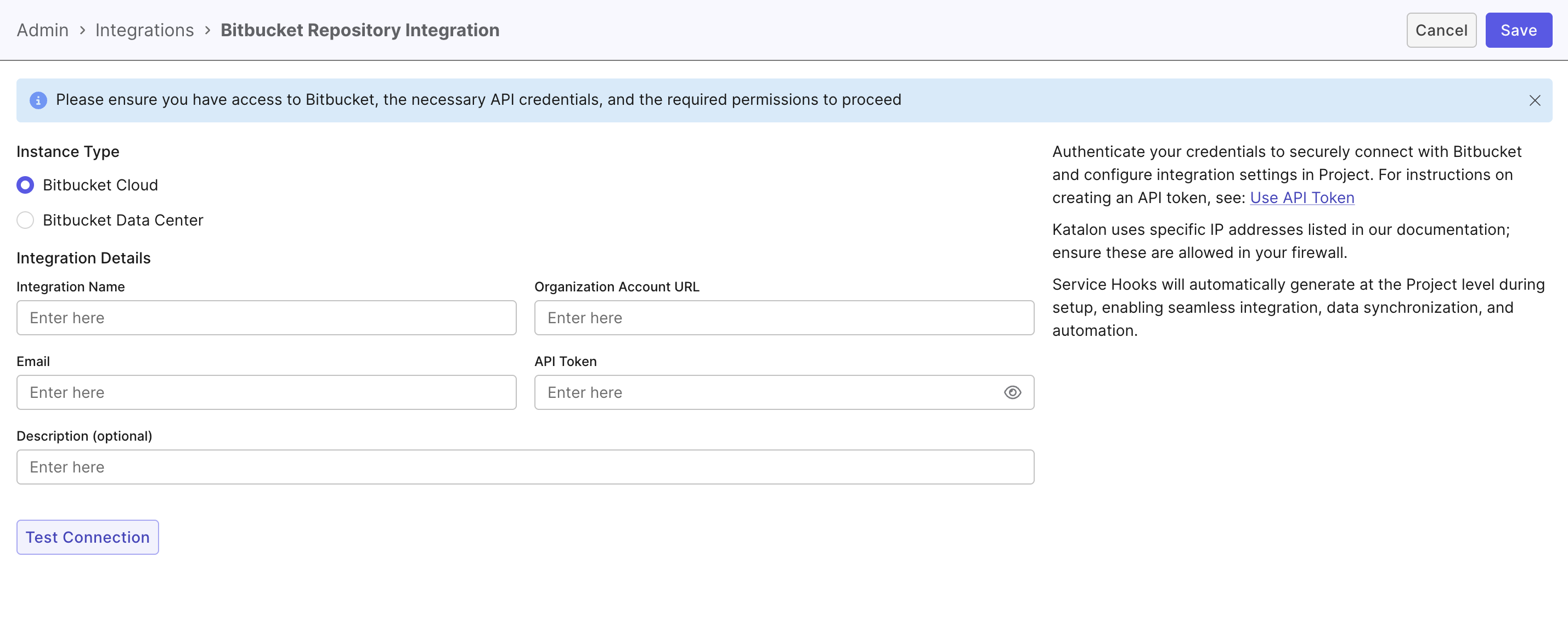
- In Instance Type, select Bitbucket Cloud.
- In Integration Details, fill in the required fields:
-
Integration Name: A custom label (max 50 characters).
-
Organization Account URL: Your Bitbucket workspace URL (must start with
https://).- Example:
https://bitbucket.org/workspace-example
- Example:
-
Bitbucket Username
-
Bitbucket API Token: Used to authenticate the connection. Refer to Atlassian documentation on creating an API token.
For Bitbucket Cloud, the API token requires the following scopes:
Read scopes:
read:meread:accountread:workspace:bitbucketread:project:bitbucketread:repository:bitbucketread:user:bitbucket
Write scope:
write:repository:bitbucket
These are the minimum required scopes. Katalon can create the webhook during repository synchronization when you click Proceed with the seven scopes listed above.
-
Description (Optional): Max 255 characters.
-
- Click Test Connection to validate, then click Save.
-
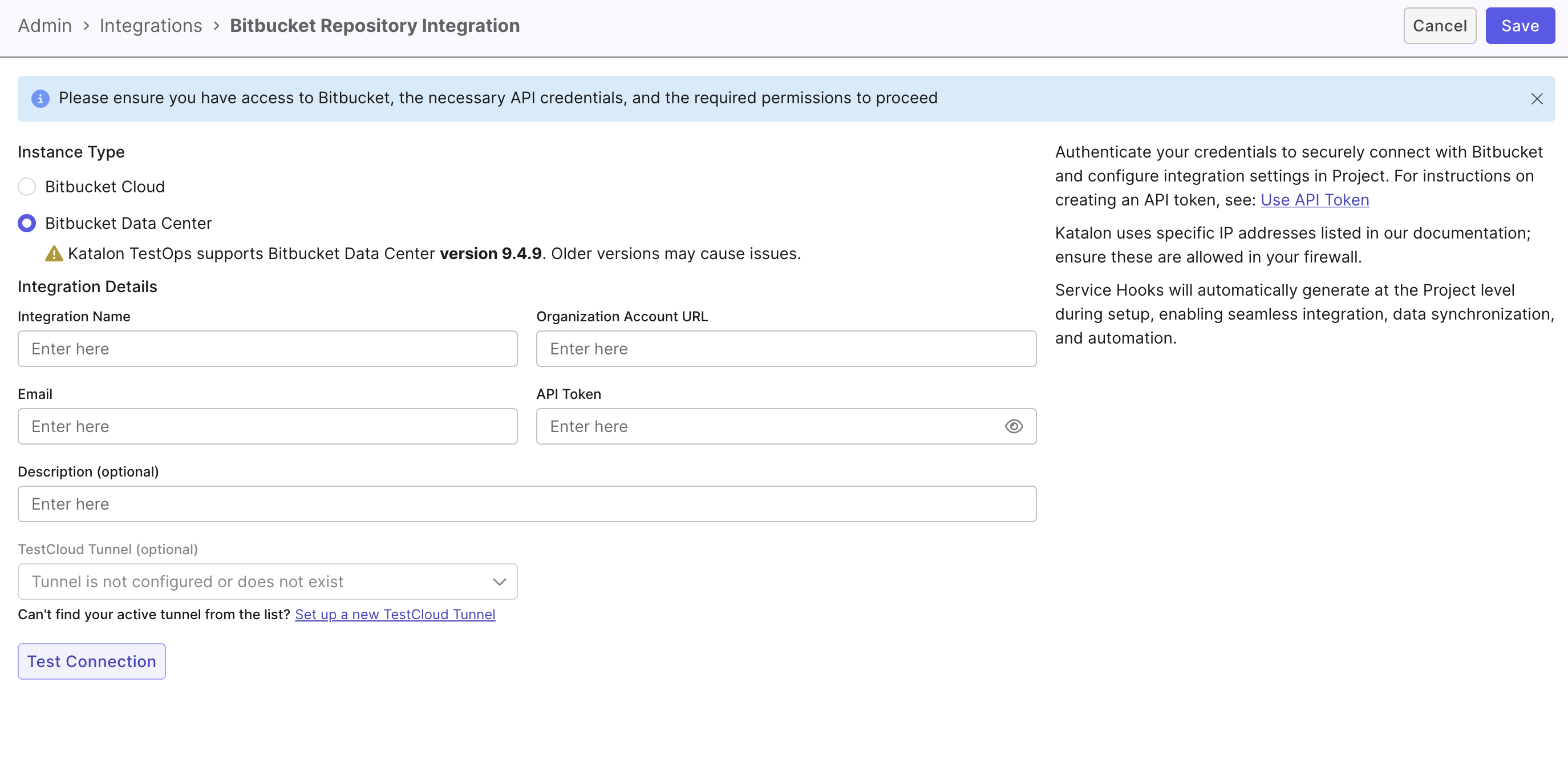
In Instance Type, select Bitbucket Data Center.
Katalon True Platform supports Bitbucket Data Center version 9.4.9. Older versions may cause issues.
-
In Integration Details, fill in the required fields:
-
Integration Name: A custom label (max 50 characters).
-
Organization Account URL: The base URL of your Bitbucket Data Center instance.
-
Email: The email address of the Bitbucket Data Center account used for the integration.
-
API Token: Used to authenticate the connection. Refer to Atlassian documentation on using API tokens.
For Bitbucket Data Center, create the token from a user account that can already access the repository you want to connect.
The token should let Katalon:
- view the project and repository
- browse the folder and branch you want to sync
- create the webhook when you click Proceed
In most cases, this means Read permissions on projects and Admin permissions on repositories.
-
Description (Optional): Max 255 characters.
-
TestCloud Tunnel (Optional): Select a configured tunnel when your Bitbucket Data Center instance is private or cannot be reached directly from Katalon True Platform. To set up a tunnel, see Configure Katalon Tunnel.
-
Make sure the tunnel host can reach the Bitbucket Data Center URL and that your network allows the Bitbucket service port, for example port 7990. For endpoints and allowlist requirements, see Network configuration for Test Execution - Cloud.
- Click Test Connection to validate, then click Save.
Result
To verify the connection is active, go to Account Settings > Integrations and check the Integration list.
- If the status initially shows Inactive, reload the page to update it to Active.
- If the status shows Error, verify all required fields, especially the Bitbucket API token.
Step 2: Link Repository to Project (Project-level)
This step connects a specific Bitbucket repository, branch, or directory to your Katalon True Platform project and syncs test data.
- You must have the Project Admin role in the project.
- A Bitbucket account must already be connected at the Account-level (Step 1).
-
Navigate to your Project Settings > Integrations.
-
On your linked Bitbucket connection, click the right edge and select New configuration (Settings icon).
-
Fill in the required fields:
- Display Name: A custom name for the linked project (max 50 characters).
- URL: The URL to the repository, branch, or directory from the linked Bitbucket workspace.
- Example:
https://bitbucket.org/katalon-test/katalon-repo/src/main/Test%20Cases
- Example:
- Link existing test execution results with test cases having the exact same paths and names (Optional): Enable this to attach existing results to matching test cases and test suites.
- Description (Optional): Max 255 characters.
-
Click Proceed to sync data and finalize the connection.
- If the status initially shows Inactive, reload the page to update it to Active.
- If you click Save after modifying details, changes are saved but status may remain Inactive.
- To complete syncing, click Proceed.
-
[Optional] To edit an existing linked Bitbucket integration, click the Edit (pen) icon, update fields, and click Proceed.

Result
Your Bitbucket repository is now active within your project and data is synced to Katalon True Platform.

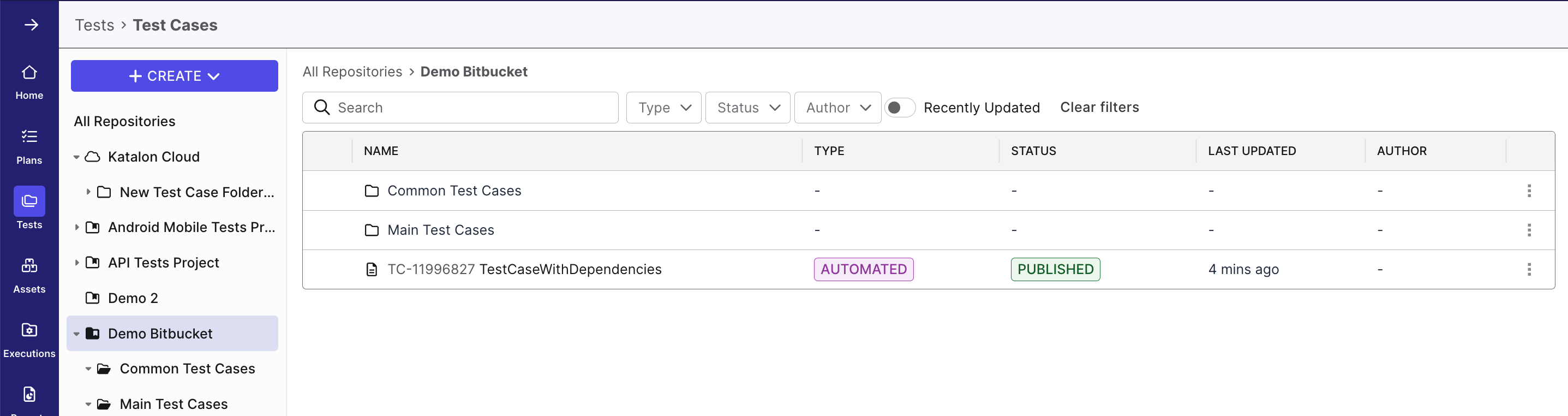
View Test Cases or Test Suites Synced from Bitbucket
To view synced test cases or test suites, go to Tests > Test Cases/Test Suites.
Managing Your Bitbucket Integration
Katalon True Platform provides multiple ways to manage Bitbucket integrations without losing historical data.
- Use Disconnect to disable Bitbucket integration across all projects (Account-level).
- Use Archive to disable Bitbucket connection for a single project (Project-level).
Katalon does not support permanently deleting integrations. This ensures audit history is preserved and enhances security and traceability.
Disconnect a Bitbucket Connection
Required role: Account Admin or System Admin.
Disconnecting makes the integration inactive across all projects. Katalon True Platform does not support fully deleting integrations to preserve audit history.
-
Go to Account Settings > Integrations.
-
Click the Disconnect icon next to the connection.
-
Confirm by clicking Disconnect in the dialog.
=> The status changes to Inactive. All projects using this integration lose the ability to sync with Bitbucket.
-
To reconnect, click the Reconnect icon next to the integration and confirm. All projects will resume syncing once reconnected.
Archive a Linked Bitbucket Repository
Required role: Project Admin.
Archiving disables the connection for one project only. Other projects using the same Bitbucket integration are not affected.
- Go to Project Settings > Integrations.
- Click the right edge of the linked connection and select Archive.
- Confirm by clicking Archive in the dialog.
Result: The integration no longer appears in the Test Cases/Test Suites module. Any scheduled test runs in the Execution module will be automatically canceled at runtime.
Restore an Archived Bitbucket Integration
- Go to Project Settings > Integrations.
- Click New configuration (settings icon) on the Bitbucket connection.
- Enter the same repository URL as the archived configuration and click Proceed.
Katalon True Platform restores the archived configuration instead of creating a duplicate.