Integrate Katalon TestOps and TestCloud with Katalon Studio
Katalon Studio is where you author and debug tests. Connecting it to TestOps and TestCloud lets you share results with your team and run tests at scale, without extra setup.
- Katalon TestOps: Collects every test suite report in one place. Your team can review results, track trends and flaky tests, link failures to requirements and defects, and schedule runs.
- Katalon TestCloud: Runs your tests on cloud browsers, operating systems, and mobile devices, so you don't need to set up or maintain your own test infrastructure.
This document shows you how to connect a Katalon Studio project to TestOps and TestCloud.
Enable integration
-
Open the integration settings in one of these ways:
- In your project, click the Katalon TestOps icon on the main toolbar.

- Go to Project > Settings > Katalon TestOps Integration.
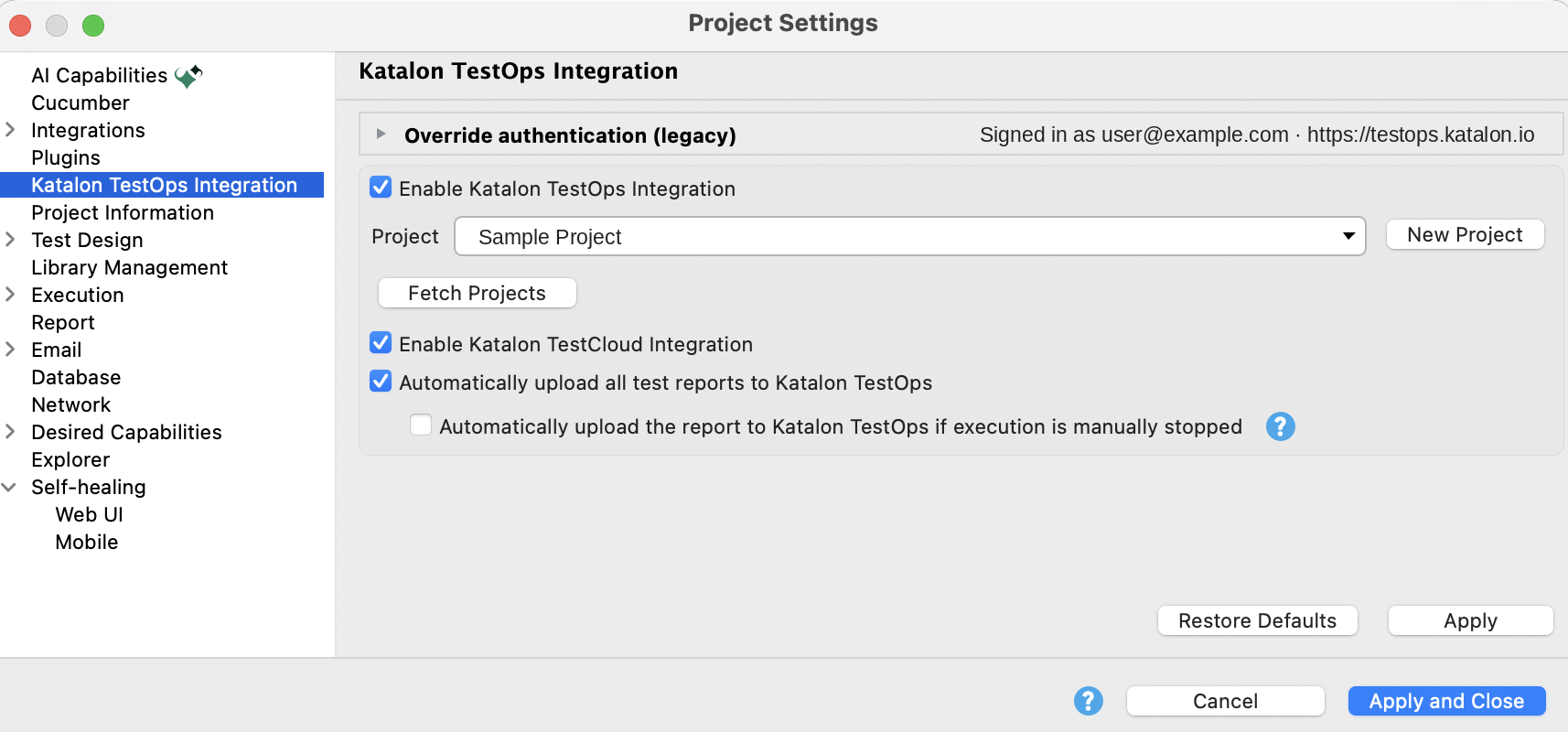
The header shows the account and server that Katalon Studio uses to connect, for example, Signed in as your Katalon account email and
https://testops.katalon.io. -
Select Enable Katalon TestOps Integration.
Katalon Studio fetches the projects of the organization you belong to.
-
From the Project dropdown, choose the TestOps project to send results to.
- If the project you need isn't listed, click Fetch Projects to refresh the list.
- If you are an Owner or Admin, click New Project to create one.
-
Choose the options you need:
Option What it does Default Enable Katalon TestCloud Integration Lets you run tests on TestCloud environments from Katalon Studio. On Automatically upload all test reports to Katalon TestOps Uploads the report to the selected TestOps project after each test suite or test suite collection run. On Automatically upload the report to Katalon TestOps if execution is manually stopped Also uploads the partial report when you stop a run before it finishes. Available only when automatic upload is on. Off noteKatalon Studio only uploads reports from test suites and test suite collections. Test case reports are not uploaded automatically.
-
Click Apply and Close.
Result
- You can run tests on TestCloud environments.
- Each time you run a test suite or test suite collection, Katalon Studio uploads its report to the selected TestOps project.
- After a test suite run finishes, open the uploaded result from Job Progress by clicking View on Katalon TestOps.
See your TestOps project on the Start Page
Once your project is connected, the Katalon Studio Start Page shows a Platform section. It gives you a quick look at how your team's project is doing, without leaving Katalon Studio. To open the Start Page, go to Help > Start Page.
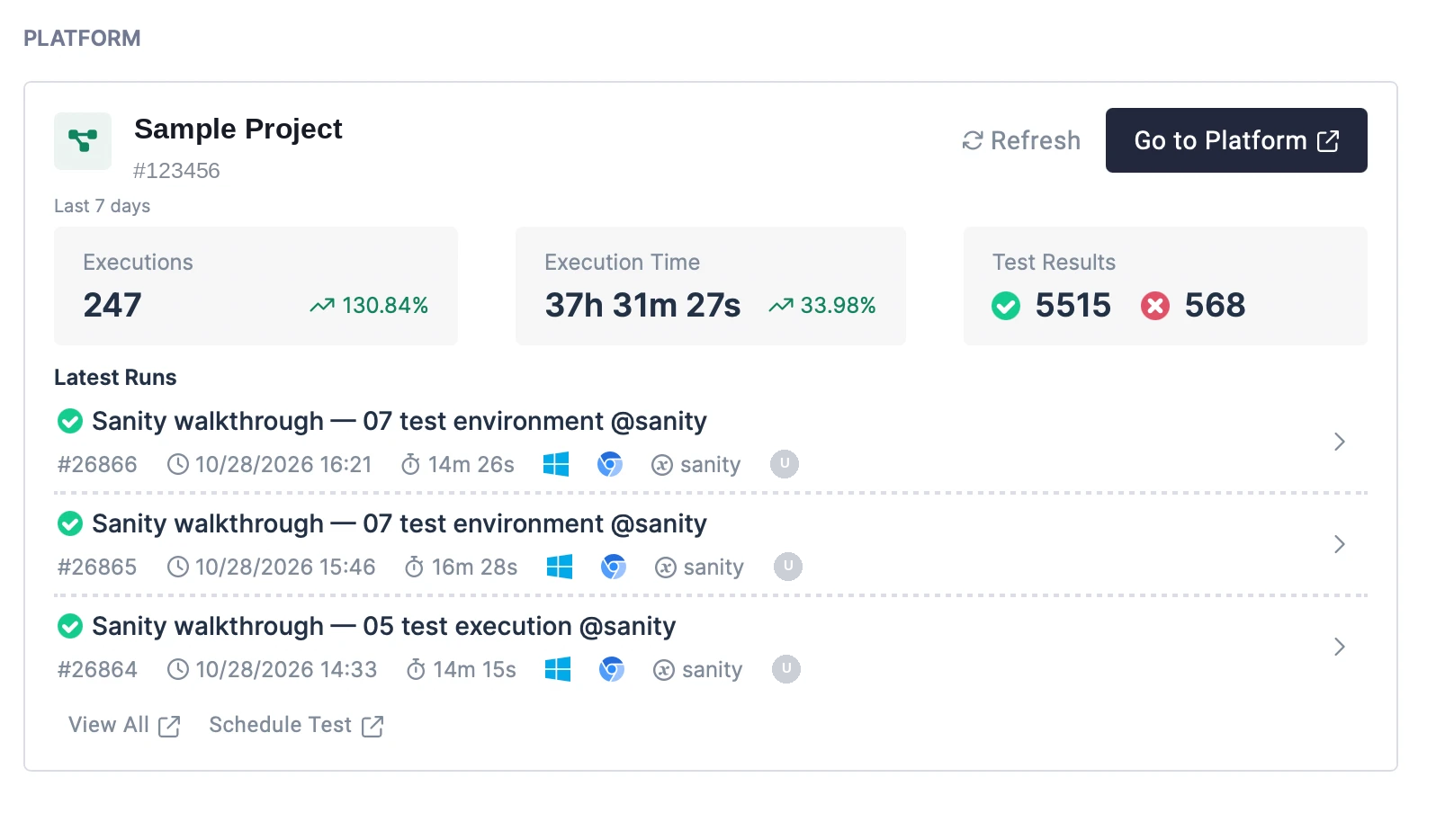
In the Platform section, you can:
- See your connected TestOps project's activity for the last 7 days: Executions, Execution Time, and Test Results (passed and failed), with trends.
- Check the Latest Runs, including status, run time, duration, environment, and who ran them.
- Jump to Katalon TestOps for more detail: Go to Platform opens the project dashboard, View All opens all runs, and Schedule Test lets you schedule a run.
Click Refresh to load the latest data.
Override authentication
By default, Katalon Studio connects to TestOps with the account you signed in to Katalon Studio with. Most projects don't need to change this.
Use Override authentication (legacy) only when this project must connect with different credentials, for example, to a private TestOps instance or with another account.
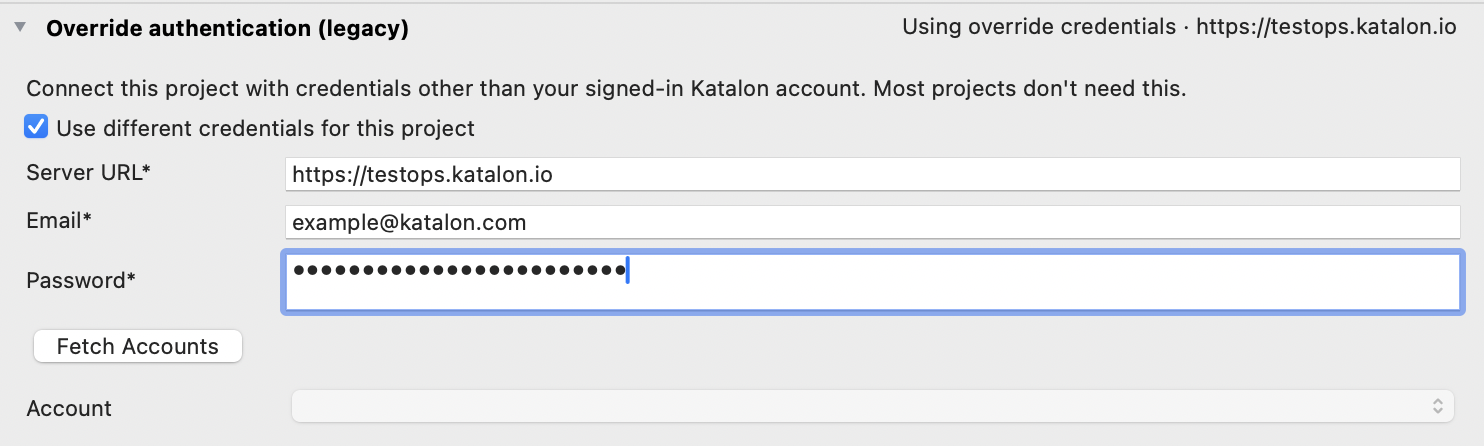
To override authentication:
- In Project > Settings > Katalon TestOps Integration, expand Override authentication (legacy).
- Select Use different credentials for this project.
- Enter the Server URL, Email, and Password.
- Click Fetch Accounts, then choose the TestOps Account to connect to from the dropdown.
- Click Apply and Close.
The section header changes to Using override credentials with the server URL. Katalon Studio saves these settings in <project_folder>/settings/internal/com.kms.katalon.integration.analytics.properties.
To go back to your signed-in account, clear Use different credentials for this project.
If you can't use Override authentication (legacy), check whether your account belongs to an organization that uses SAML for authentication.