Katalon Help
In case you need some help using Katalon Studio, we have you covered.
Use the Help search bar
From the main toolbar, go to Help. You can see a search bar and a dropdown menu as follows:
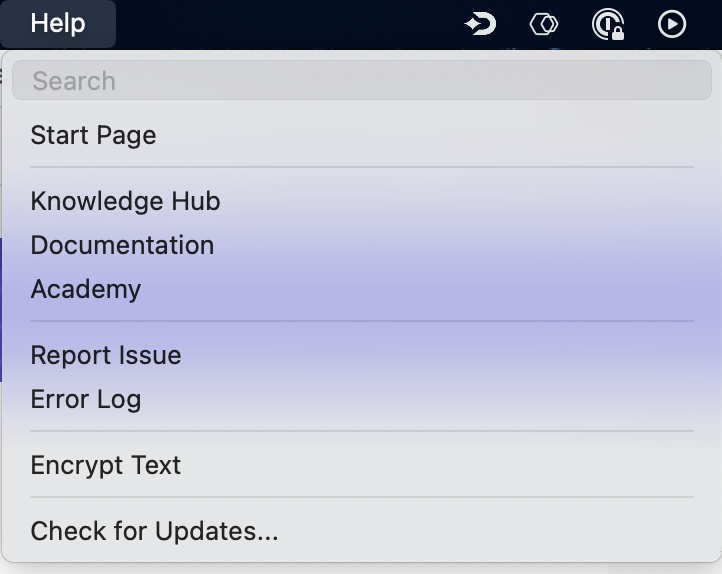
In the search bar of the Help menu, type in keywords related to your issue. The results are divided into two categories:
- Menu Items: Items in Katalon Studio that relate to your search. Hover over each item to display a pop-up containing information on where this item is located.
- Help Topics: A list of guides selected based on your operating system.
Knowledge Hub
The Knowledge Hub in Katalon Studio is your go-to learning center for familiarizing with Web, API, Mobile, and Desktop testing. Whether you're a beginner or looking to sharpen your skills, it offers guided tours, video demos, and online courses tailored to your level:
- Onboarding Interactive Tours – Quick guides to help you get started. Current tours include:
- Create test with AI
- Web test recording
- Test suite execution
- Video Demos – Short walkthroughs for hands-on learning
- Online Courses – Structured learning paths from Beginner to Advanced
The Web test recording tour uses Recorder Plus when Web Recorder Plus is enabled in Katalon Studio Settings > Recorder.
Start Page
The Start Page appears by default every time you open Katalon Studio. Alternatively, you can always open this Start Page by navigating to Help > Start Page.
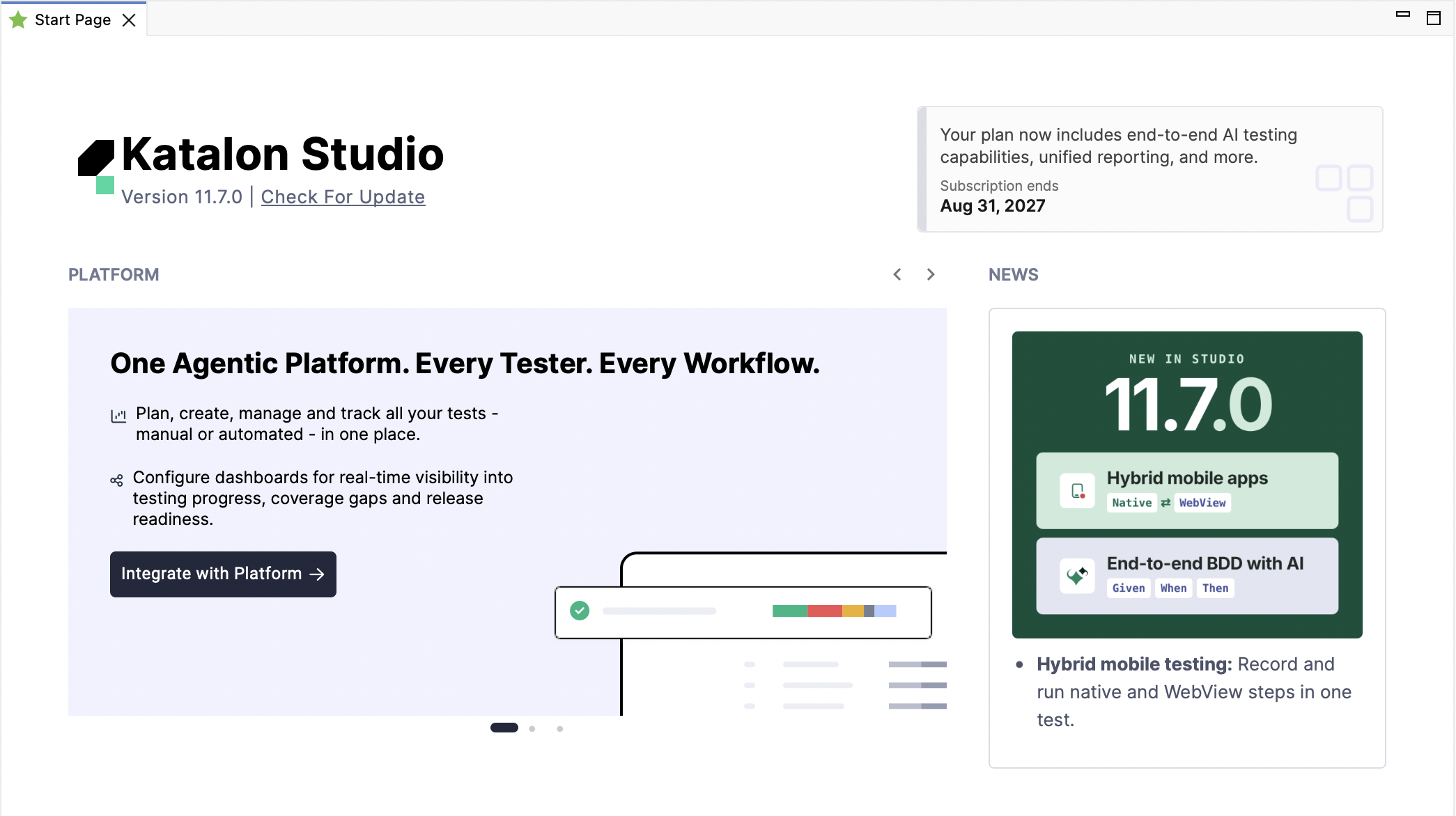
In the Start Page, you can see your Katalon Studio edition, version, and license expiration date. Under Quick Links, you can navigate to our Plugin Store, Help Center, Documentation, and Academy.
You can also find news, advice on testing best practices, hot discussions from our forum, and release highlights under the Resources section.
If your project is connected to Katalon TestOps, the Platform section gives a quick look at your team's project.
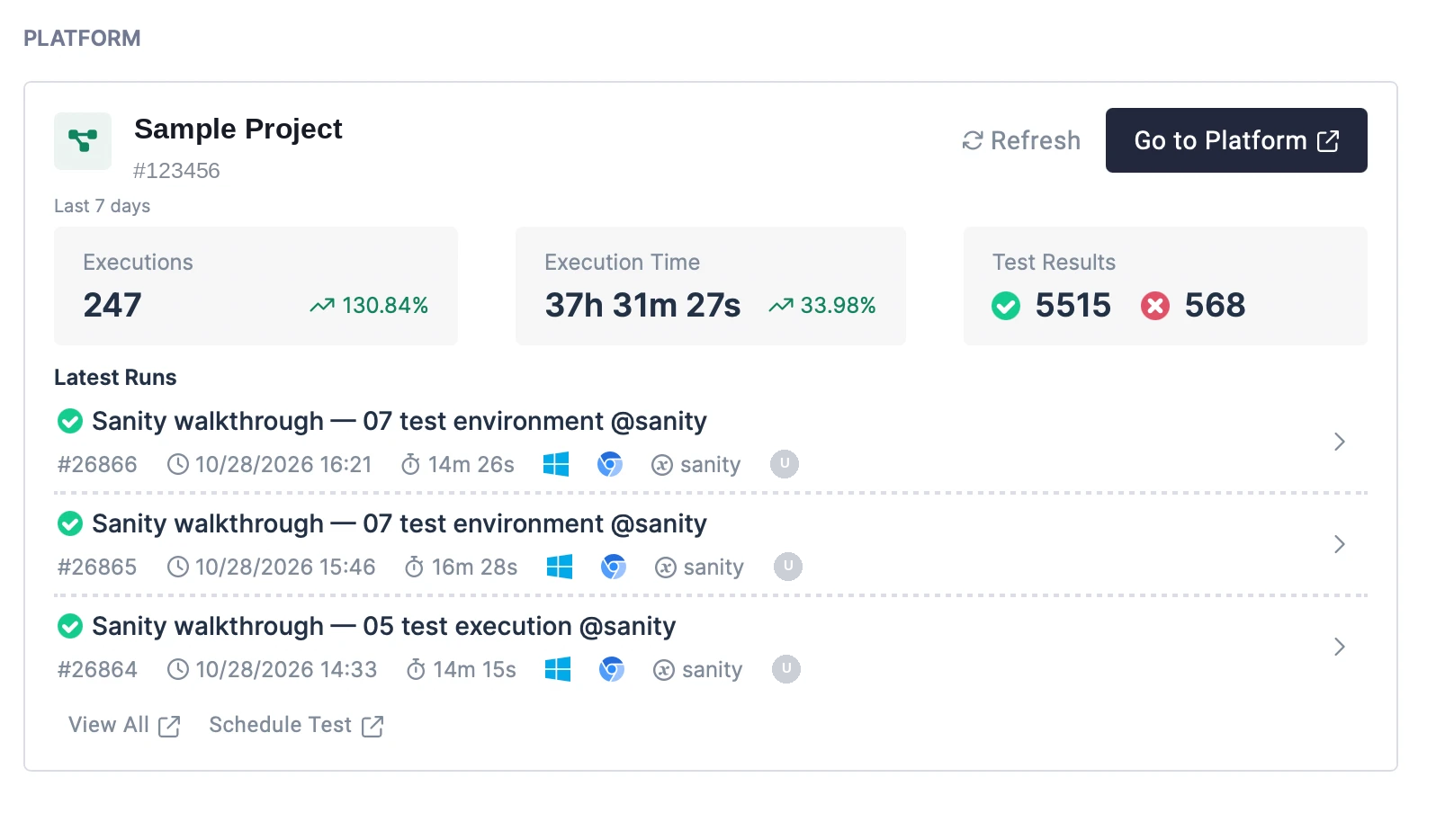
In the Platform section, you can:
- See your connected TestOps project's activity for the last 7 days: Executions, Execution Time, and Test Results (passed and failed), with trends.
- Check the Latest Runs, including status, run time, duration, environment, and who ran them.
- Jump to Katalon TestOps for more detail: Go to Platform opens the project dashboard, View All opens all runs, and Schedule Test lets you schedule a run.
Click Refresh to load the latest data.
To connect your project, see Integrate Katalon TestOps and TestCloud with Katalon Studio.
Report issues from Katalon Studio
If you click Help > Report Issues, you are redirected to our Forum, where you can search for or create a new topic related to your problem.
View Error log
You can view the runtime log of Katalon Studio and Katalon Runtime Engine, which includes any errors that might have occurred.
In Katalon Studio, go to Help > Error Log to open the .log file.
You can also find the .log file in your local machine at the following locations:
- For macOS:
- Katalon Studio:
/Applications/Katalon Studio PE.app/Contents/MacOS/config/.metadata/.log - Katalon Runtime Engine:
/Applications/Katalon Studio Engine.app/Contents/Eclipse/configuration/.log
- Katalon Studio:
- For Windows:
- Katalon Studio:
Katalon_Studio_Windows_64-8.5.0\config\.metadata - Katalon Runtime Engine:
Katalon_Studio_Engine_Windows_64-8.5.1\configuration
- Katalon Studio:
.metadata is a hidden folder. To reveal a hidden folder in macOS, press command + shift + ..
If you run your Katalon project with Jenkins, the runtime log is located at .jenkins/jobs/<your project name>/builds/<build number>/log.
For example, in macOS: /Users/username/.jenkins/jobs/ci-samples-master/builds/1/log.
Encrypt text
Encrypted text is helpful when you work with sensitive text. To learn more, see Working with Sensitive Text.
Check for updates
Katalon Studio checks for updates when it starts. To check manually, go to Help > Check for Updates. In-app updates keep your configured Katalon Studio preferences.

The in-app updater does not support upgrades between major Katalon Studio versions, such as 10.x to 11.0.0. For a major upgrade, download Katalon Studio and install the new version.
When an update is available, the Katalon Studio New Update dialog appears. Otherwise, Katalon Studio reports that it is up to date. The dialog offers these options:
| Option | What it does |
|---|---|
| Remind Me Later | Prompts you again after the next launch or reload. |
| Ignore This Update | Stops prompts for that update. |
| Download | Starts downloading the update. |
After you click Download, follow the progress in the Progress tab at the bottom of Katalon Studio. You can stop the download with Cancel. Download time depends on your network connection.
When the download finishes, click Install and Re-launch in the Katalon Studio Update dialog to enable the new version.