Smart Wait function
This article shows you how to enable and use the Smart Wait function in Katalon Studio. Smart Wait addresses timing issues in automated web testing by waiting for elements to be ready before test steps interact with them. In versions before 11.7.0, Smart Wait also waited for relevant network requests to finish. This helps reduce test failures caused by elements that are not ready for interaction. Katalon Studio allows you to use the Smart Wait function as a browser extension. Download the Smart Wait sample project from our GitHub repository: Smart Wait sample tests.
- From Katalon Studio 10.0.0, Smart Wait no longer requires an unpacked extension in browsers that support BiDi (Bidirectional communication), including Chrome, Edge, Firefox, and headless browsers.
- For environments that do not support BiDi (such as Safari, remote browsers, or Test Execution - Cloud environments), Smart Wait still requires an unpacked extension to operate correctly.
- To disable BiDi for environments that don't support it, set the following in the desired capabilities:
"webSocketUrl": false
From version 11.7.0, Smart Wait refers to element readiness only. The previous network-wait behavior is now a separate, optional setting, Wait for network requests to finish, in Project > Settings > Execution > WebUI. This setting is deprecated. If your tests relied on Smart Wait to wait for network requests, review your WebUI wait settings when you upgrade. See WebUI settings.
Smart Wait in Katalon Studio version 10.3.0 vs Previous Versions
In Version 10.3.0, Katalon Studio introduces a significant upgrade to the Smart Wait mechanism to deliver more reliable and accurate element interactions during test execution.
This comparison table highlights the key differences between the Smart Wait implementation in previous versions of Katalon Studio and the enhanced version introduced in Katalon Studio 10.3.0:
| Smart Wait Feature | In KS Version 10.3.0+ | Prior to KS Version 10.3.0 |
|---|---|---|
| Wait for Element Interactivity | Yes – includes visibility, animation, topmost, and editability | Before 10.3.0: No – presence in DOM only |
| Retry on Exception | Yes – retries on ElementNotInteractableException, StaleElementReferenceException, JavaScript errors | Only after timeout or element-not-found |
| DOM Change Awareness | Uses mutation observers for dynamic content | Basic polling only |
| Visibility Checks | Detects hidden, off-screen, zero-sized, and obstructed elements | Basic visibility checks only |
| Animation Awareness | Waits for animations and transitions to complete | No animation handling |
| Scroll-into-view strategy | Center alignment, retries on obstruction | Single alignment, no retry |
| Background Request Filtering | In versions 10.3.0–11.6.0, filters out long polling, analytics, and SSE while waiting for UI-impacting requests. From 11.7.0, network waiting is controlled by the separate Wait for network requests to finish setting. | Waits on all AJAX/fetch/SSE until timeout |
| Error Reporting | Clearer diagnostic messages | Generic timeout errors |
| API Injection Safety | Uses proxy-based injection for safer execution | Risky overrides of native browser APIs |
| Frame and Shadow DOM Support | Fast detection with DOM watchers | Supported but slower and less reliable |
| Browser Support | Chrome, Firefox, Edge, headless (BiDi-enabled environments | Chrome, Firefox (extension required) |
Enable/Disable Smart Wait in Katalon Studio
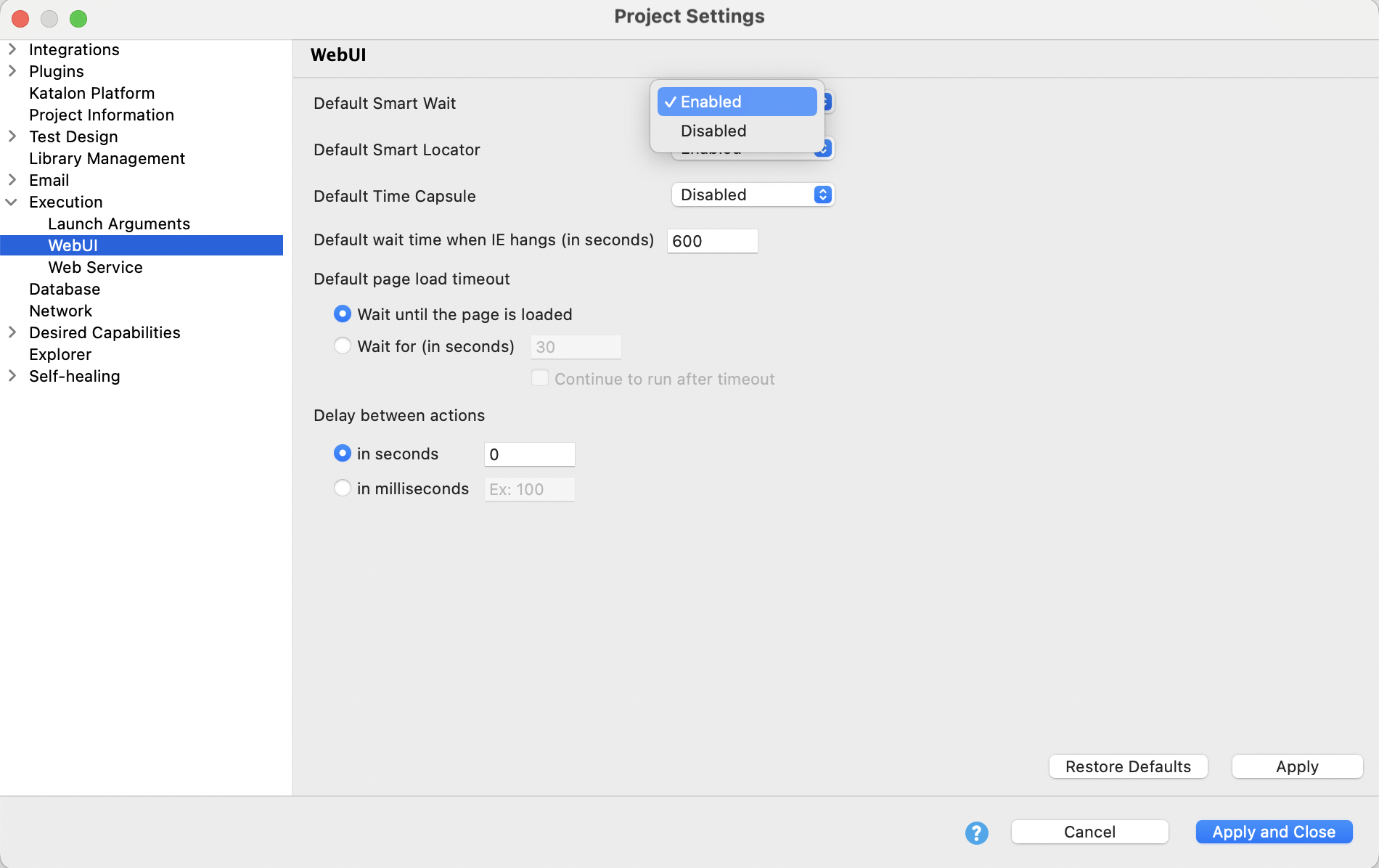
You can also dynamically control it per test step by using the enableSmartWait keyword. For example:
WebUI.enableSmartWait()
// ...steps where SmartWait applies...
You can also disable Smart Wait through Project > Settings > Execution > Web UI > Default Smart Wait, or you can use keywords during test execution.
You can also dynamically control it per test step by using the disableSmartWait keyword. For example:
WebUI.disableSmartWait()
// ...steps to skip waiting...

In the following example, we first use the `disableSmartWait` keyword to disable Smart Wait at the beginning of the test temporarily.

Then we use the `enableSmartWait` keyword to enable Smart Wait when setting text on the `Username` object. Smart Wait is enabled until the `disableSmartWait` keyword is applied.

```jsx
WebUI.disableSmartWait()

WebUI.openBrowser('')

WebUI.navigateToUrl('https://store.katalon.com/')

WebUI.maximizeWindow()

WebUI.click(findTestObject('signin-link'))

WebUI.enableSmartWait()

WebUI.setText(findTestObject('username'), 'demo@katalon.com')

WebUI.setEncryptedText(findTestObject('password'),'3zBGMH+v8QQXwX1AbEAx2g==')

WebUI.click(findTestObject('signin-button'))

WebUI.click(findTestObject('menu-dropdown'))

WebUI.click(findTestObject('dashboard-item'))

WebUI.click(findTestObject('plugins-item'))

WebUI.disableSmartWait()

WebUI.closeBrowser()