Generate user journey
TrueTest turns user interactions captured by the traffic agent into journey maps and flows. Generate a map, review the flows that matter, then create test cases from them.
- AI features are enabled for your Organization. See Configure AI services.
- Account Admin/System Admin has configured TrueTest Agent to track data on your AUT. If not, follow this guide: Configure TrueTest Agent.
To open your journey maps, go to Monitoring > Journey Maps.
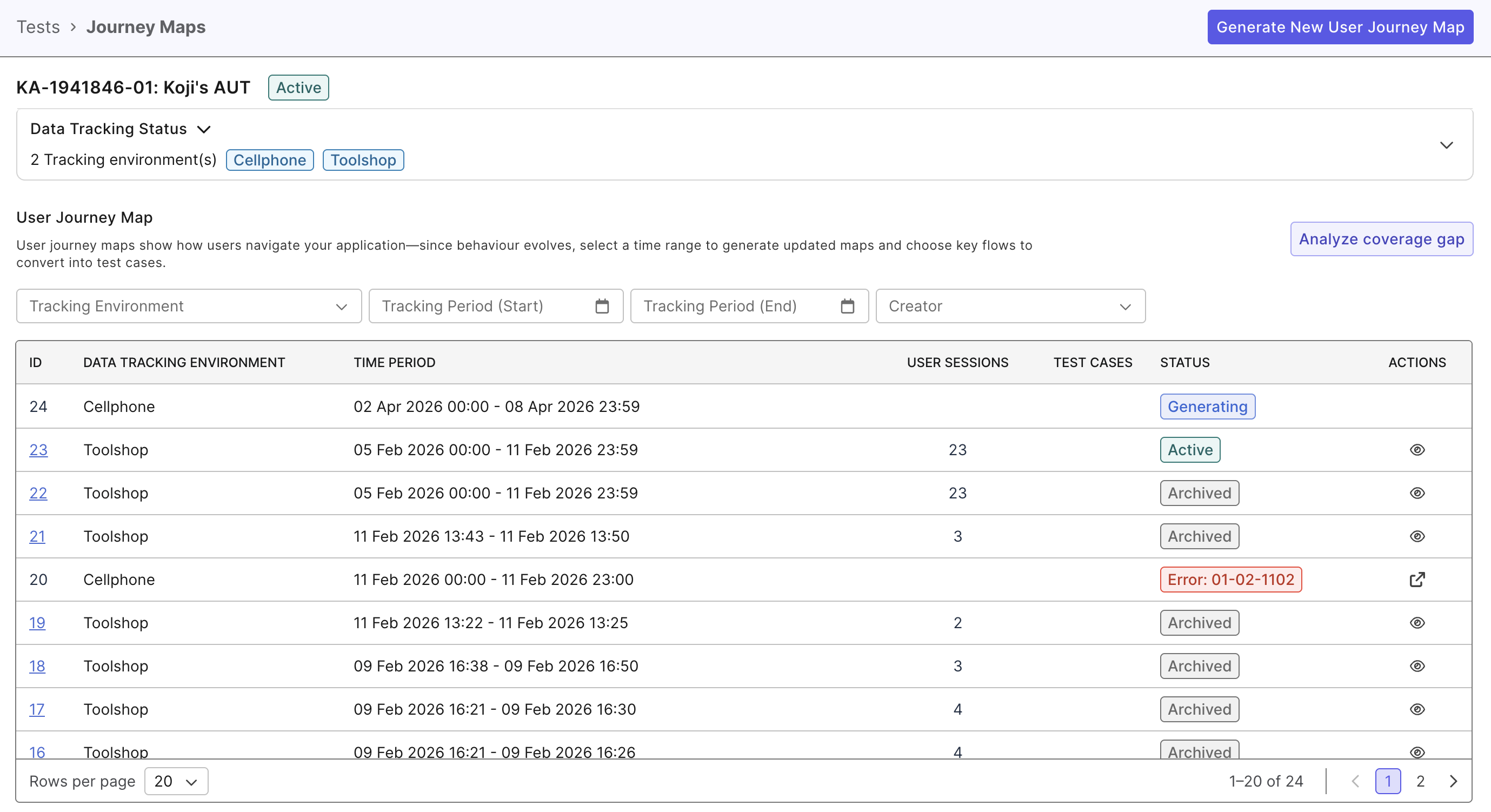
Generate new user journey map
Choose the captured data to include in a new map.
On the User Journeys page, click Generate New User Journey Map, then select the tracking environment and a time period, or set a custom period.
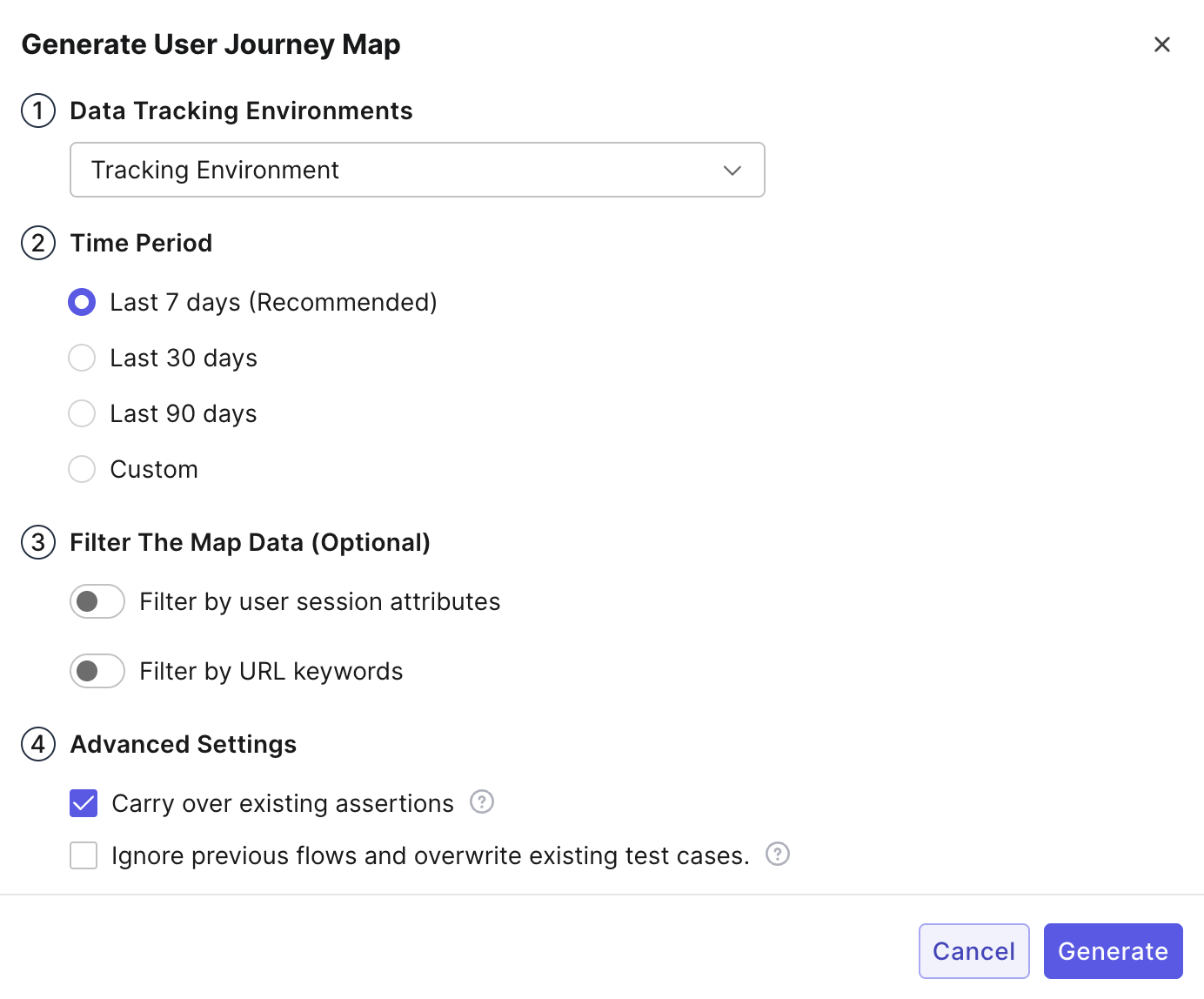
Map generation settings
Filter map data
The filter options allow you to generate specific flows that focus on functional areas.
- Filter by user session attributes: Filter sessions using a text-based query, e.g.
userRole,flow. - Filter by URL keywords: Filter sessions based on the URL patterns, e.g. "checkout", "product-details".
Advanced settings
-
Carry over existing assertions: Enabled by default. When this option is enabled, TrueTest can reuse assertions from previous maps. Assertions are carried over when:
- They are marked Apply to similar flows. Learn more in Add assertion to test steps.
- The matching flow does not already have a test case.
-
Ignore previous flows and overwrite existing test cases: When this option is selected, all new flows are generated independently of the previous map, and the list will display New flows only. When not selected, TrueTest will compare all new flows from the new map with the previous map to determine the Flow Status.
The user account that triggers a map generation will receive a notification email when it is finished.
Retry a failed journey map generation
On the Journey Maps page, click Retry on an eligible failed map. Review the restored tracking environment, time range, filters, and advanced settings, update any invalid values, and submit the request.
TrueTest archives the failed attempt and creates a new map entry. If the retry fails, you can retry the new entry while its saved configuration remains valid. Retry is available only when the failed map has a saved configuration that can be used in the current project and tracking environment.
Review a user journey map
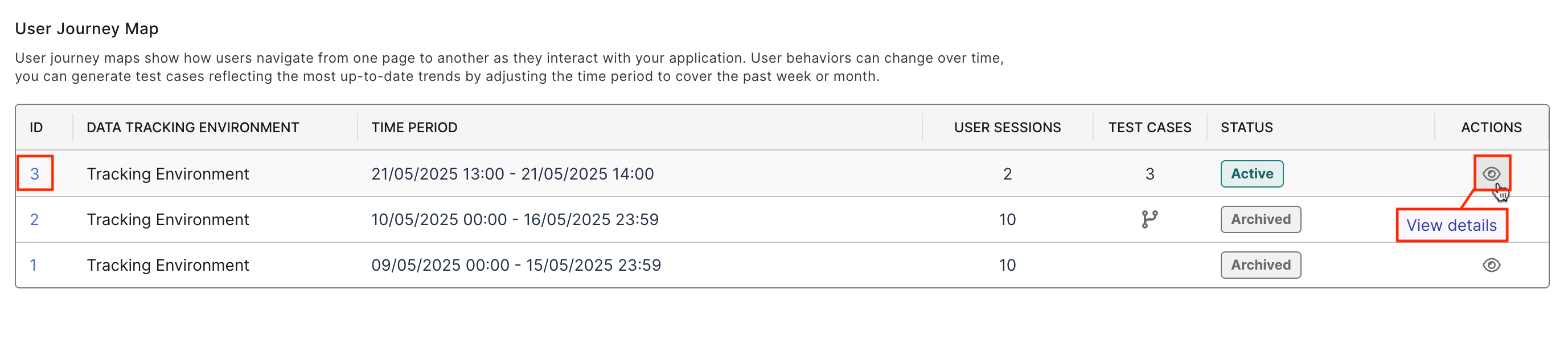
From the map list on the User Journeys page, you can click the ID of a map or View details to access its detail page.
A user journey detail page has two sections: visualized map and flows.
Explore the visualized map
Here you can find user journeys visualized as a map. The map contains pages and actions representing connections from the source pages to the target pages. You can:
- Select a flow to highlight it in the map.
- Click and drag the pages to re-organize the map.
- Switch on the Highlight traffic volume toggle to see the amount of user activity.
- Double-click on the page to edit page information.
Select Top or Bottom above the graph and choose the number of pages to show. Ranking uses the active journey map filters. Select a page to see its session count; this count stays the same when you change the ranking or toggle traffic highlighting for the same map.
Use Apply flow filters to show a focused view of the same set of flows.
- When enabled, the map shows the matching flows, including matches on other list pages.
- If no pages or actions match the selected flows, the map is empty and both counts are
0. - Disable the option to restore the unfiltered map while keeping the flow-list filters.
Find and organize flows
A flow represents an end-to-end path performed by a number of users on the AUT. For example, a common flow on e-commerce applications is: View a product > Add it to cart > View cart > Complete checkout.
A user journey map can have a number of different flows. Click View test steps to see more details of a flow. Click Edit flow info to update the summary or description.
Use the toggle in the upper-left corner to switch between viewing as a branching structure and viewing as a list.
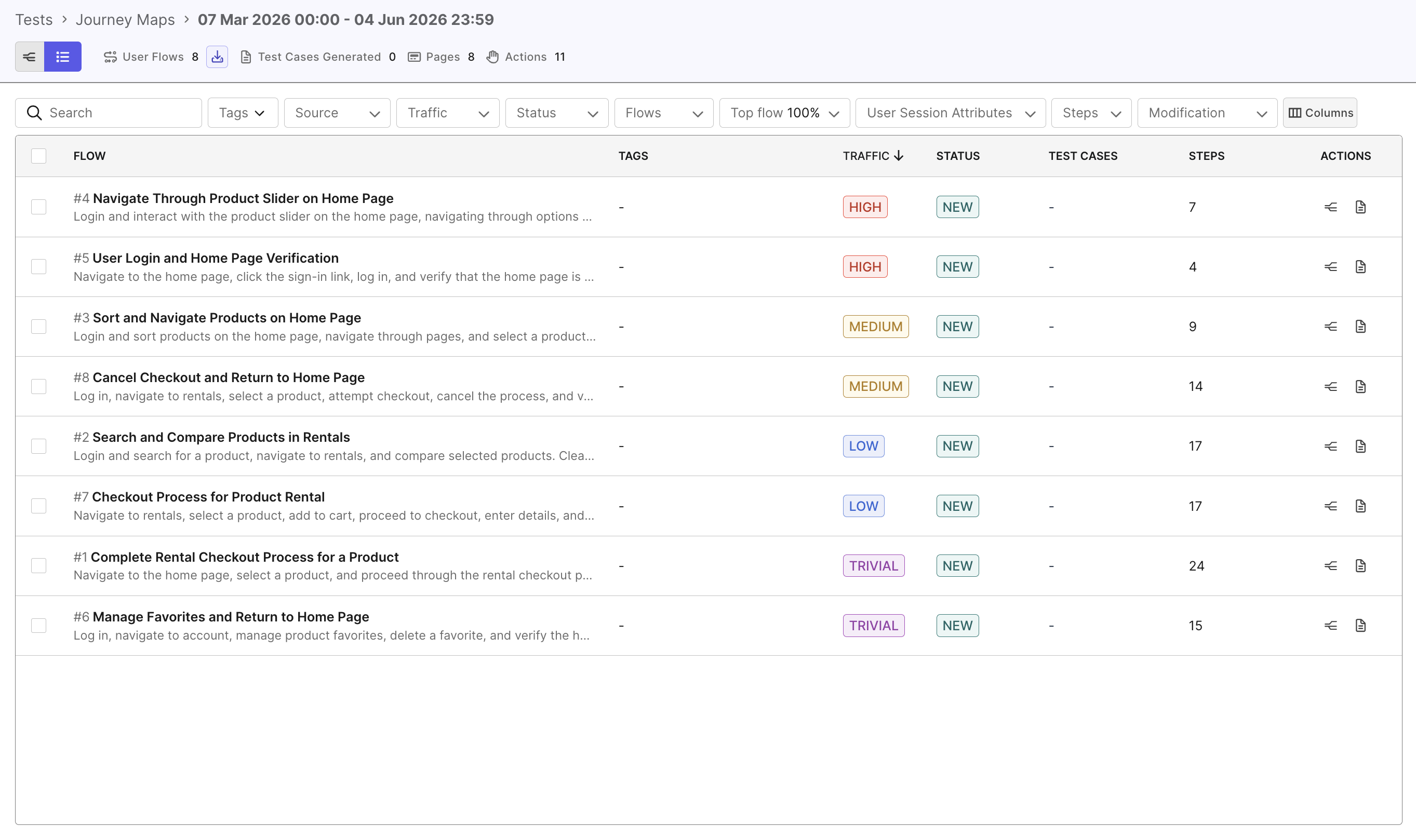
Click Columns to manage the columns you want displayed, or Reset to default to restore the default set. Your filters, sorting, and page are preserved; flow IDs and row actions remain visible.
Filter flows
Use the toolbar filters to narrow the flow list.
| Filter | Use it to |
|---|---|
| Tags | Match tags with Is or Is Not. See Tags. |
| Source | Select User session or Manual execution flows. |
| Traffic | Select traffic levels. |
| Status | Select stable, new, or obsolete flows. See Flow status. |
| Flows | Find flows with or without test cases. |
| Steps | Compare the step count with a value using greater than, less than, or equal to. |
| Modifications | Find flows With assertion, Without assertion, or With deleted test steps. |
| Top Flow % | Focus on a percentage of the most frequently used flows. |
Export flows
To export the flow data, click the Export  icon. Exported flow and map files include additional metadata for analysis and reporting.
The CSV includes:
- Rank: The flow’s position in the map’s ordering.
- Traffic: The traffic classification, previously labeled Flow Priority. Classification values remain unchanged.
- Page Route: The pages visited, in order, using the latest saved page names. Page renames appear in the export without regenerating the map.
In Page Route, consecutive visits to the same page appear only once. If the user leaves and returns to the page later, it appears again. If TrueTest cannot identify a page name, it uses a generic label instead of the captured URL. This prevents potentially sensitive URL and query parameter values from appearing in the export.
Tags
Group flows by feature, scenario, or team. Add tags individually or in bulk from Map View or List View, then filter with Is or Is Not and select multiple tags. Tags are case-insensitive, have a maximum of 30 characters, and accept a–z, A–Z, 0–9, hyphens (-), and underscores (_). Flow tags are independent of test case tags and are not transferred during generation.
Flow status
From the second journey map generation onwards, TrueTest categorizes the flows as stable, new, or obsolete to simplify the review process.
- Stable: Flows with no changes that present in both the new and previous maps. Test artifacts remain intact and you can skip reviewing these flows.
- New: Flows that did not exist in the previous map and require review.
- Obsolete: Flows that appear in the previous map but are no longer in the new map. See more: Retain obsolete flows.
User session replay (beta)
Click Replay session (beta) to review the original user journey behind an AI-generated test. By replaying recorded sessions, you can:
- Debug unclear test flows
- Identify locator-related failures
- See exactly which elements were interacted with
Session Replay supports long and high-event sessions, helping you review complex journeys with fewer unavailable or incomplete replays.
Review console messages
When console diagnostics are enabled for the tracking environment, open the Console panel in Session Replay to review captured browser console messages alongside the replay.
New TrueTest tracking environments enable console capture by default. New AUTs use the five levels log, info, warn, error, and debug. Existing configured level selections do not automatically gain debug. Console capture does not enable Session Replay; replay must also be enabled to record a session for playback.
- Select a console message to move the replay to the associated point in the session.
- Select a test step to focus the console messages captured around that interaction.
- A test step with captured console errors shows an error-count badge. Select the badge to review its error messages and available stack traces. The count covers errors associated with that action's interval, not every error that occurred in the application.
- Resize or collapse the Console panel when you need more room for the replay.
TrueTest sanitizes captured console data before it is displayed. Console messages are diagnostic context and do not change the recorded test steps.
Edit flows for test generation
You can mark captured steps as deleted before generating or re-generating a test case. The deleted steps remain visible in the flow for review but are excluded from the generated test script.
- Click View test steps to open the flow details.
- In Test Steps, hover over the step you want to delete, then click the minus icon. The icon tooltip is Delete test step.
- Confirm the deletion. If the flow has a linked test case, the confirmation dialog warns that re-generating the test case overwrites its generated script.
- Review the deleted step. TrueTest strikes through the step and any verification attached to it.
- In the unsaved-changes banner, click Save changes to save the edited flow, or click Discard to revert the pending changes. The banner summarizes affected verifications, custom scripts, and deleted steps.
Click Undo on a deleted step to restore the step and its attached verification. You can undo a deletion before or after saving the flow.
If you generate or regenerate while flow edits are unsaved, choose Discard & generate or Discard & regenerate to use the last saved flow, or Cancel to keep editing. Cancel and save the flow first if you want the edits included.
The following demo shows how to delete a flow step and save the change:
Editing a flow does not change the original captured session or Session Replay history.
Generate test cases
After TrueTest has identified the flows from user interaction, you can decide which flows are relevant to generate test cases. In the Flow section, select the flow and click Generate Test Cases.
If you already know which captured sessions you want to automate, you can also generate test cases directly from User Sessions before reviewing or generating a full journey map. See Generate test cases from User Sessions.
Before generating a test case, save any flow edits. TrueTest generates the test script from the latest saved flow and excludes steps marked as deleted.
Once the test case generation has finished, you can revisit the flow and click View test case to view its details.
The generated test cases are stored in the registered script repository. Test case names are automatically generated based on the flow.
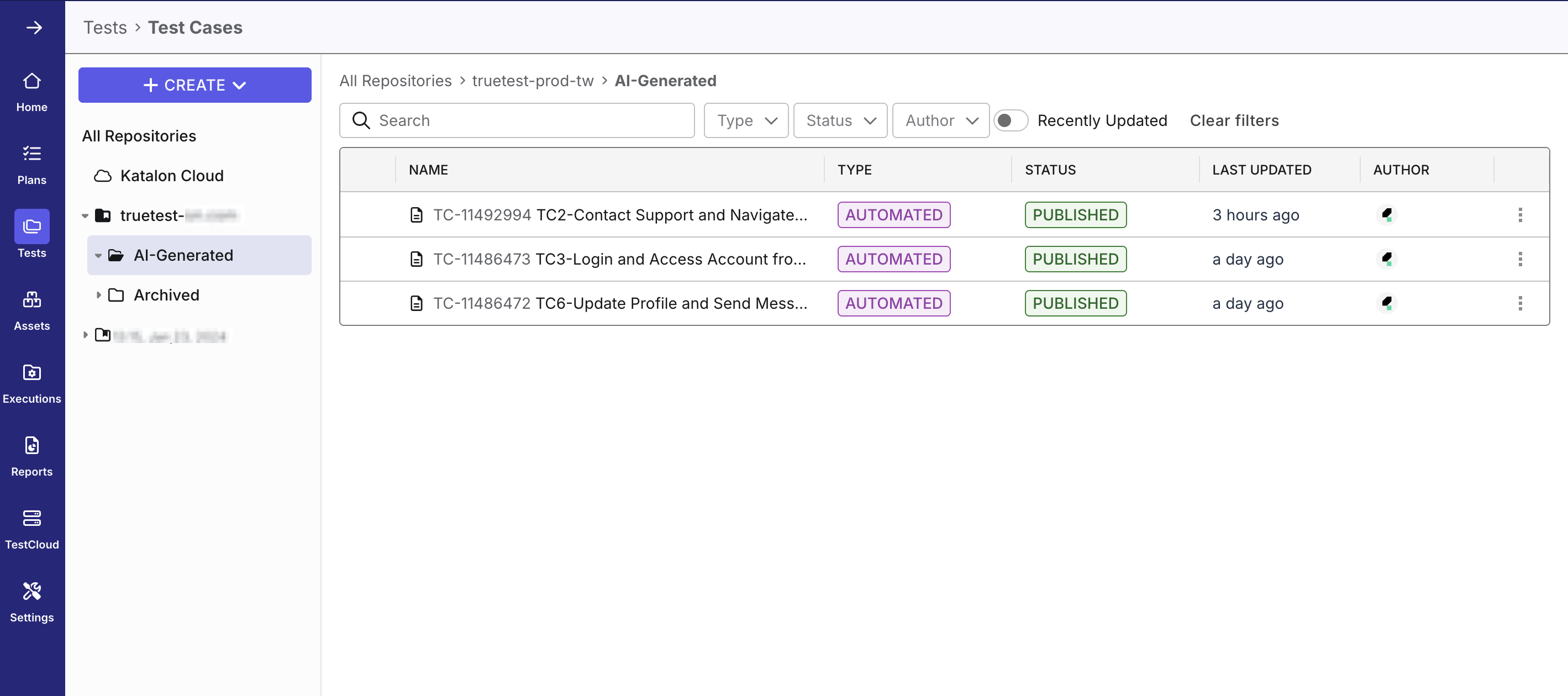
Re-generate an out-of-sync test case
When you save an edited flow that has a linked test case, TrueTest marks the test case as out of sync. A red indicator appears next to the test case ID in the flow details and on the flow list. Hover over the indicator to see: Test case is out of sync with the flow. Regenerate to update.
Trigger test case generation again from the flow to update the linked test case. Re-generation:
- Overwrites the generated test script with the latest saved flow. Manual edits to the generated script might be lost.
- Recomputes variables that TrueTest generated from the flow.
- Preserves existing test objects so that manual updates to those objects are not overwritten.
- Keeps the same linked test case and repository location.
The out-of-sync indicator clears after re-generation succeeds.
After re-generation, review the generated changes before using the updated script in your test project.
Retain obsolete flows
You can review obsolete flows which already have correspondingly generated test cases and decide which to keep or archive. For obsolete flows, TrueTest will archive within the Git repository.
A flow is tagged as Obsolete in the following cases:
- The features related to those flows no longer exist in the application
- The application has been updated to introduce new flows
- No users follow the flows during the data collecting period
Follow these steps to retain and archive obsolete flows.
-
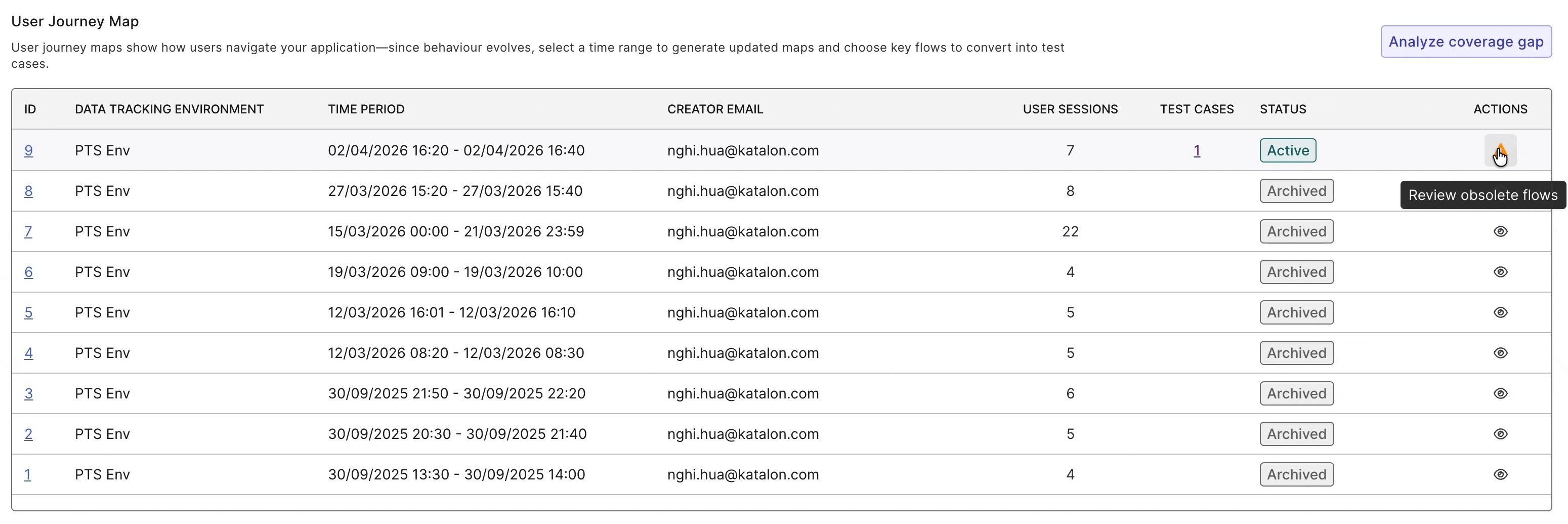
In the User Journey Map section, click the Review obsolete flows warning icon of the relevant map.
-
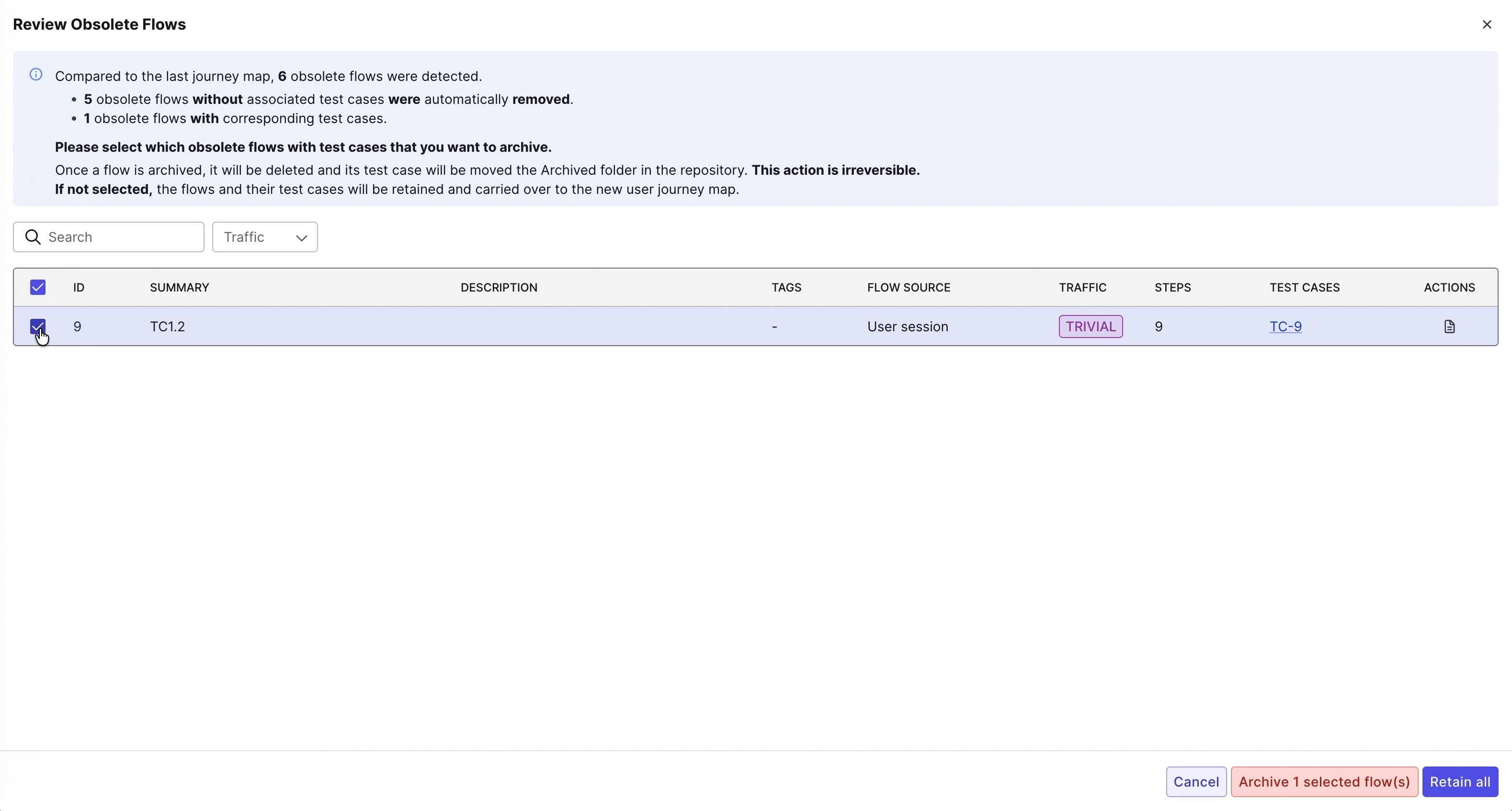
The Review Obsolete Flows window appears. Select the checkbox of the flow you want to archive, then click Archive selected flow(s).
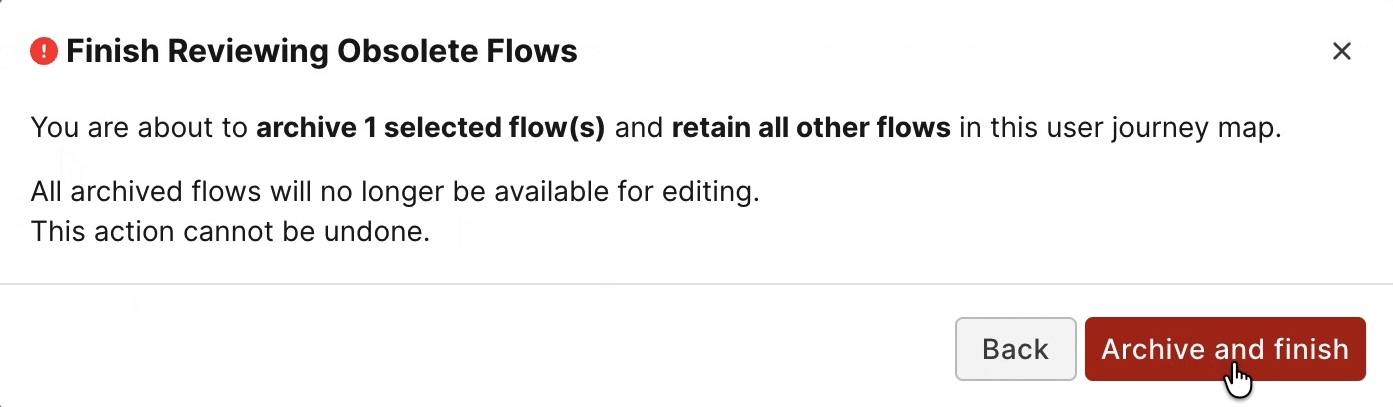
A dialog appears to confirm your action. Select Archive and finish.
-
If you don't want to archive any, select Retain All.