Generate test cases from User Sessions
User Sessions lets you find captured real-user sessions, review the recorded steps, and generate automated test cases from selected sessions. Use this workflow when you want to convert specific captured behavior into test cases before reviewing a full user journey map.
User Sessions search is available for eligible projects. Test case generation from User Sessions is controlled separately and may not be available for your account. If the generation controls do not appear, you can still search for and review captured sessions.
- TrueTest Agent is configured and collecting sessions for the application under test (AUT). See Configure TrueTest Agent.
- The project is linked to an active AUT configuration with at least one data tracking environment.
- AI features are enabled for your organization, you have permission to generate test cases in the project, and a script repository or test project is configured for generated TrueTest artifacts.
Search for user sessions
- In your project, navigate to Monitoring > User Sessions.
- Select the required filters:
- Tracking Environment
- Tracking Period with start date and end date
- Optionally refine the search with:
- User session attributes: Enter an attribute query to find sessions with matching metadata. See Set user session attributes for syntax and examples.
- URL keywords: Enter comma-separated keywords, such as
checkout, payment. Keywords are matched as text, not as regular expressions. - Steps: Select Greater than, Less than, or Equal to, then enter a step count to find sessions by their number of captured steps.
- Click Apply filters.
The results table shows session details such as session ID, tracking environment, start time, last data received, generated test case status, number of steps, and available actions. You can show up to 100 sessions per page.
To clear the selected filters, click Reset.
Review a session before generation
Before generating a test case, open the session details to confirm that the captured behavior matches the scenario you want to automate.
- In the User Sessions table, click a user session ID or the View details button for a session. Both options open the same session detail view.
- Review the opened session detail panel.
- Review the session source, start and end time, session attributes, test steps, and replay panel when replay data is available.
Reviewing the session helps you avoid generating test cases from incomplete, irrelevant, or duplicate user behavior.
Add verifications before generation
Before generating from a single User Session, you can add verifications or custom Groovy scripts to eligible captured steps in Session Replay.
- Open the User Session detail view.
- On an eligible test step, open the action menu and select Add verification or Invoke custom script.
- Configure the verification or script. For an element verification, select the target element in Session Replay and complete the verification details.
- Save the changes before generation.
The verification types, locator details, custom-script fields, validation rules, and annotation controls follow the existing flow workflow. See Add verification to test steps for the available verification types and configuration details.
If you select Generate while changes are unsaved, TrueTest lets you:
- Save and generate to persist the changes and include them in generation.
- Discard and generate to remove the draft changes and continue.
- Cancel to return to the session and keep editing.
If the session already has a linked generated test case, eligible controls remain available for adding verifications, deleting steps, and breaking the session. Save the edits, then re-generate the linked test case to apply them.
Generate test cases from sessions
Optionally, you can click the Generate button to generate test case one by one in the Session Replay page of each session, or generate in bulk from the User Sessions table.
The Generate and Generate test cases controls appear only when User Sessions test case generation is enabled for your account.
- In the User Sessions table, select the sessions you want to generate.
- Click Generate test cases.
- In the generation dialog, optionally add test case tags and choose whether generated names include the TrueTest TC ID prefix.
- Confirm generation and wait for TrueTest to finish generating the test case.
When the test case is ready, the session row and detail view show a test case link, such as TC-1. Click the test case link to open the generated test case in the linked project when the link is available.
If generation fails, the User Sessions table and detail view retain the failure status so you can review the error and retry after resolving the cause.
TrueTest generates the test case name and description automatically. The User Sessions UI does not provide fields to edit them before generation.
Sessions that already have generated test cases or are currently generating cannot be selected. After you submit a bulk generation request, selected sessions are queued or disabled until their generation status is refreshed.
Re-generate a test case
When a User Session already has a linked test case, make edits and click Regenerate to update that same test case without creating an unrelated duplicate.
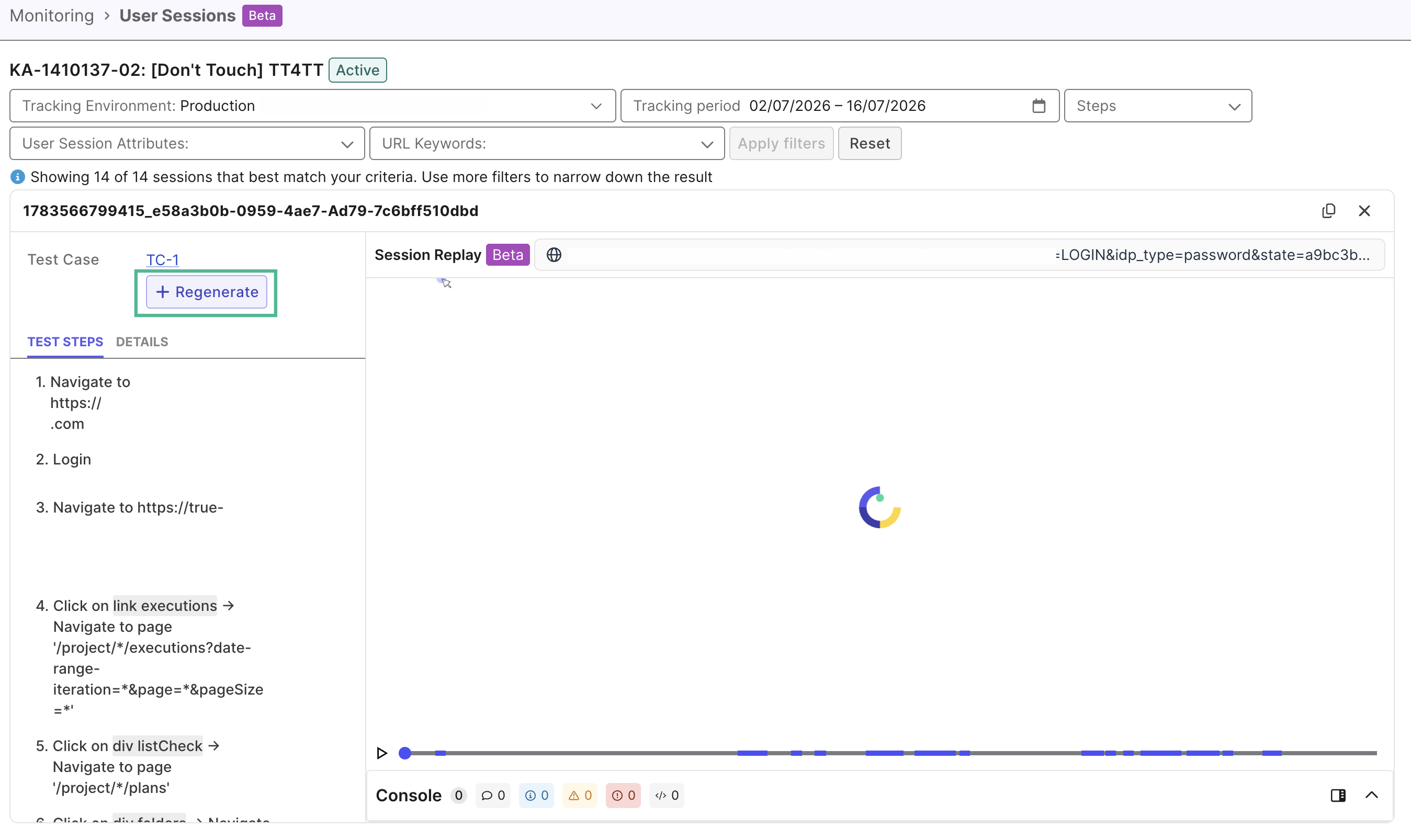
If the session has unsaved changes, TrueTest shows one confirmation dialog:
- Save and regenerate saves the draft, then starts re-generation.
- Discard and regenerate restores the last saved session state, then starts re-generation.
- Cancel keeps the draft and returns to the session.
For a session without unsaved changes, confirm Overwrite and regenerate. TrueTest keeps the existing test case link while re-generation is running and if re-generation reports an error.
Re-generation is unavailable while the session, test case, or Journey Map is already queued or generating.
How User Sessions generation works with journey maps
If a selected session is already represented by an active flow in the latest completed Journey Map, TrueTest can reuse that flow instead of creating a duplicate representation of the captured behavior.
Use Journey Maps for coverage analysis and flow review. Use User Sessions when you want to quickly automate specific captured sessions.
Generated artifacts
Generated artifacts are stored in the project repository configured for the AUT. This repository is a project-level configuration, not something chosen from the User Sessions filter values.
When a tracking environment name is available, TrueTest writes generated artifacts under an AI-Generated/<tracking-environment-name> folder in the Katalon project repository, including:
Test Cases/AI-Generated/<tracking-environment-name>Scripts/AI-Generated/<tracking-environment-name>Object Repository/AI-Generated/<tracking-environment-name>Data Files/AI-Generated/<tracking-environment-name>Test Data Driven/AI-Generated/<tracking-environment-name>
TrueTest also updates required generated support keywords under the Keywords/truetest package.
To keep generated artifacts organized, use naming conventions, tags, and project-level organization where available. Avoid manually moving generated TrueTest files out of the generated folders unless your team has confirmed the move is supported by your current TrueTest and repository workflow.
Limitations
- Required filters: You must select a tracking environment, start date, and end date before searching.
- Date range rules: The start date must be on or before the end date. The end date must be today or earlier. The selected range must be 90 days or less.
- Search behavior: Session search runs asynchronously. If a search fails, adjust the filters and try again, or contact Katalon Support if the failure continues.
- Generated metadata: In this workflow, TrueTest submits generated test cases with automatically assigned name and description values.