Import RESTful from Postman to Katalon Studio
You can import a Postman collection into Katalon Studio as test requests. From Katalon Studio 11.7.0, you can also import a Postman environment, which creates an Execution Profile that holds the environment variables.
The Environment file option is available from version 11.7.0. Katalon Studio supports Postman collection format v2.1 only.
Import a Postman collection or environment
To import a Postman collection, an environment, or both, perform the following steps:
-
Export the Postman collection or environment you want to import to JSON, or export both. If your requests use variables such as
{{baseURL}}whose values are stored in a Postman environment, export that environment to JSON as well. See the instruction on Postman document: Importing and exporting data. -
In Katalon Studio, with an API/Web Service project, click on the Postman icon.

Alternatively, you can open the import dialog via:
-
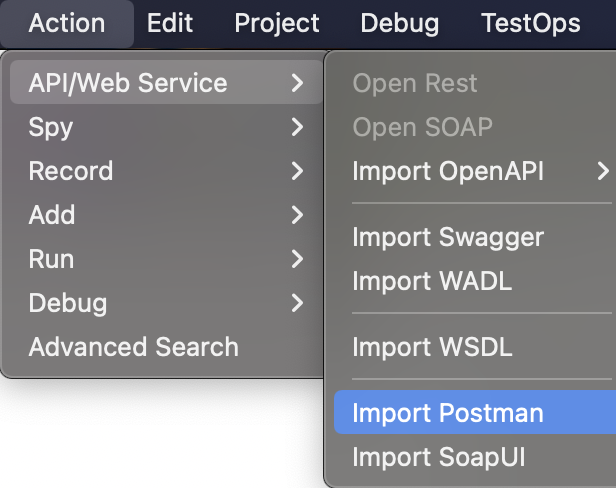
The Action button in the top menu bar:
-
Click Action > API/Web Service > Import Postman.
-
-
The Tests Explorer panel:
- Right-click on Object Repository > Import > From Postman.
-
-
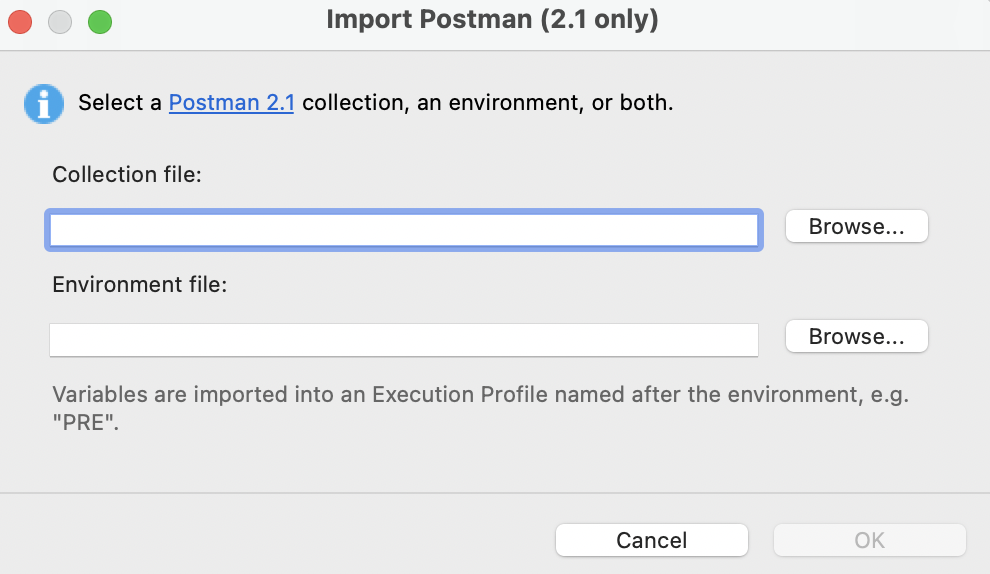
In the Import Postman (2.1 only) dialog, select the files to import:
- In Collection file, click Browse... and select your exported Postman collection.
- In Environment file, click Browse... and select your exported Postman environment.
Select either file or both. The OK button is enabled when at least one field contains a file path.
-
Click OK.
If imported variables have the same names as variables already in an Execution Profile, an Existing Variables dialog asks whether to replace the existing values. If both files have matching variable names, you may see two dialogs in sequence. See Resolve existing variables.
If you selected a collection file, its test requests are imported to Katalon Studio.
If you selected an environment file, the environment variables are imported to an Execution Profile. See Where imported variables go.
Katalon Studio reads and validates the selected files before it imports anything. If a selected file is invalid, the dialog shows an error and nothing is imported.
Where imported variables go
Katalon Studio stores Postman variables in Execution Profiles.
| You select | What Katalon Studio imports |
|---|---|
| Collection file only | Test requests are imported. The collection variables are added to the Execution Profile named default. |
| Environment file only | The environment variables are added to an Execution Profile named after the Postman environment. No test requests are imported. |
| Both files | Test requests and collection variables are imported as above. The environment variables are added to the Execution Profile named after the environment. |
For example, if you import an environment named PRE, Katalon Studio creates an Execution Profile named PRE. If the project already has a profile with that name, Katalon Studio updates it. See Resolve existing variables.
Importing does not change the profile that is selected in the main toolbar. To run tests with the imported values, select the new profile.
To import more than one environment, repeat the import once for each environment file. Each environment becomes its own Execution Profile.
Understand how Katalon Studio maps environment variables
Katalon Studio converts each variable in the Postman environment file as follows:
| Postman environment | Execution Profile in Katalon Studio |
|---|---|
Variable with type set to secret | Imported as a protected variable. |
Variable with any other type (for example, default or any) | Imported as a regular variable. |
Variable with enabled set to false | Skipped. |
| Variable with an empty value | Imported with an empty string '' as its value. |
Variable whose name is not a valid Groovy identifier (for example, client-id or 2fa_code) | Skipped and reported. The name is not changed. |
After the import, Katalon Studio shows one warning that lists every skipped variable name. To import a skipped variable, rename it in Postman so it is a valid identifier, export the environment again, and import it again.
Postman pre-request and test scripts that set variables at run time are not converted. If the environment declares such a variable with an empty value, Katalon Studio creates the variable with an empty value.
Import files with any file name
Katalon Studio identifies a Postman file by its content, not by its file extension. You can import an exported file that was renamed or that has no .json extension, such as PRE.postman_environmentforkatalon.
If you select a file in the wrong field, the dialog shows an error that tells you which field to use:
- A Postman collection in Environment file:
The environment file is a Postman collection. Select it as the Collection file instead. - A Postman environment in Collection file:
The collection file is a Postman environment. Select it as the Environment file instead. - A Postman Globals export in Environment file:
Postman Globals exports are not supported. Export an environment from Postman instead.
Resolve existing variables
Katalon Studio matches an existing Execution Profile to the environment name without distinguishing uppercase from lowercase. For example, importing an environment named pre updates an existing profile named PRE.
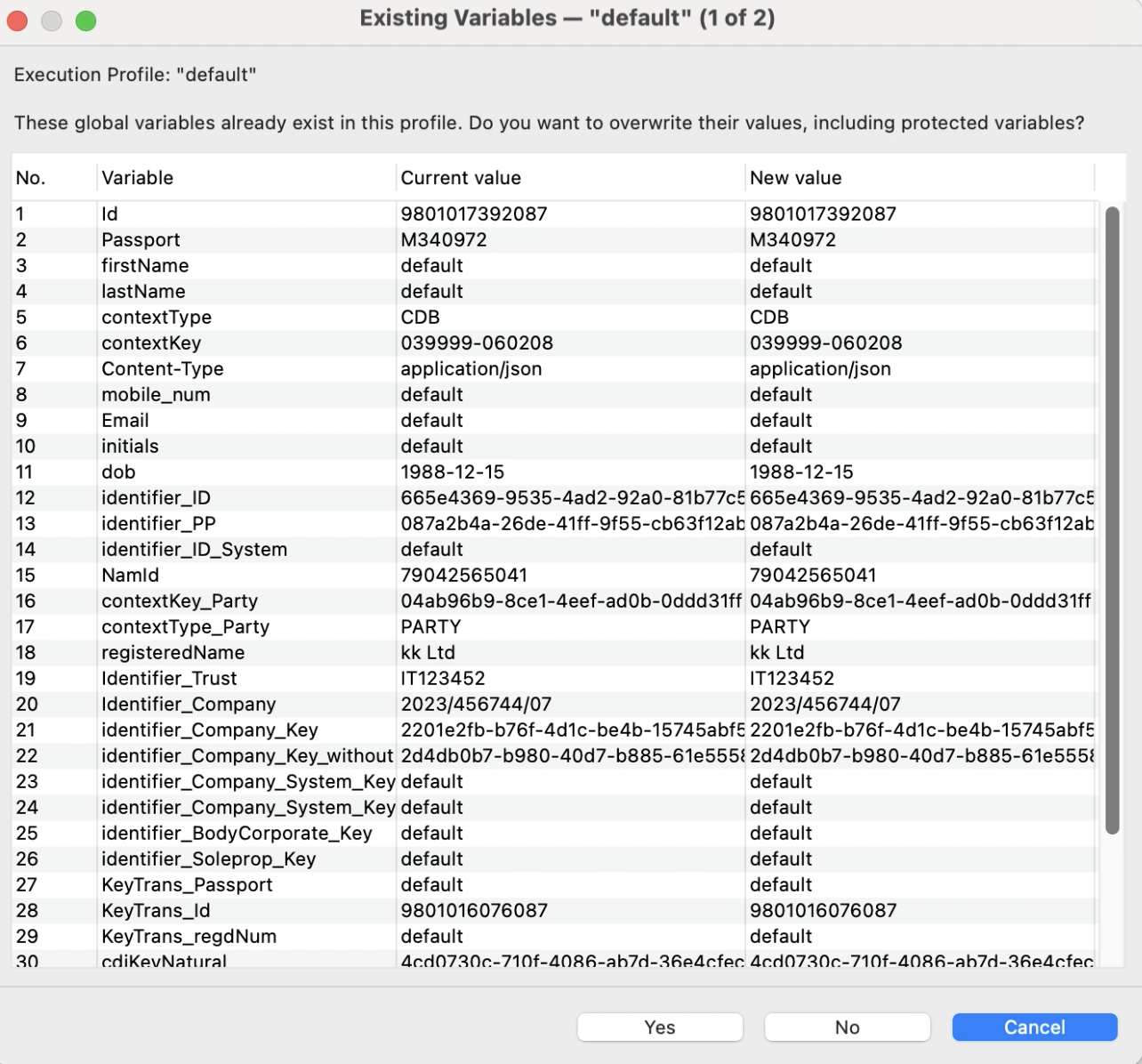
When imported variables have the same names as variables in an existing profile, the Existing Variables dialog lists their current and new values. Each dialog asks for one choice that applies to all listed variables in that profile:
- For the collection file, the dialog is for the
defaultprofile. Click Yes to replace the listed values, or No to keep their current values.
- For the environment file, the dialog is for the profile named after the environment, such as
PRE. Click Overwrite to replace the listed values, or Keep Existing to keep their current values.
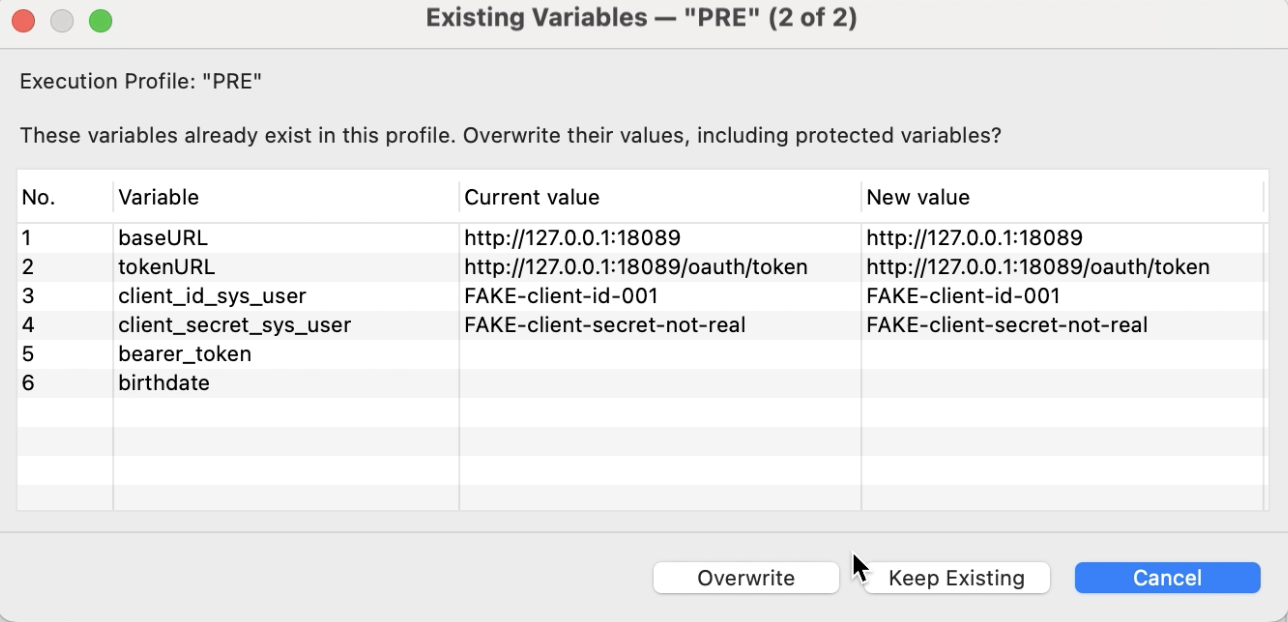
If both files have matching variable names, Katalon Studio shows the collection dialog first (1 of 2) and the environment dialog second (2 of 2). Clicking No in the first dialog keeps the existing default values and continues to the environment dialog; it does not skip the environment import. Choose Overwrite or Keep Existing there for the environment values.
With either replace or keep choice, Katalon Studio adds variables that are not yet in the profile and does not delete variables that are not in the Postman file. Cancel stops the import. Replacing values can overwrite protected variables; importing a Postman secret variable over an existing variable makes it protected.