AI Failure Analysis in Reports
This document introduces AI Failure Analysis feature in Katalon AI Assistant.
- You are using Katalon Studio Enterprise (KSE).
- You have configured an AI service provider. See Configure Katalon AI Assistant and AI providers.
- From Katalon Studio 11.7.0, Enable AI capabilities for this project is selected in Project > Settings > AI Capabilities. See Turn AI capabilities on or off for a project.
Overview
AI Failure Analysis reads execution logs of failed test cases, and summarizes the failure and identifies root causes in plain language.
In addition to the summary, it assigns a Failure Category to each analyzed failure so you can spot error patterns and prioritize fixes without reviewing every result by hand. Categories are generated by the AI, are read-only, and match those used in Katalon True.
The analysis appears in HTML reports, PDF reports and email reports. See the section below to learn how to turn it on for each output.
Failure categories
Failure categories are available from Katalon Studio 11.2.0 onwards.
| Failure category | Description |
|---|---|
| Application Under Test (AUT) Issue | Functional or UI issues in the application under test. |
| Test Script Issue | Runtime errors, element-not-found errors, and assertion failures. Tests authored in Katalon Studio commonly fall under the Test Script Issue category. |
| Test Data Issue | Incorrect, missing, or invalid test data. |
| Automation Issue | Framework, library, or tooling problems. |
| Integration Issue | Components or systems that do not work together. |
| Configuration Issue | Incorrect tool setup or parameters. |
| Environment Issue | Test environment instability or unavailability. |
| Others | Unspecified issues. This is the default when the AI cannot confidently classify the failure. |
Enable and use AI Failure Analysis
All AI-generated explanations are marked with an AI tag to distinguish them from non-AI failure messages.
From Katalon Studio 11.7.0, you turn AI Failure Analysis on or off for each output in one place:
- Go to Project > Settings > AI Capabilities.
- Make sure Enable AI capabilities for this project is selected.
- Under AI failure reason analysis, select the outputs that show the AI analysis: HTML report, PDF report and Email report.
- Click Apply and Close.
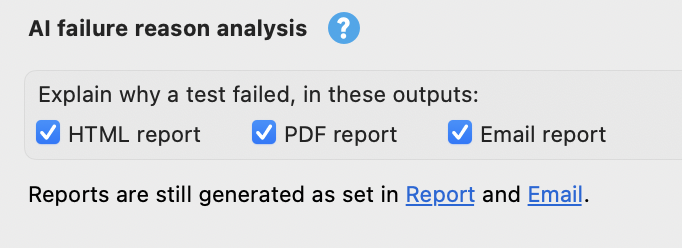
These options only decide whether a report shows the AI analysis. Which reports Katalon Studio generates is still set in Project > Settings > Report and Project > Settings > Email.
If an (i) icon appears next to HTML report or PDF report, that report is generated on a legacy template, which does not show the AI analysis. Hover over the icon, then switch to the new template in Project > Settings > Report.
In Katalon Studio 11.6.0 and earlier, these options were the Analyze failed reason using AI checkboxes on the Report and Email pages, and one checkbox covered both the HTML and PDF reports. Those pages now link to AI Capabilities.
In HTML reports
Select HTML report under AI failure reason analysis, as described above.
Result
After you run a test suite in Katalon Studio, the AI-generated explanations appear in the test suite summary and individual test case details. You can view the reports using one of the following ways:
- Auto-generate report: If automatic HTML report generation is configured, open the report that is generated immediately after execution is complete. See Automatically generate reports for setup details.
- Manual export: Go to the Results tab, use the Export report dropdown to export the test results in HTML, then open the exported report. See Manually export reports for step-by-step guide.
In both cases, you will see AI-generated explanations at both the test suite summary and test case details levels.

Click here to view a sample test suite report with AI analysis: Sample test suite report (HTML) with AI faliure analysis.
The HTML report also shows Failure Category cards at the test suite level (after the summary statistics, before the Fail Reason section) and a read-only category tag inside each analyzed test case. Click a card to filter the Test Cases tab by that category. The following demo shows how:
In PDF reports
PDF report generation is turned on in Project > Settings > Report, with the New PDF report template. The New template requires the New Execution Flow.
Select PDF report under AI failure reason analysis, as described above. The PDF report then includes the AI-generated explanations of the failures.
In email reports
You have configured your mail server and email settings to receive email reports after test execution. See Share test reports via email in Katalon Studio.
Select Email report under AI failure reason analysis, as described above.
- When selected: The test suite email includes an AI-generated explanation of the failure.
- When cleared: The email displays the original failure message.
The test suite email will display a brief AI-generated summary of why the test suite failed. Below the Fail reason section, it also lists aggregated Failure Categories counts, with Others always last. For example:
Failure Categories:
- Test Script Issue: 3
- Environment Issue: 2
- AUT Issue: 1
- Others: 1

To turn AI failure analysis on or off for HTML, PDF or email reports in Katalon Runtime Engine executions, see Turn AI failure analysis on or off.
Troubleshoot failures from Log Viewer
You can also analyze a failure right after execution, without generating a report. In Log Viewer, click Troubleshoot With AI. Katalon AI Assistant opens in Agent mode with the execution log attached, then suggests root causes and fixes. See Troubleshoot a test failure.
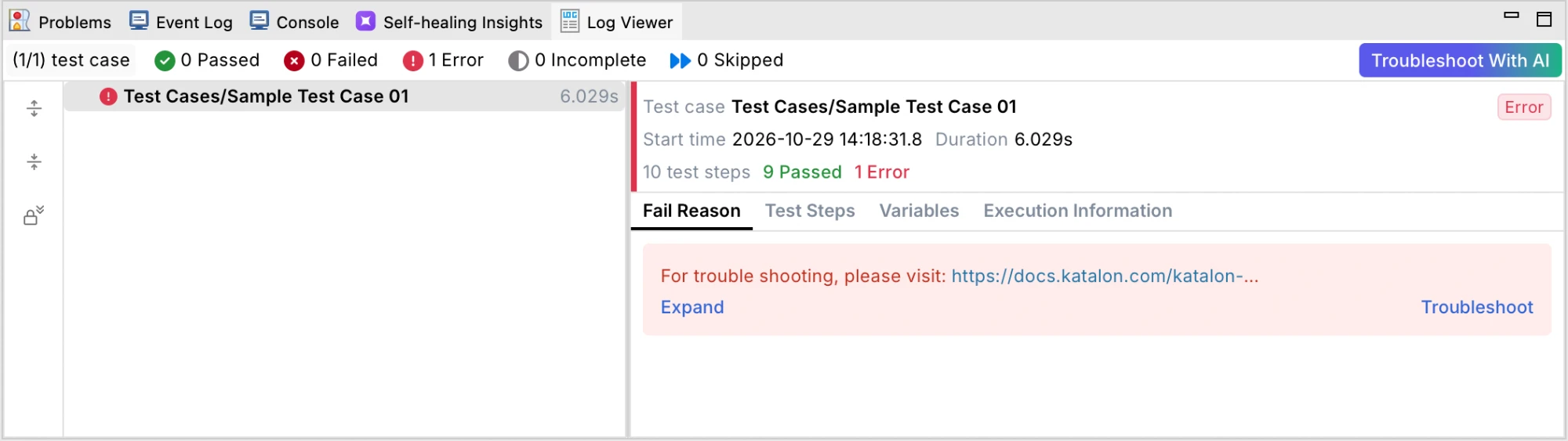
Troubleshoot With AI is available only in the new Execution Log UI. To use it, go to Project > Settings > Execution and select Enable New Execution Viewer. See Execution settings in Katalon Studio.
Known limitations
- Katalon AI Assistant may take longer time to generate HTML report, and may not process every result. If it failed to generate the AI analysis, it will revert to displaying the original failure reason.
- The AI badge might still show up even if the failure reasons aren’t AI-generated. This can happen if AI analysis fails for email reports and the system falls back to the original message. You can verify this in the Event Log, which records that the failure reasons were not created by AI.
- Failure categories are read-only; you cannot edit them manually.
- In the HTML report, the Failure Category filter and the test result filter (Passed, Failed, Error, Incomplete, Skipped) are mutually exclusive, and the selection resets when you refresh or reload the report.
- The email report shows aggregated category counts only — no interactive filtering and no per-test-case categories.
- Failure categories do not appear when AI failure analysis is disabled or when all test cases pass.
- Only test cases that the AI successfully analyzes are counted; a test case the AI cannot analyze has no failure category and is excluded from the counts.
See also
- Common automation error analysis report — Failure categories: These failure categories are also available in Katalon True reports.
- Enhance your data privacy by masking any sensitive data (like PII, password) in your HTML or email reports: