Quick guide for administrators
This document covers TestOps Legacy version only.
This guide provides an overview of the capabilities of the Administrator role within the Katalon Platform. It includes details on tasks such as managing user for your organization, accessing information about your existing subscriptions, and the distribution of licenses to users.
Requirements
You have created a Katalon account. Register for a Katalon account if you don't have one.
You are an administrator for your organization. For more information about roles and permissions as well as Katalon management structure, refer to the following topic: Administrative Roles and Permissions.
User Management
Invite users to join an Organization
To work with your team on a project, start by adding them to your Organization.
Follow these steps to add users to your Organization.
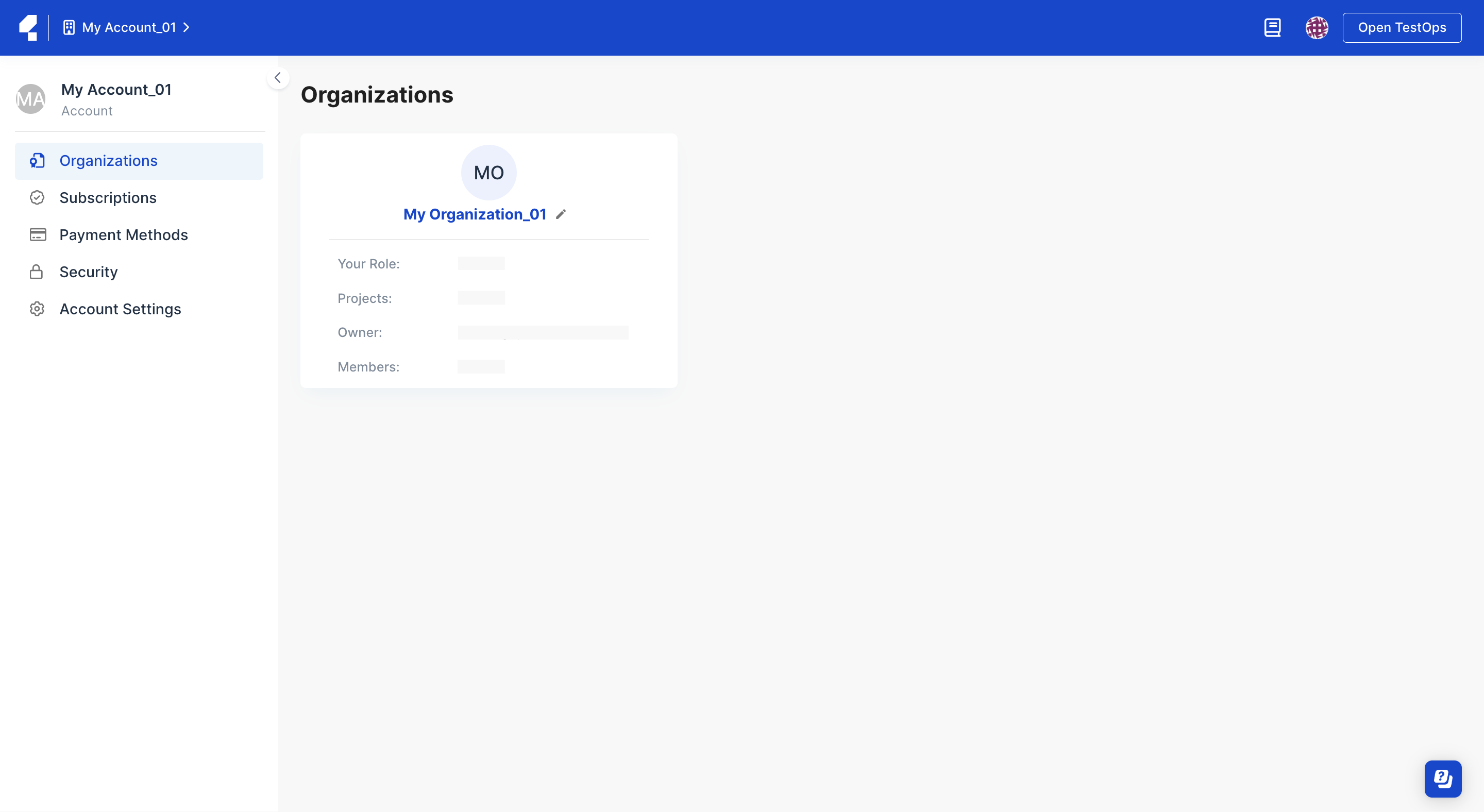
- n your Account admin page, select your Organization.
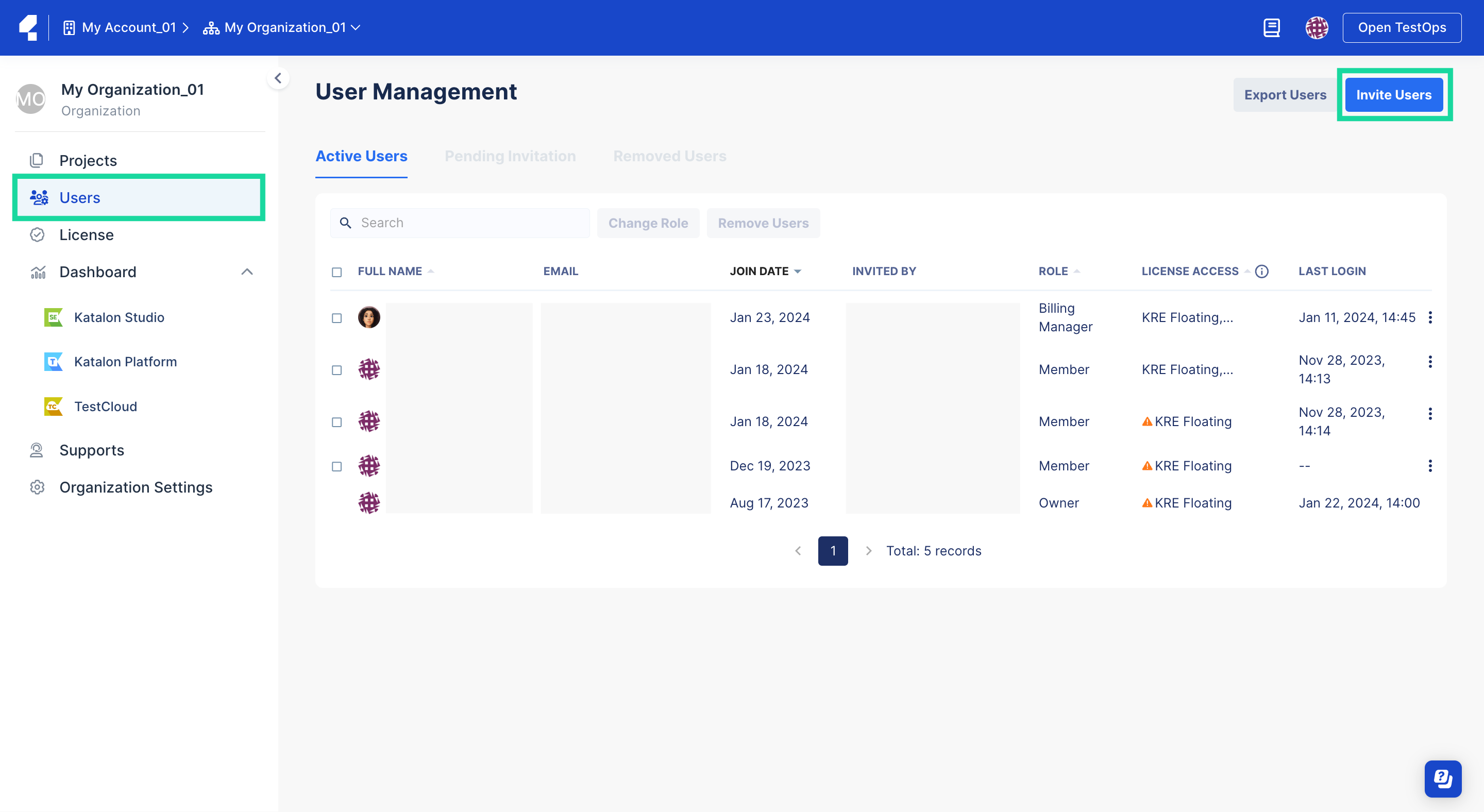
- Select Users to open the User Management page. Click the Invite Users button at the top right corner.
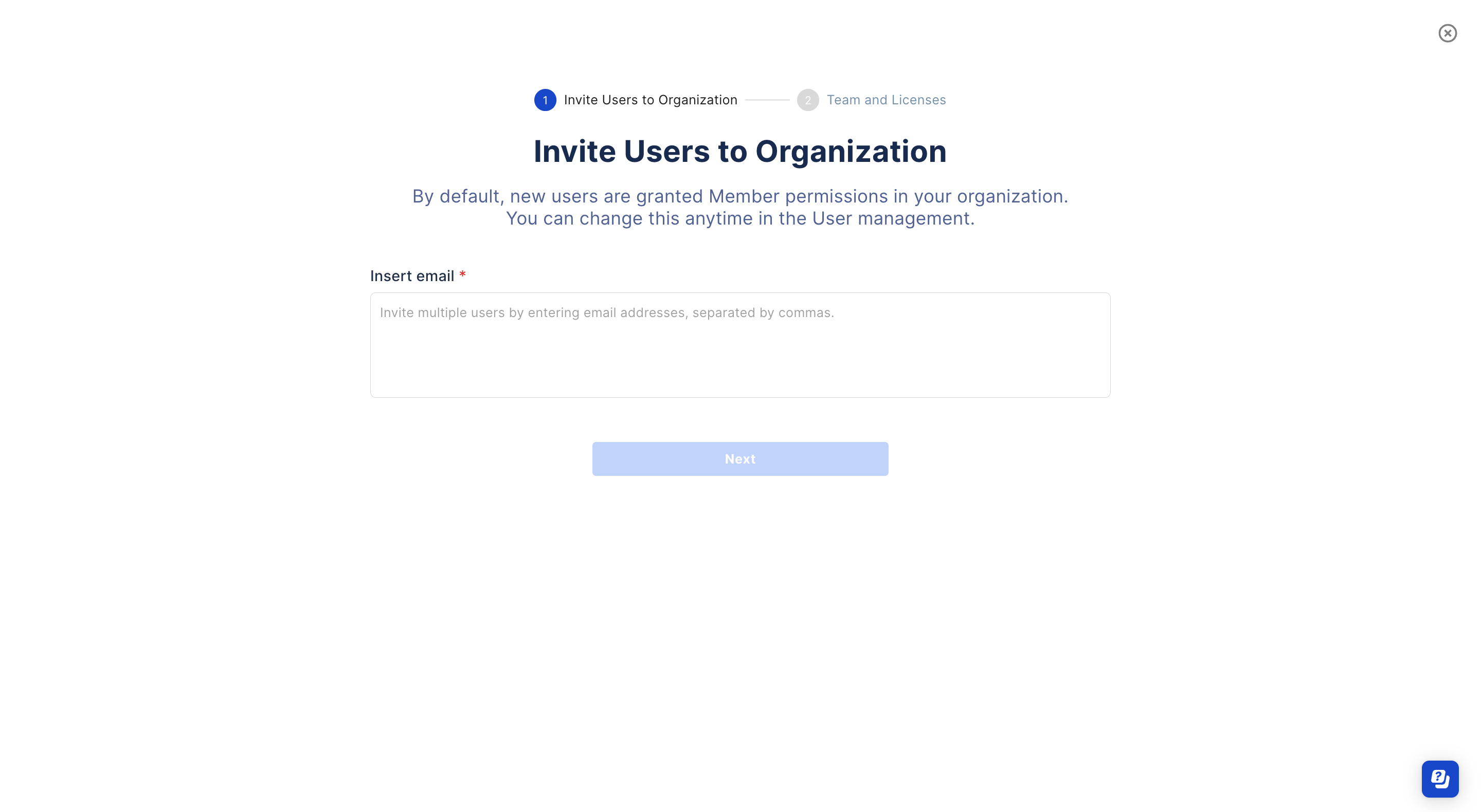
- Note:On the Invite Users to Organization window, enter your user's email address. Then, click Next.
Before you perform this step, we highly suggest that you plan which group of users you want to assign specific licenses and teams to.
You can enter multiple email addresses to invite multiple users at once (separate by commas).
- On the Team and Licenses window, assign teams and licenses to your users.
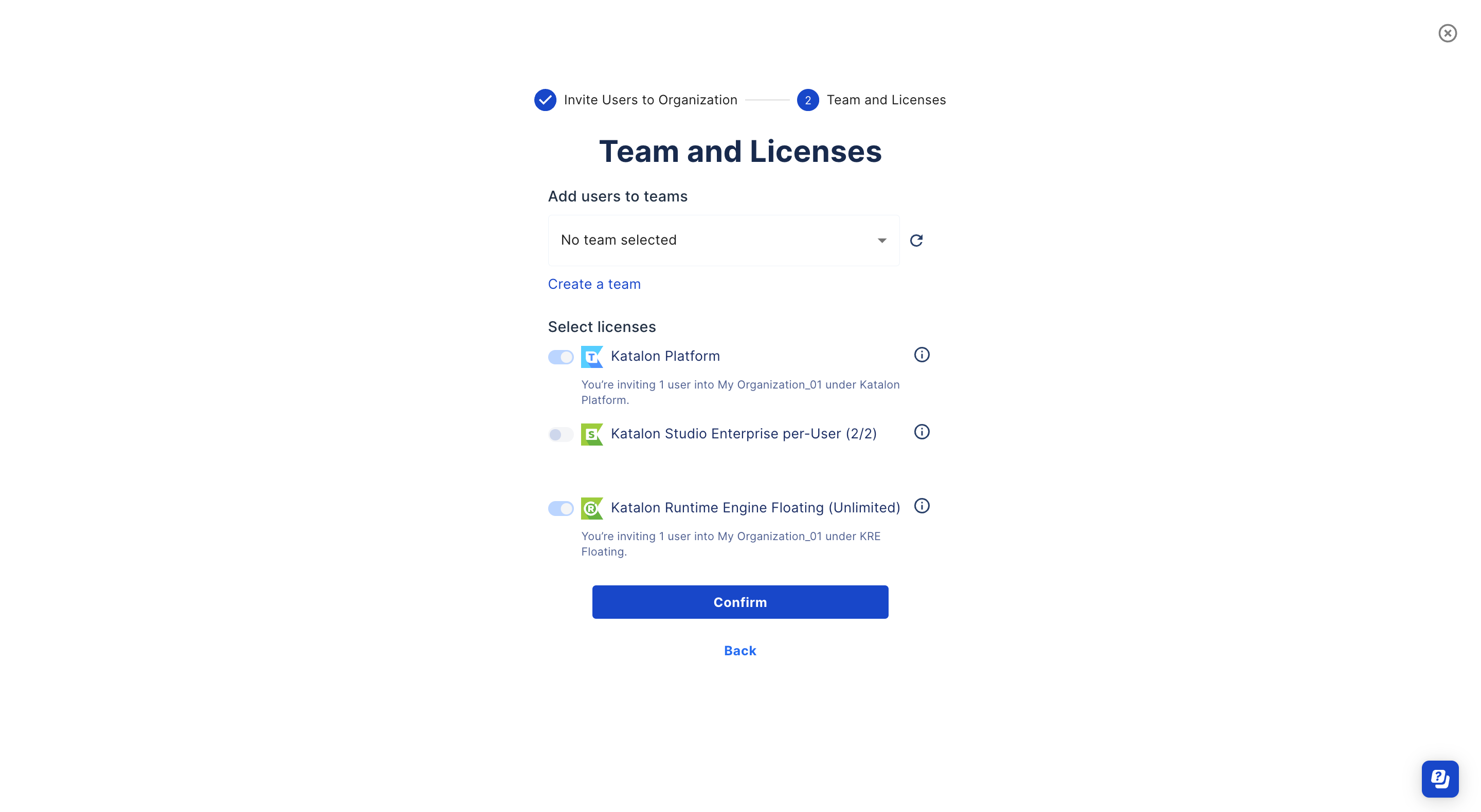
- In Add users to teams section, select one or multiple teams you wish to assign to your users.
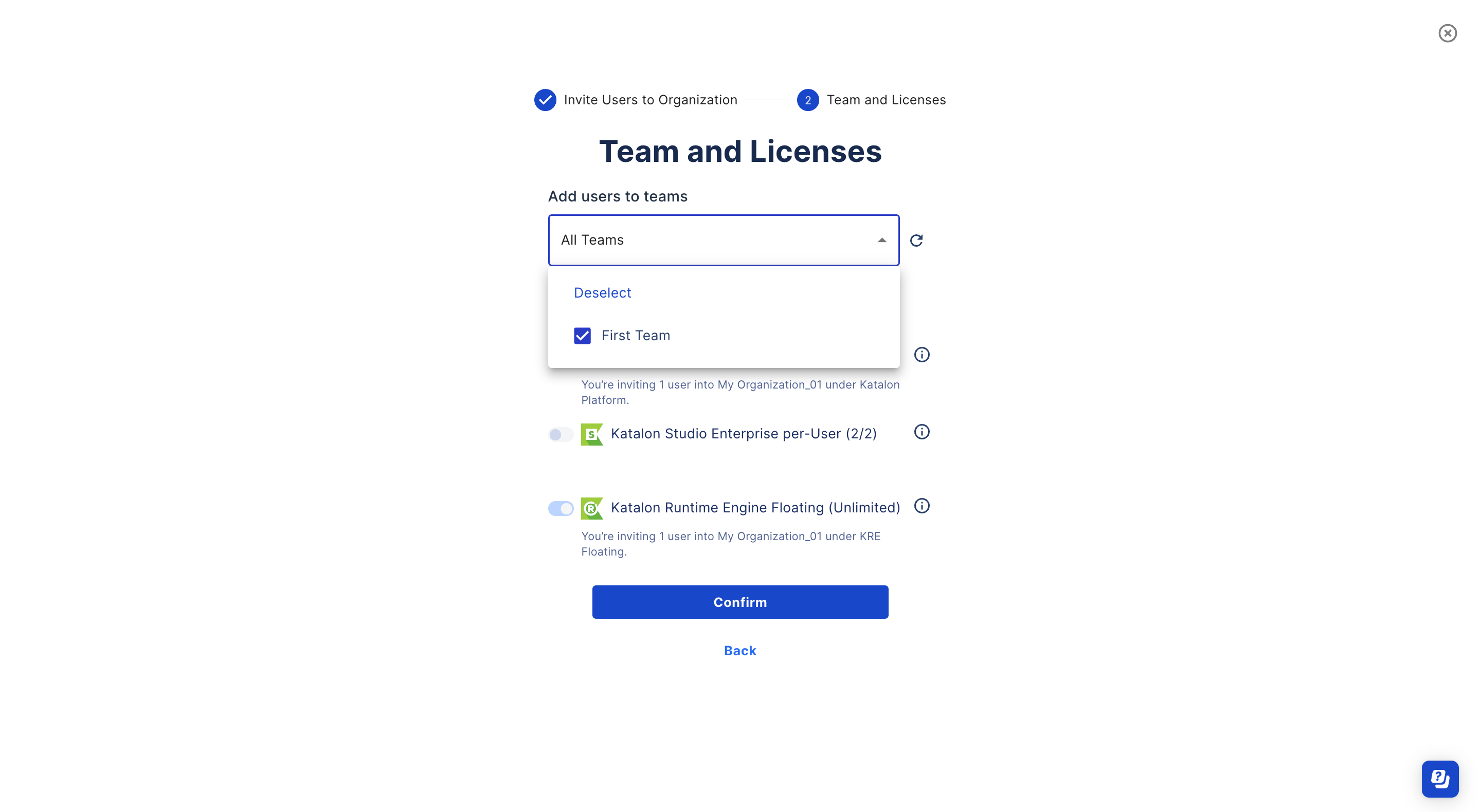
In case your Organization have no team, you can create a new team by clicking Create a team. Refer to the following topic for the next steps: Create a Team.
- In Add users to teams section, select one or multiple teams you wish to assign to your users.
If the email domain of the invited users is not a public one (e.g.,
@gmail.com) and matches the email domain of either the Account/Organization Owner or the inviter, the invited users will promptly become active users of your Organization.In contrast, other users will receive an invitation email to join your organization. Once these users accept your invitation, they then become users of your Organization.
You can track their pending invitations in Pending Invitation section. You can also refer these users to view this topic for more information: Join a Katalon True Platform Organization.
In case your invited users have not received the email, make sure that they check their spam inbox or ensure that the Katalon Platform email address is whitelisted.
Change user role
In an organization, different roles have different permissions. Learn how to change roles and permissions for a user.
The Owner has the highest level of permissions. This is the default role for the first member of any Organization.
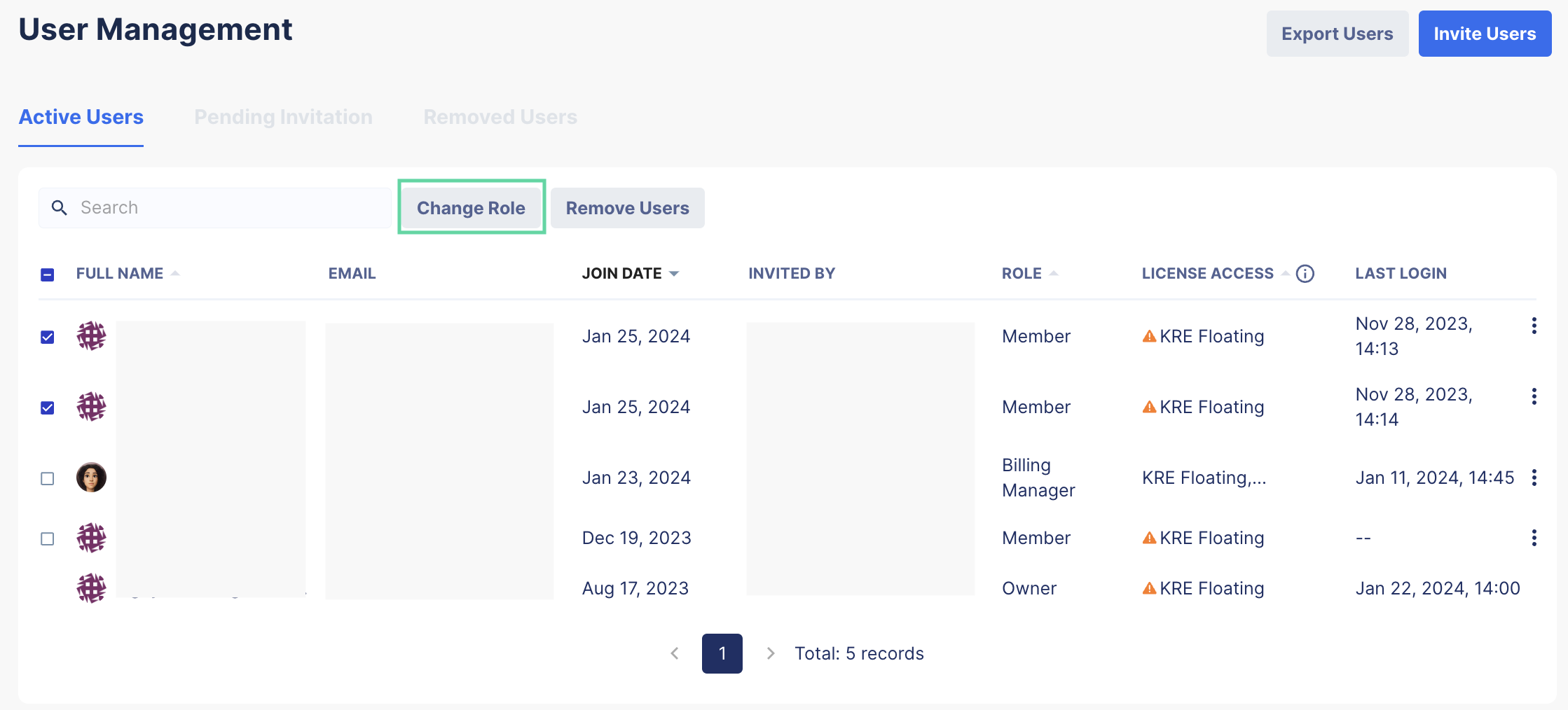
- Select the checkbox next to the user's name then click on the Change Role button.
You can select multiple checkboxes if you want to update the same role for multiple users.
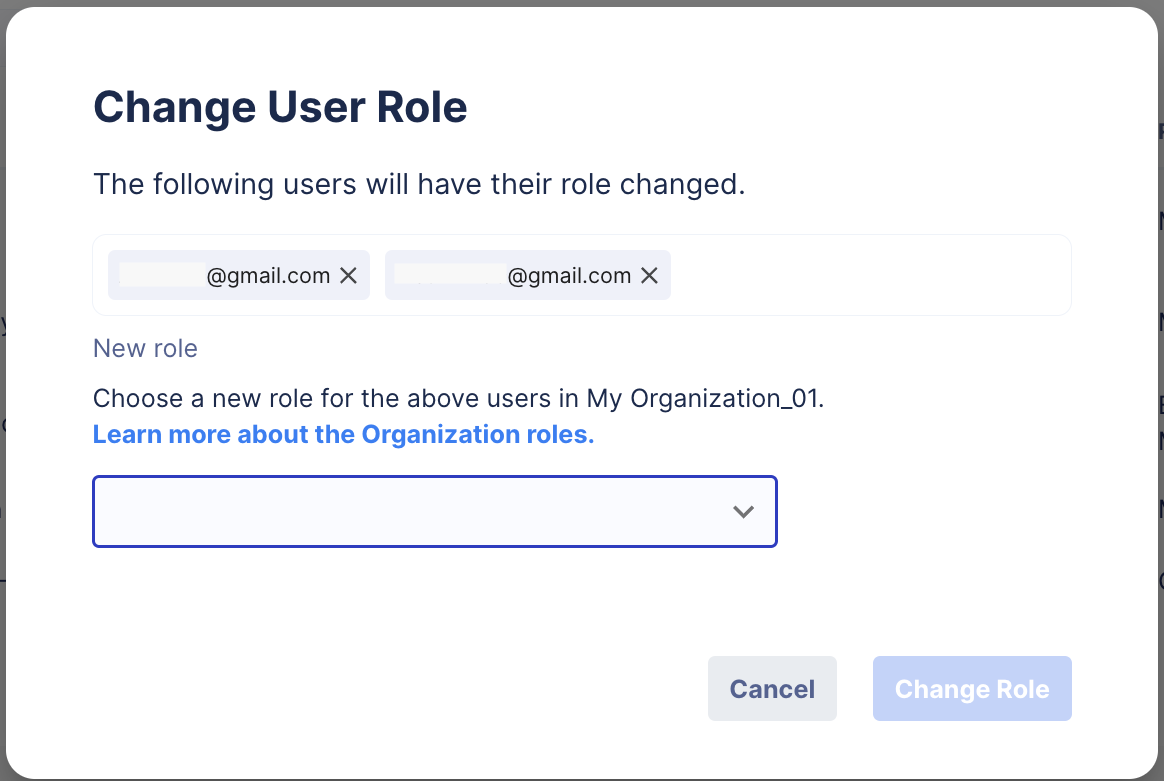
- The Change User Role dialog pops up. Double-check the email addresses then select a new role in the dropdown list.
Remove existing users
- When you remove a user from your Organization, that user can no longer log in to your Organization.
- After being removed, users' assigned licenses are revoked and their associated machine IDs are removed from the Registered Machine list.
- The data that was used by removed users is retained and remains accessible within your Organization.
- In case removed users are the Owner of any Projects, this role will be transferred to the Organization Owner.
- Removed users can be invited back any time, but they will have to go through the invitation process again.
To remove existing users, do as follows:
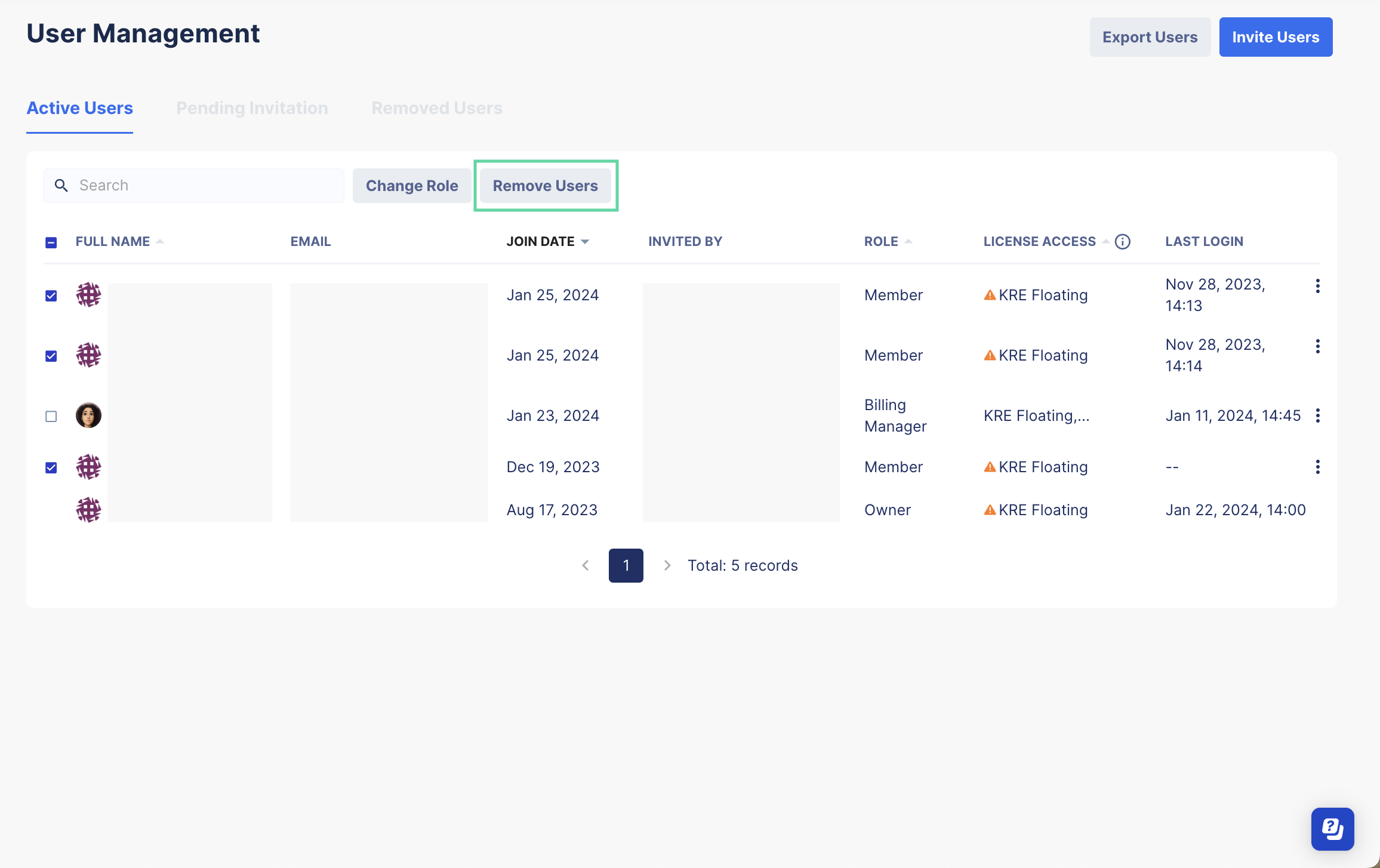
- Select the checkbox next to the user's full name that you want, then click the Remove Users button.You can remove multiple users by selecting multiple checkboxes.
- The Remove Users dialog pops up. Double-check the email addresses and click Remove to confirm your action.
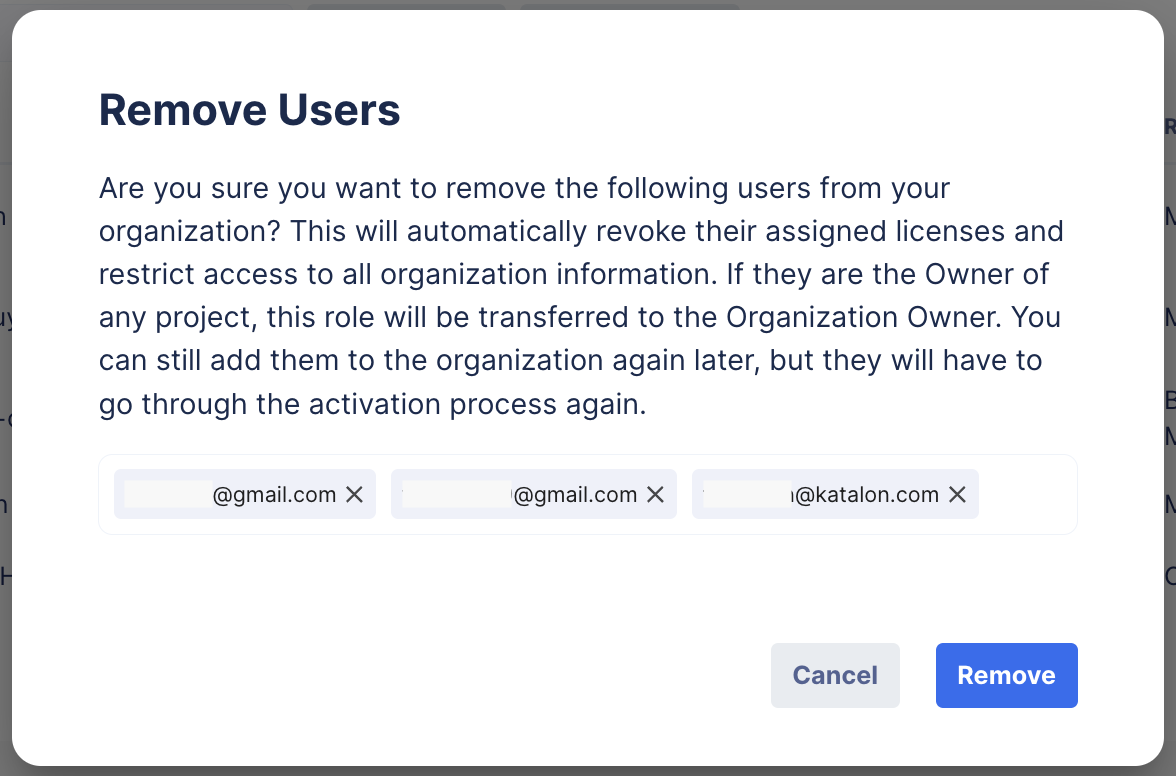
You have removed the users.
License Management
View license information
- You must be the Owner or Admin of your Organization to access the License Management page. If you do not have it, you can ask your account owner for this permission. See: Change user role.
You can verify the subscription information and view all license information by following these steps:
Sign in to Katalon True Platform Admin and select your Account.
On the Account admin page, select your Organization.
Select License to open the License Management page.
Select a Katalon product. For example, Katalon Studio Enterprise (per-User). The page displays as below.
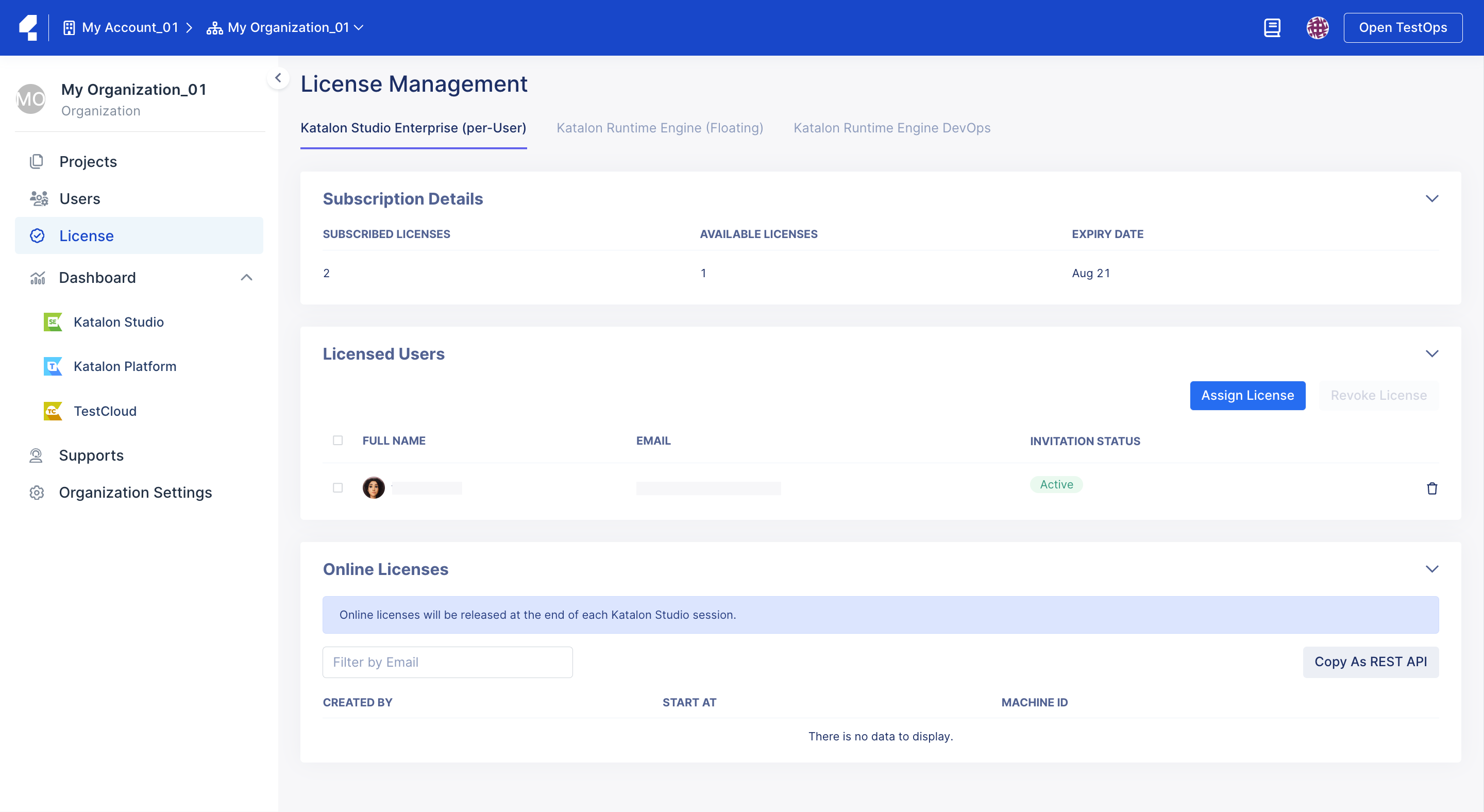
In the Subscription Details section, you can see the following information:
- Subscribed Licenses: the total number of licenses you have purchased, also known as your license quota.
Available Licenses: the remaining licenses you can use.
Note:- Licenses attributed online, as well as offline licenses you have generated, are subtracted from your license quota.
- Machine Quota: the maximum number of machines that can be registered with your licenses.
- Expiry Date: the date when your licenses expire.
In the Licensed Users section, you can add users for license usage. You can also view a list of users you have added for license usage.
In the Online Licenses section, you can see a list of active machine IDs (users who are currently using the licenses online).
In the Offline Licenses section, you can see a list of machine IDs bound to offline licenses.
In the Registered Machines section, you can see a list of all machine IDs that are using either types of licenses.
- Contact us at license@katalon.com if you need further help with your licenses.
Grant an online license to users
You must be the Owner or Admin of your Organization.
You have already added team members to your Organization. If you haven't yet, see: Transfer a license between users.
Follow these steps to grant an online KSE/Katalon Runtime Engine licenses:
- In the Licensed Users section, click on the Assign License button.
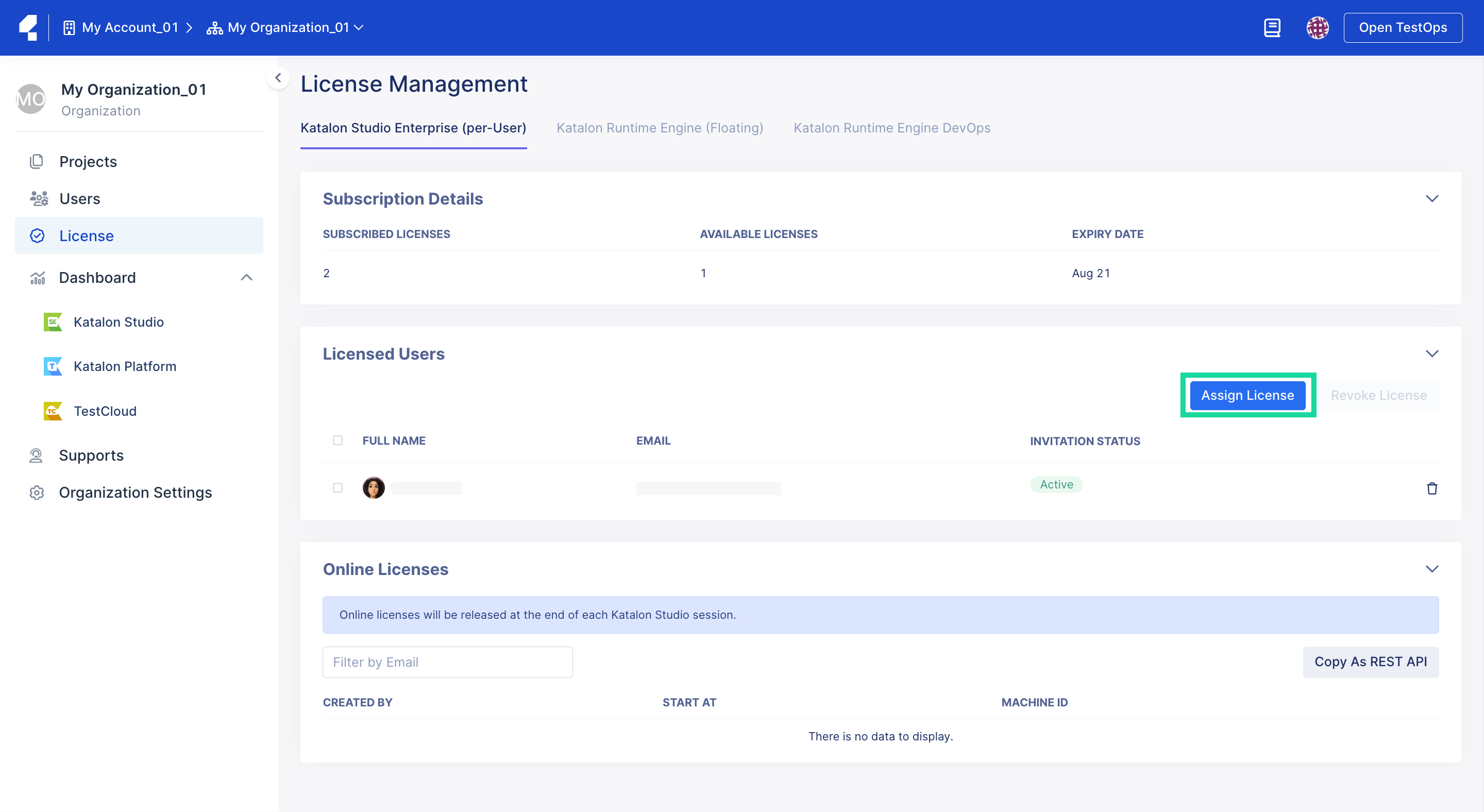
- The Assign License page appears as below.
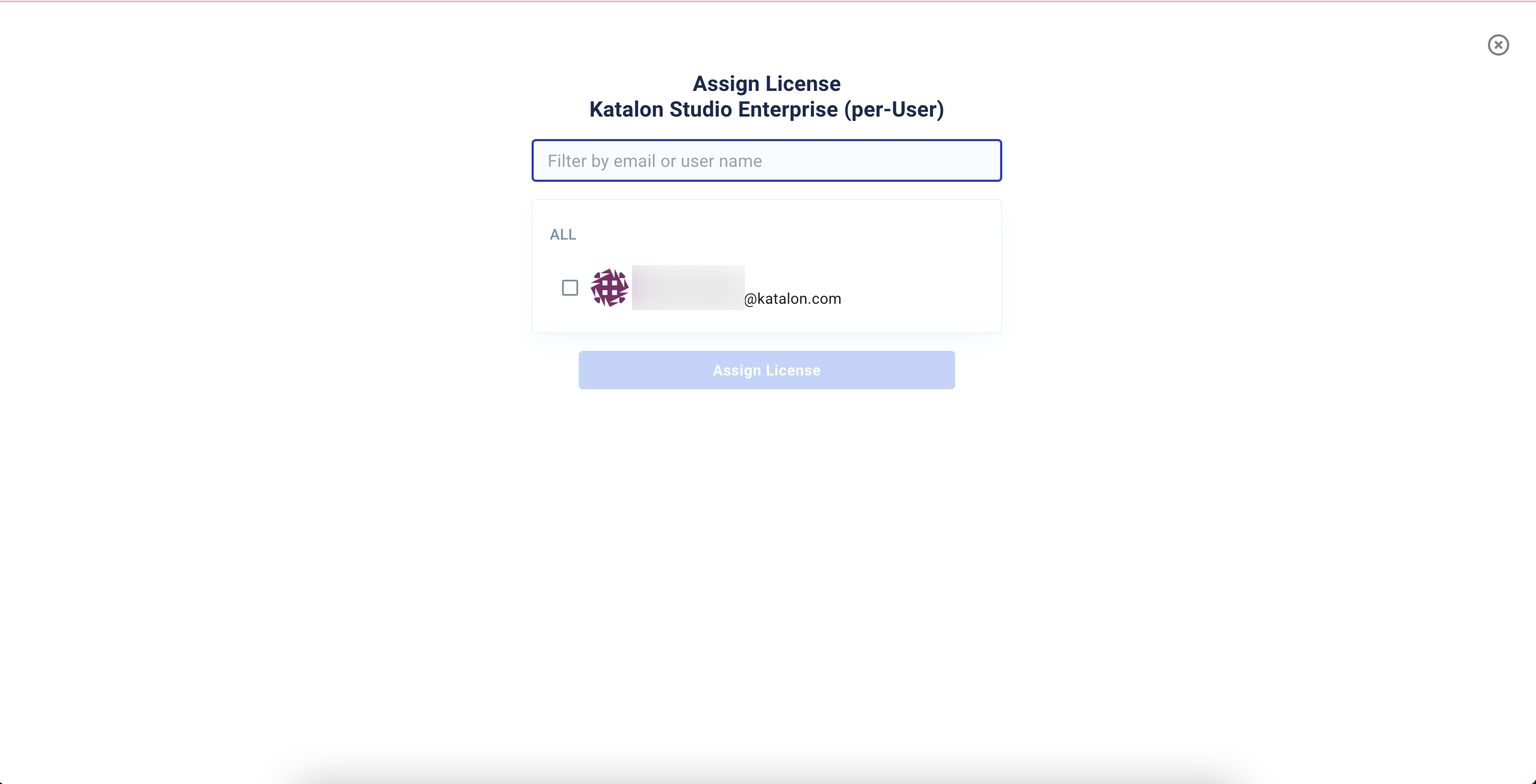
- The Assign License page appears as below.
Users must now activate their KSE and Katalon Runtime Engine licenses. You can refer them to this link for more information about the activation process: Activate licenses.
Remove the KSE license from assigned user
You can remove a license to revoke a user's access to certain paid features. This step is only applicable to Katalon Studio (KS).
This action removes a license associated with a machine ID. The removed license is then available to be reassigned. The user who previously used the license is converted to a free user.
- The Owner or Admin of an Organization needs to ensure all of their users have a KSE license to avoid mixed free Katalon Studio and KSE licenses within an Organization. For further information, refer to the Free Offerings term in Terms of Use.
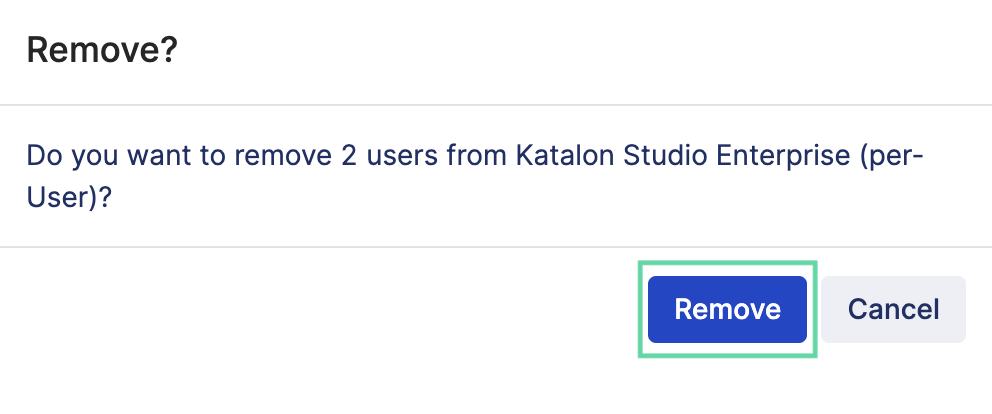
- By clicking Remove, you immediately terminate the current session that user is working on with their online licenses. Be cautious when exercising this step.
- Removing a Licensed User working with an offline license does not revoke the license.
To remove a Katalon Runtime Engine license, simply terminate the session currently using it. It will then be available for use again.
- In the Licenses Users section, select the checkbox next to the user whose KSE license you want to remove, then click Revoke License.
You can select multiple or all users.
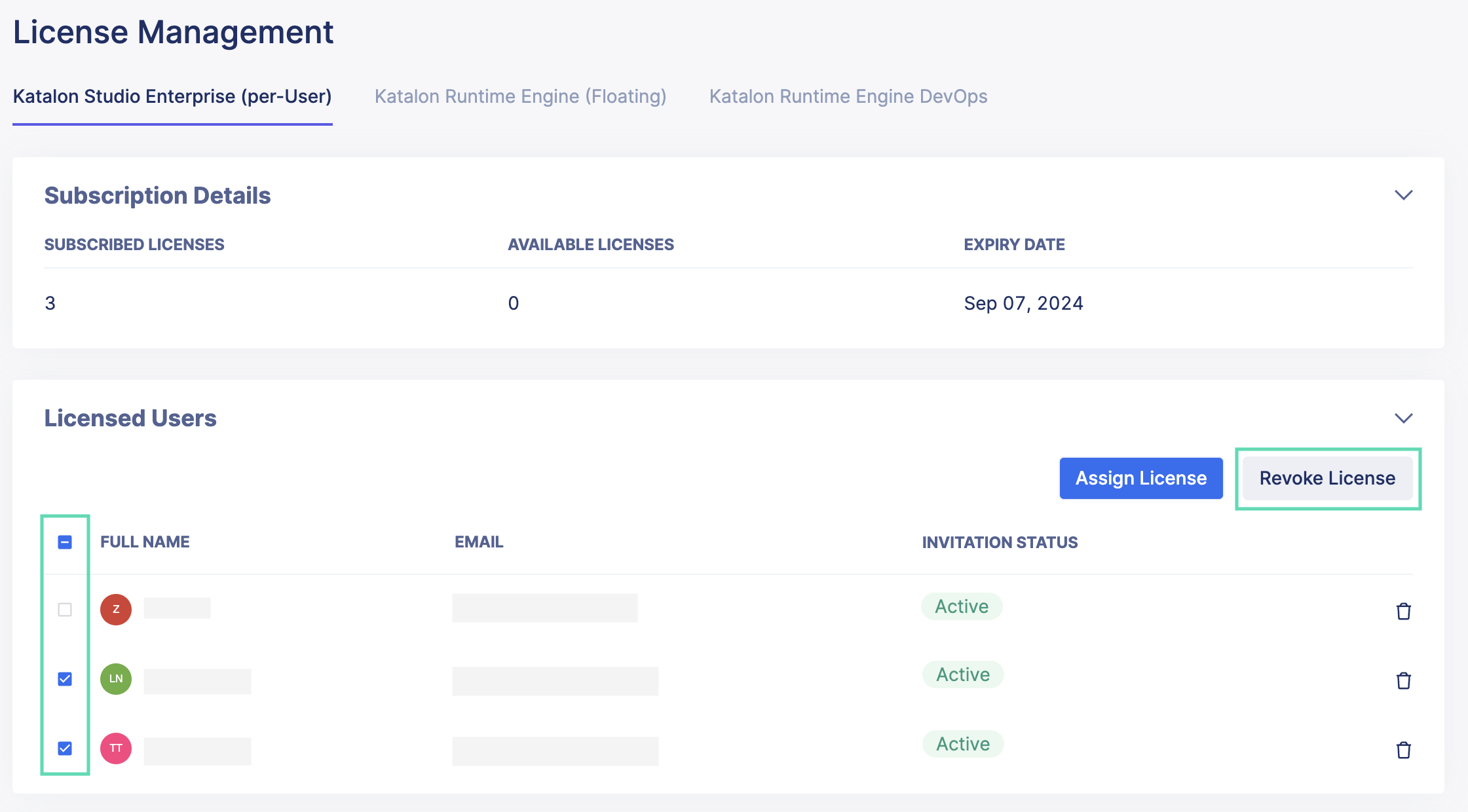
- A pop-up will ask you to confirm your action. Click Remove.
Transfer a license between users
Transferring licenses ensures an organization's users can pass licenses between each other as needed. Users without a license attributed to them can still have the privileges of a free plan.
To transfer a Katalon Runtime Engine license, simply terminate the session currently using it. It will then be available for use again.
- Removing a license from the user associated with it. For a more detailed explanation, see: Remove the Katalon Runtime Engine license from assigned users.
- Reassign the license by granting it again from the License Management page. For more details, see: Grant an online license to users.
To remove a Katalon Runtime Engine license, simply terminate the session currently using it. It will then be available for use again.
If you are encountering errors regarding your license usage, see this troubleshooting document: The number of the licenses cannot exceed the license quota.